 Nextra
Results and design
Model check: find what is unstable, and repair it
#Model check: find what is unstable, and repair it
When a structure can move without resistance (a mechanism), its analysis results are not reliable. Analyse → Analysis → Type: Model check is Nextra Design's Model check: it finds every mechanism, says how it moves and which members and nodes take part, and can work out what to add so the structure stands. It runs no analysis and uses none of your monthly analyses.
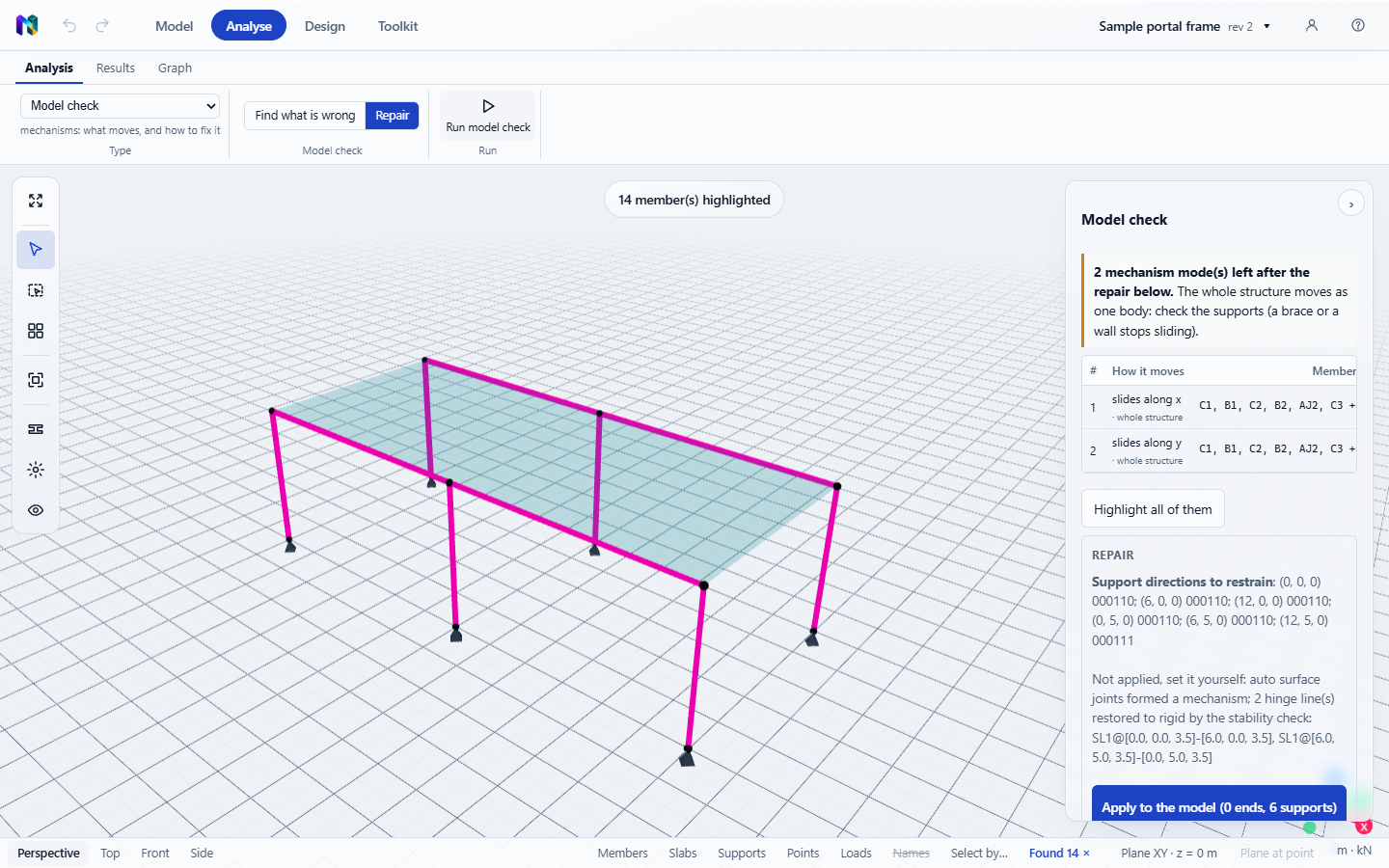
#Find what is wrong
- On Analyse → Analysis, set Type to Model check (in the ribbon).
- Choose Find what is wrong and press Run model check.
- The panel says No mechanism found or N mechanism mode(s). For each mode: how it moves (slides along x, turns about an axis along z through …), its members and the number of nodes. The whole structure moves as one body means the supports are missing a direction.
- A click on a mode highlights its members in the view; Highlight all of them shows every member in the check.
#Repair
Choose Repair and press Run model check. The check works out, in Nextra Design's order:
- Member ends to connect: released ends that leave a part free are made rigid (
fixed). - Support directions to restrain: directions with no stiffness get a support (a pinned support may become fixed there).
- Surface hinge lines that leave a part free are listed only: set them yourself.
Apply to the model (N ends, M supports) makes the changes as one change: Undo takes it back. The check then runs again (Find) so you see the result.
#Quick checks
Above the engine's check, the page lists what can be seen without any engine, as soon as you open it, each with Highlight and, where it is safe, a fix that is one change (Undo takes it back):
| Check | Fix |
|---|---|
| No supports at all | – (add supports on the Supports tab) |
| Members of zero length (both ends on one point) | Delete them |
| Duplicate members (the same two end points) | Delete the duplicates; the first of each stays |
| Free ends (no other member, slab or support there) | – (fine for a cantilever; otherwise an end that missed its joint) |
| A part with no support (not connected to the rest) | – |
| Members without a section or a material | – (Elements tab) |
| Loads on nothing (the member, slab or joint is gone) | Remove them |
#Good to know
- The check reads the saved model (projects save themselves); a sample that is not saved yet becomes a project first.
- A repair is a proposal: think about whether a rigid end or an extra support is what the real structure has. Often the better fix is a brace, a wall or a different release.
- Something to undo later? History… (the project name) goes back to any earlier revision, and the Trash keeps a deleted project for 30 days: together they are how a model is recovered.