Nextra
Start
Gestures: touch, mouse and trackpad
#Gestures: touch, mouse and trackpad
On a phone or tablet most work is done with the fingers: turn and zoom the view, select, undo and redo. This guide lists every gesture, how to change what a gesture does, and the mouse and trackpad equivalents.
#Touch gestures
| Gesture | What it does (default) | Can you change it? |
|---|---|---|
| One finger drag | turns or pans the view: the one-finger switch in the left bar, below Show (⟲ rotate / ✋ pan; when a brush is active in Supports, Loads, Elements or Design: paints instead) | yes, one tap |
| Two fingers | pan and pinch to zoom (when a brush is active: turn and zoom) | no |
| Tap | selects a point or a member; with a brush active: paints it | no |
| Double tap | frames the whole model | yes |
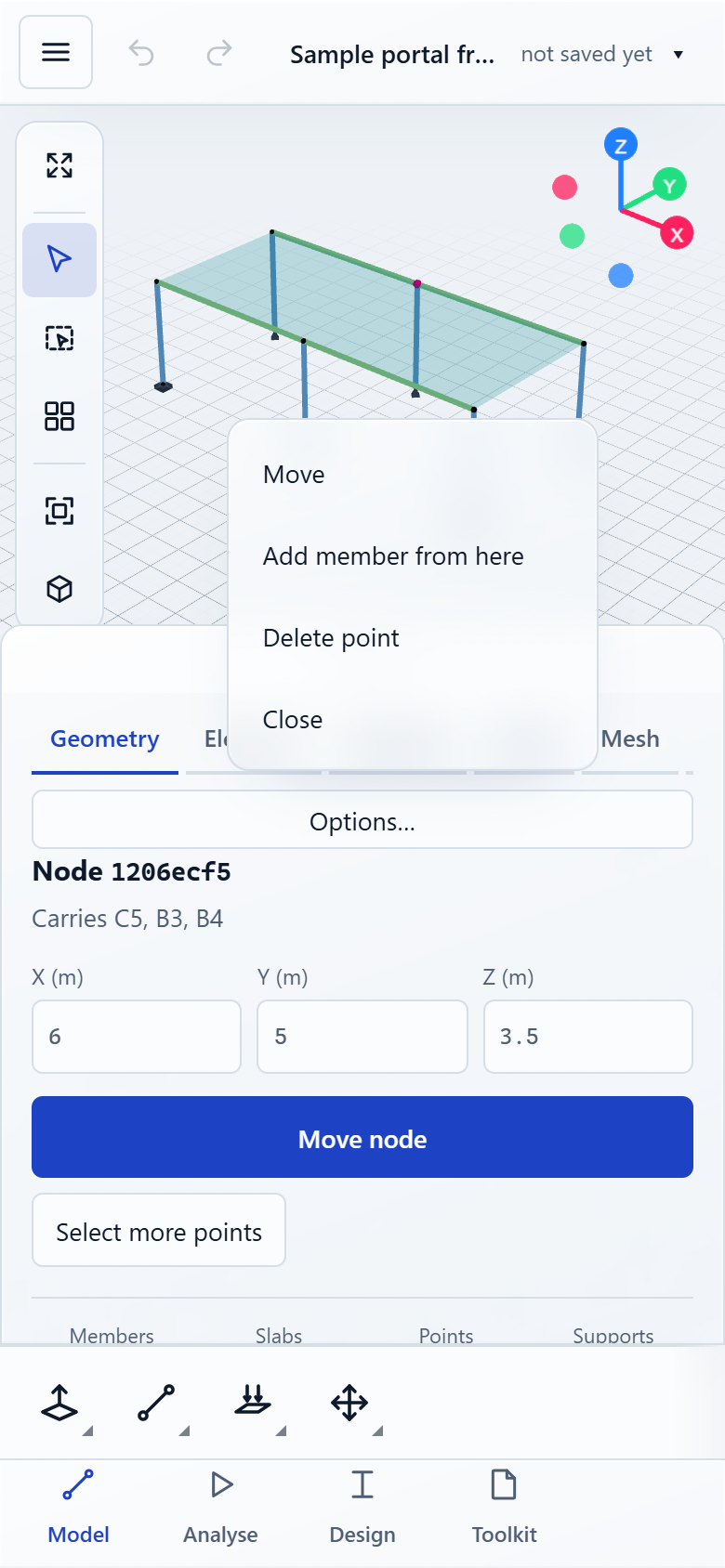
| Long press on a selected point | opens its options: Move, Add member from here, Delete point | yes |
| Two-finger tap | undo | yes |
| Three-finger tap | redo | yes |
| Three-finger swipe left | undo | yes |
| Three-finger swipe right | redo | yes |
| Second finger while dragging a point in Move | drops a copy instead of moving the point | no |
| Twist two fingers in Move, several points selected | rotates the selection about Z, in steps of 15° | no |
In the Supports, Loads, Elements and Design tabs one finger paints, so the view does not turn by accident. To look around while painting, use two fingers, or tap Select on the viewport bar: the brush rests and a tap selects. Pick a brush again to paint.
Long press with a brush (Supports, Elements, Design): a press held still for about half a second on a point or member picks its support or its attributes up into the brush instead of painting it (Assign properties).
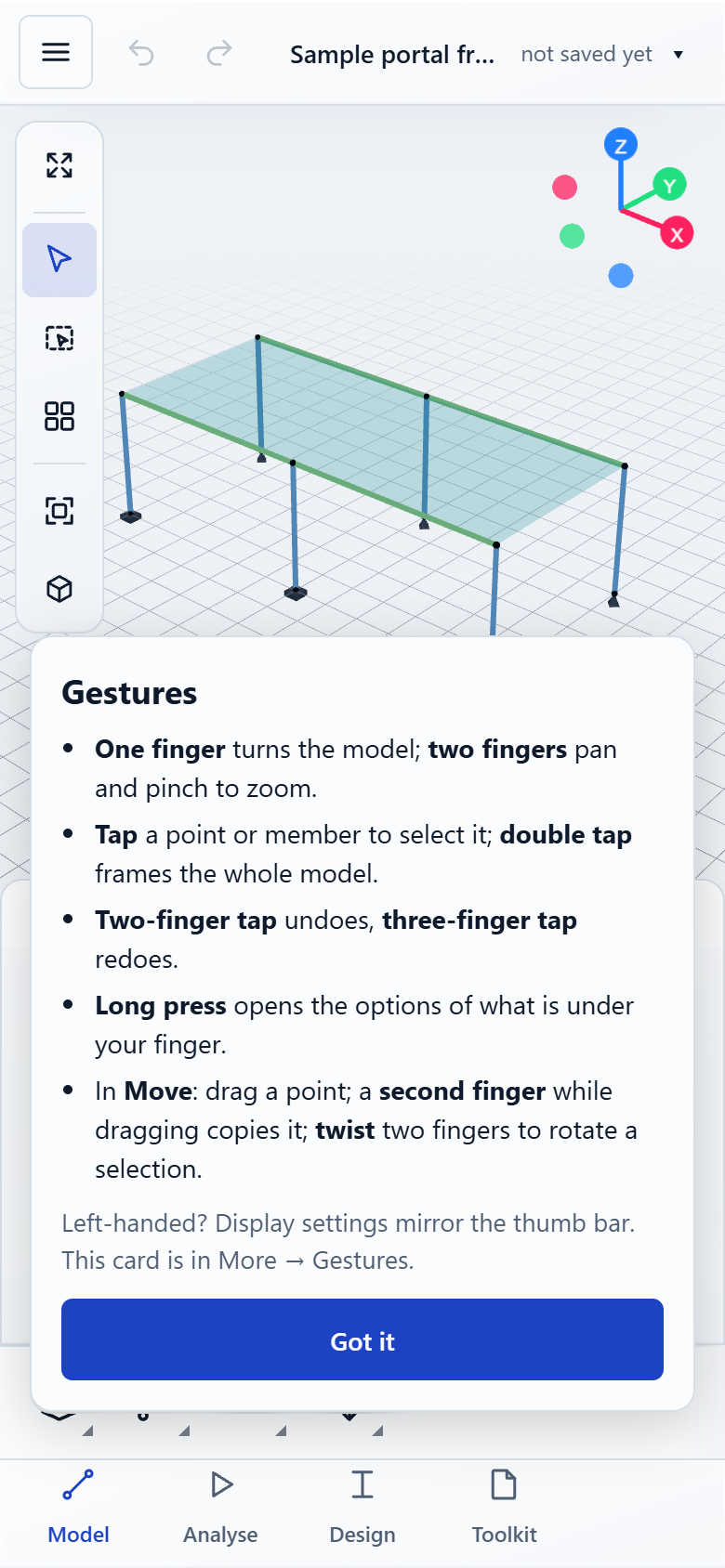
On a phone, the Gestures card shows the main gestures the first time you open the app. ≡ → Gestures shows it again.
#Choose what a gesture does
View → Display → Gestures (touch screens) (on a phone: ≡ → Display, then scroll to Gestures). For each of the six gestures choose an action:
- Undo, Redo
- Frame the model
- Next standard view (Iso → Top → Front → Side)
- Select all, Clear the selection
- Solid on / off
- Maximise the view
- Options menu (long press only)
- Nothing
Gestures back to the defaults puts the table above back. The choice is kept in your account, so it follows you to every phone and tablet you sign in on.
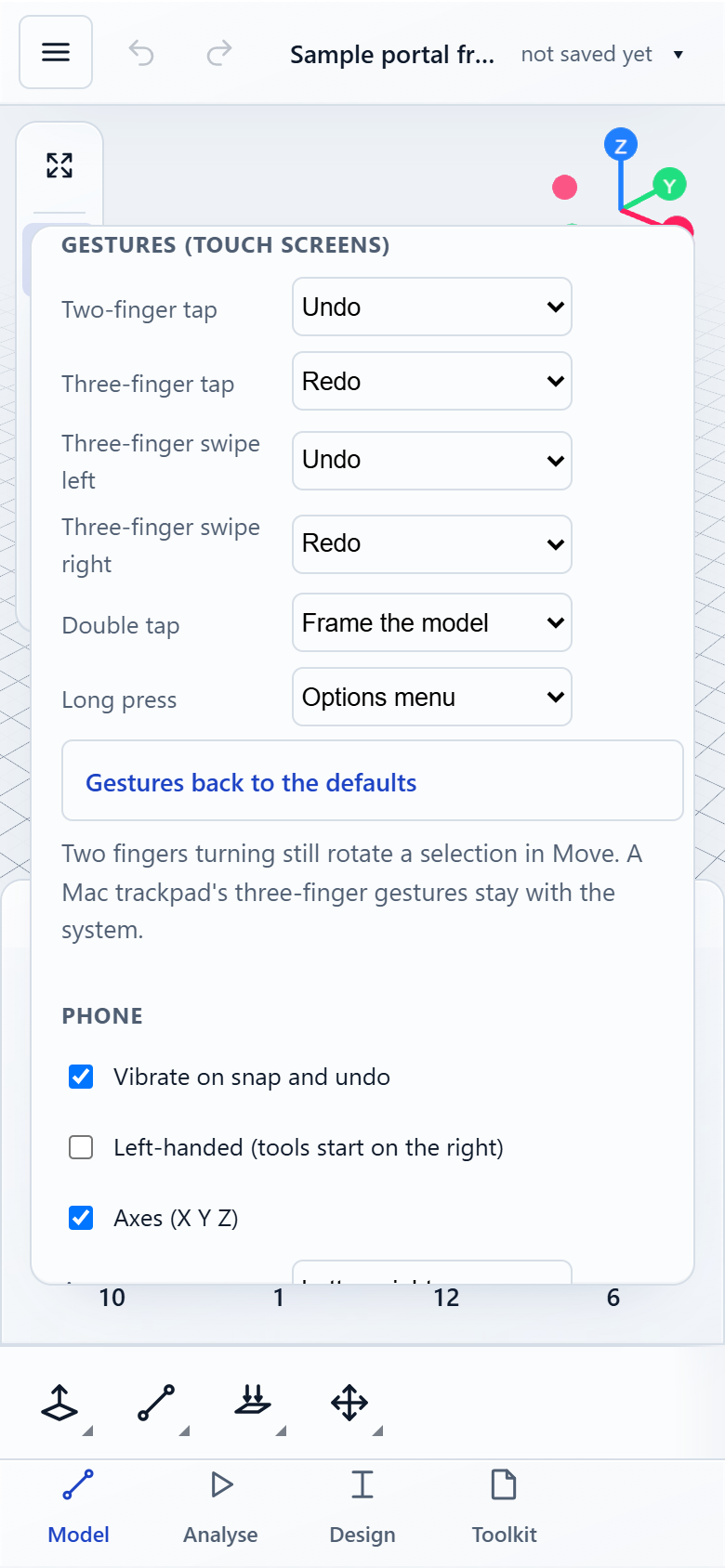
Two fingers turning in Move always rotate the selection; that gesture carries an angle and is not in the list.
#Mouse
As in Rhino: the right button moves the view, the left button selects.
| Mouse | What it does |
|---|---|
| right drag | turns the view |
| Shift + right drag, or middle drag | pans |
| wheel | zooms |
| click | selects a point or a member |
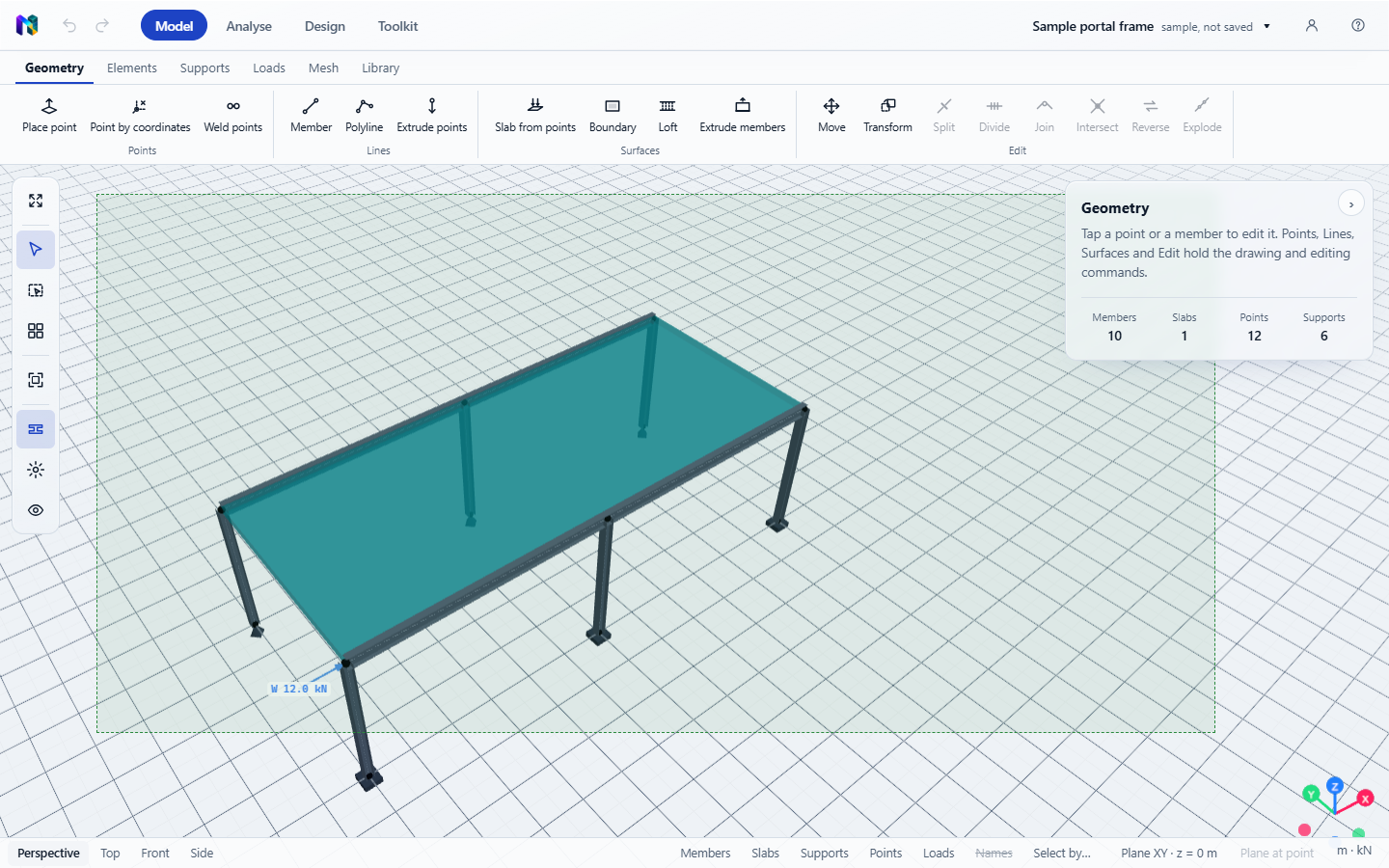
| left drag, left to right (solid blue box) | window: selects the members, slabs and points fully inside |
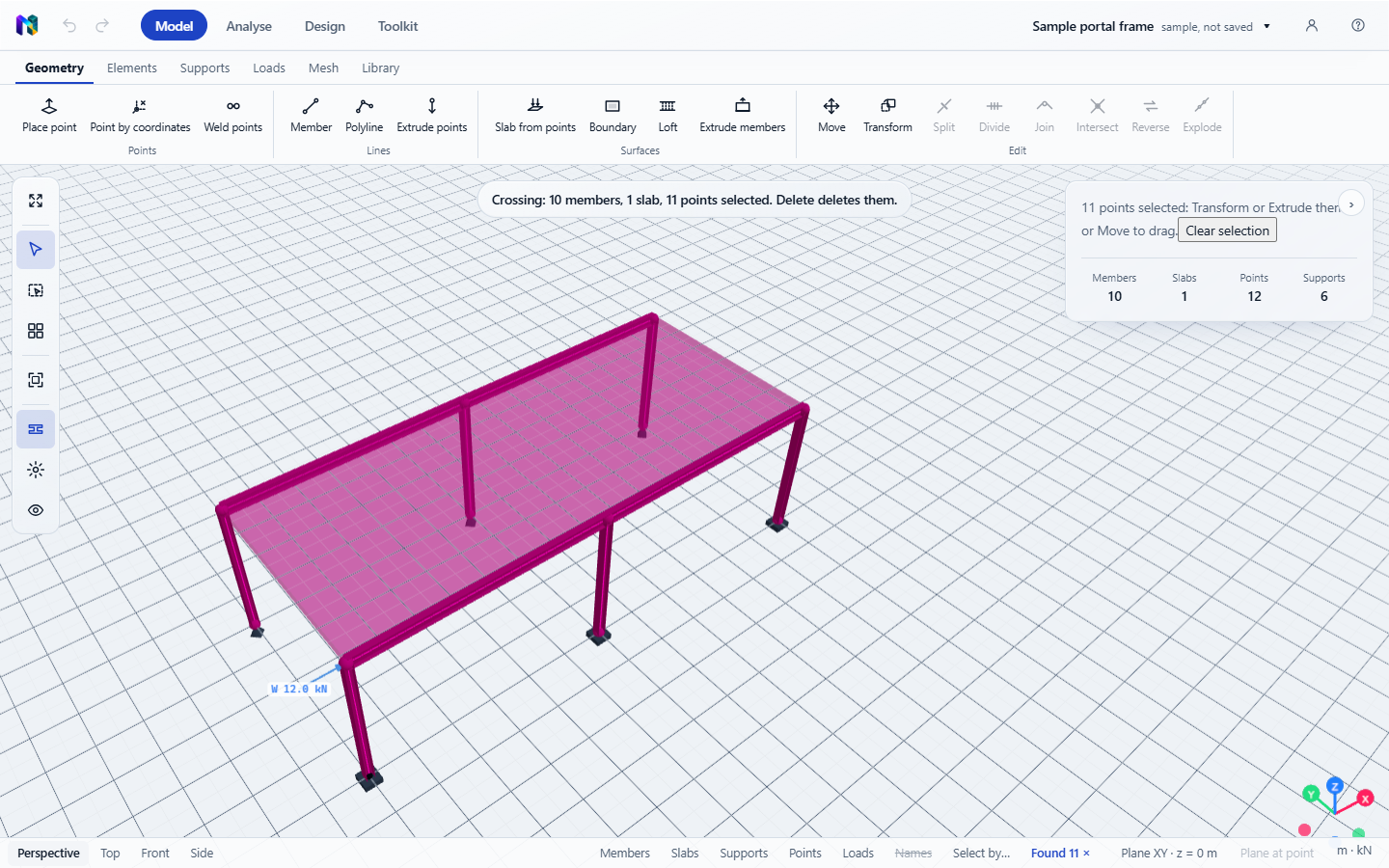
| left drag, right to left (dashed green box) | crossing: selects everything the box touches |
| Shift + box | adds to the selection; Ctrl + box removes from it |
| Delete (or Backspace) | deletes what is selected: members, slabs, and the selected points nothing else uses (with their supports and point loads); one Undo brings it all back |
| Esc | clears the selection |
| Shift + click | adds a point to the selection |
| Ctrl or Alt while dragging a point in Move | drops a copy instead of moving it |
| Ctrl+A | selects every point |
| Ctrl+Z, Ctrl+Shift+Z (⌘ on a Mac) | undo, redo |
With a brush active, the left button paints; the right button still turns the view.
#Trackpad
A laptop trackpad works like a mouse: a two-finger click and drag (the right button) turns the view, a click and drag draws a selection box, two-finger scroll or pinch zooms, Shift + two-finger click and drag pans. The trackpad's three- and four-finger gestures belong to the operating system (switching desktops, Mission Control) and never reach a web page, so the gesture table above applies to touch screens only. Use the keyboard for undo and redo.
Screens captured from the running app on a 390 × 844 phone.
#The phone: one view, big icons
A phone opens in the view: the model full screen, a strip on top (the load case, the view direction, Solid, the workplane, the view buttons) and a bar of big icons below. The bar starts with the mode (Model, Analysis, Design, Toolkit) and then that mode's tools; the dock above it holds the tab's tools; All tools opens every panel full screen and ✕ Back to the view returns (Find your way).
Move a point with one finger. With Tool: Move points, touch a point and drag it, or drag one of its bigger arrows to move along that axis only; it snaps to the step and to other points with a tick and shows the distance as you go. One Undo takes it back.
Clip: a point dragged with one finger
Draw a polyline. Tool → Draw a polyline, then tap points or the grid, or type them in the drawing bar (x, y, z, or
@dx, dy, dz from the last point) and Add; ✓ Finish ends it (Draw and edit).
Clip: a polyline from three typed points
See a member. Tool → Select, tap a member: its card fills the screen (section, material, length, ends, utilisation after a run, attributes) with Edit attributes, Move, copy, rotate, mirror…, Delete and Close.
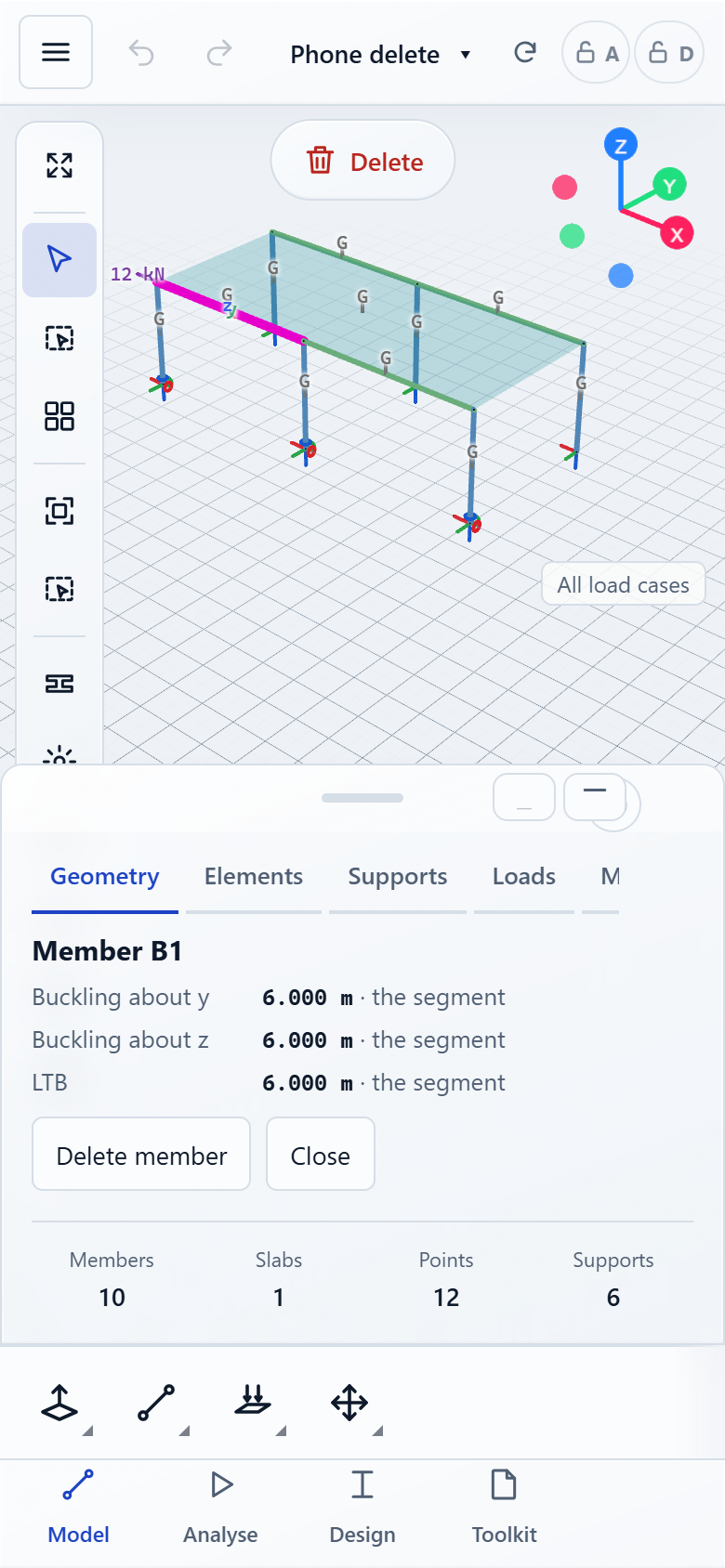
#Delete on a phone
A phone has no Delete key. In the view, Delete is in the bar (Model mode) and on a tapped element's card. Outside the view (All tools), when something is selected (a member, a slab, points, loads), a Delete button shows at the top of the view. One tap deletes the selection; Undo brings it back.