 Nextra
AI assistants
Connect an AI assistant
#Connect an AI assistant
Use nextra.structuralweb from ChatGPT, Claude, Gemini or any assistant that supports MCP connectors. The assistant works on your projects as you, with your limits. You can take a photo on your phone, ask the assistant to model and analyse it, and open the same project on your computer afterwards.
#Add the connector
| Assistant | Where | Address |
|---|---|---|
| Claude | Settings → Connectors → Add custom connector (or install the plugin from nextra-studio/structuralweb-connector, which adds a short guide) |
https://structuralweb.nextra.studio/mcp |
| ChatGPT | Settings → Apps / Connectors → Create | same |
| Gemini | add a remote MCP server in the Gemini app (connector only, no plugin) | same |
| Others (MCP) | the client's "remote MCP server" setting | same |
ChatGPT: turn on Developer mode to build models. ChatGPT uses a custom connector in an ordinary chat only for reading: there it can search your projects and the guides and fetch a project's summary. To create and change models, run analyses and read results, turn on Settings → Apps & Connectors → Advanced → Developer mode, then in a new chat press + → Developer mode and choose nextra.structuralweb. Without it, ChatGPT says it sees no tools even though the connector is connected.
#Sign in once
- The assistant opens a nextra.structuralweb page in your browser (ChatGPT and Claude open it in a small window or a new tab).
- If you are not signed in, you sign in with your Nextra account on nextra.studio (password, email link, or Google when it is offered) and come straight back to the same page. With an email link, open the link in the same browser: the page then continues in the tab the link opened; finish there, and the assistant is connected. You have 30 minutes.
- The page says which account you connect (Connecting as l•••@gmail.com) and asks: Allow
to use nextra.structuralweb? It lists what the assistant may do: read your projects and results, create and change models, run analyses. Wrong account? Sign out on nextra.studio and connect again.Verified: this is Claude (or ChatGPT): the page names an assistant only when the connection goes back to that assistant's own address (claude.ai, claude.com, chatgpt.com). Gemini shows as unverified until its address is confirmed.
An app on this computer: a desktop or command-line app (Claude Code, Gemini CLI) on your own computer.
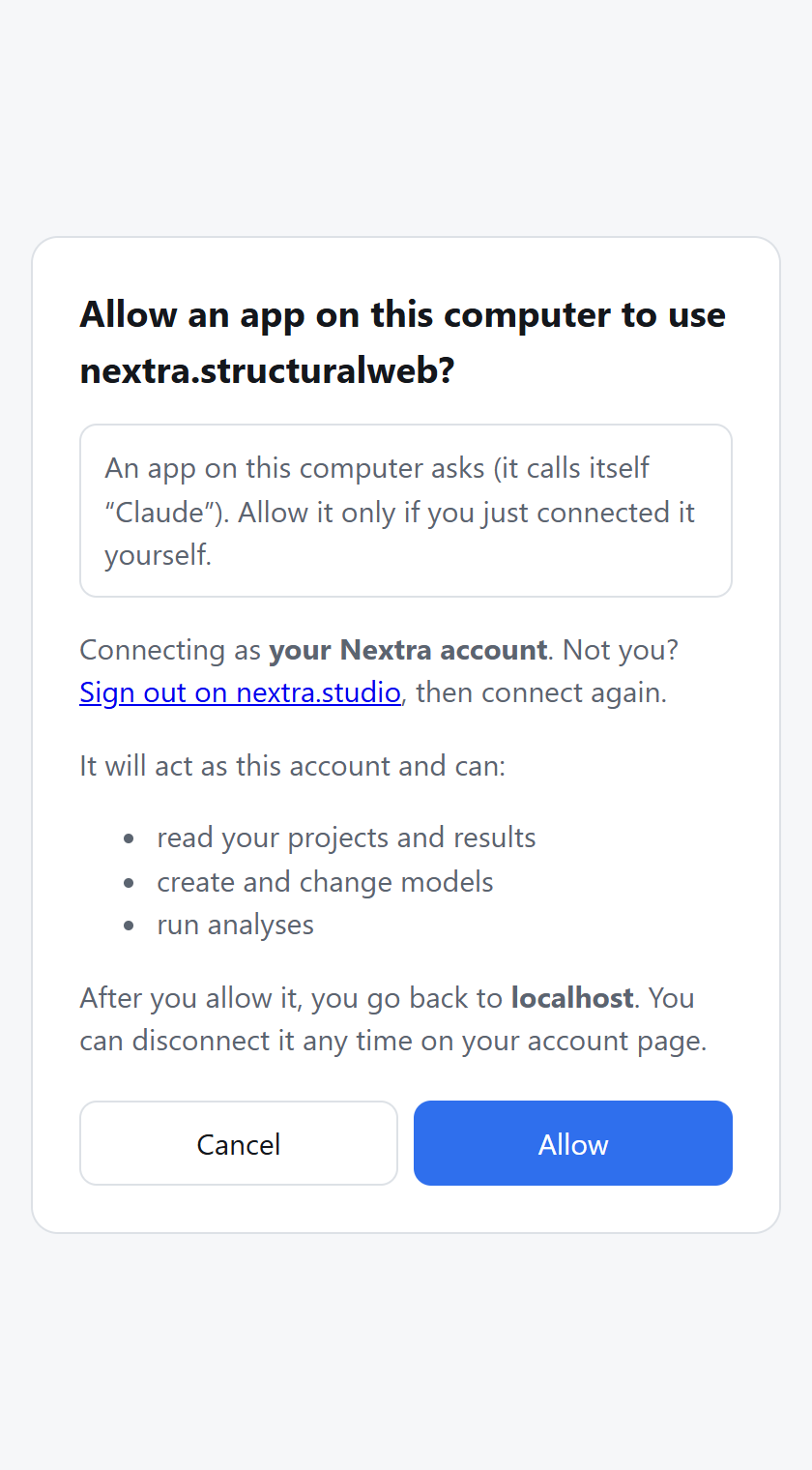
Unverified app (in red): any other connection. The page does not repeat the name the app gave itself, and says where your access would be sent (your access is sent to tools.example). Allow it only if you set up that connection yourself and expect that address. A link that someone sent you to such a page is a reason to choose Cancel.
- Choose Allow. You go back to the assistant, which is now connected.
That is the only time you sign in. The assistant stays connected: it renews its access by itself every hour (you see nothing of it), in every new conversation, for as long as you use it at least once every 90 days. It is asked to sign in again only after 90 days without use, or when you disconnect it.
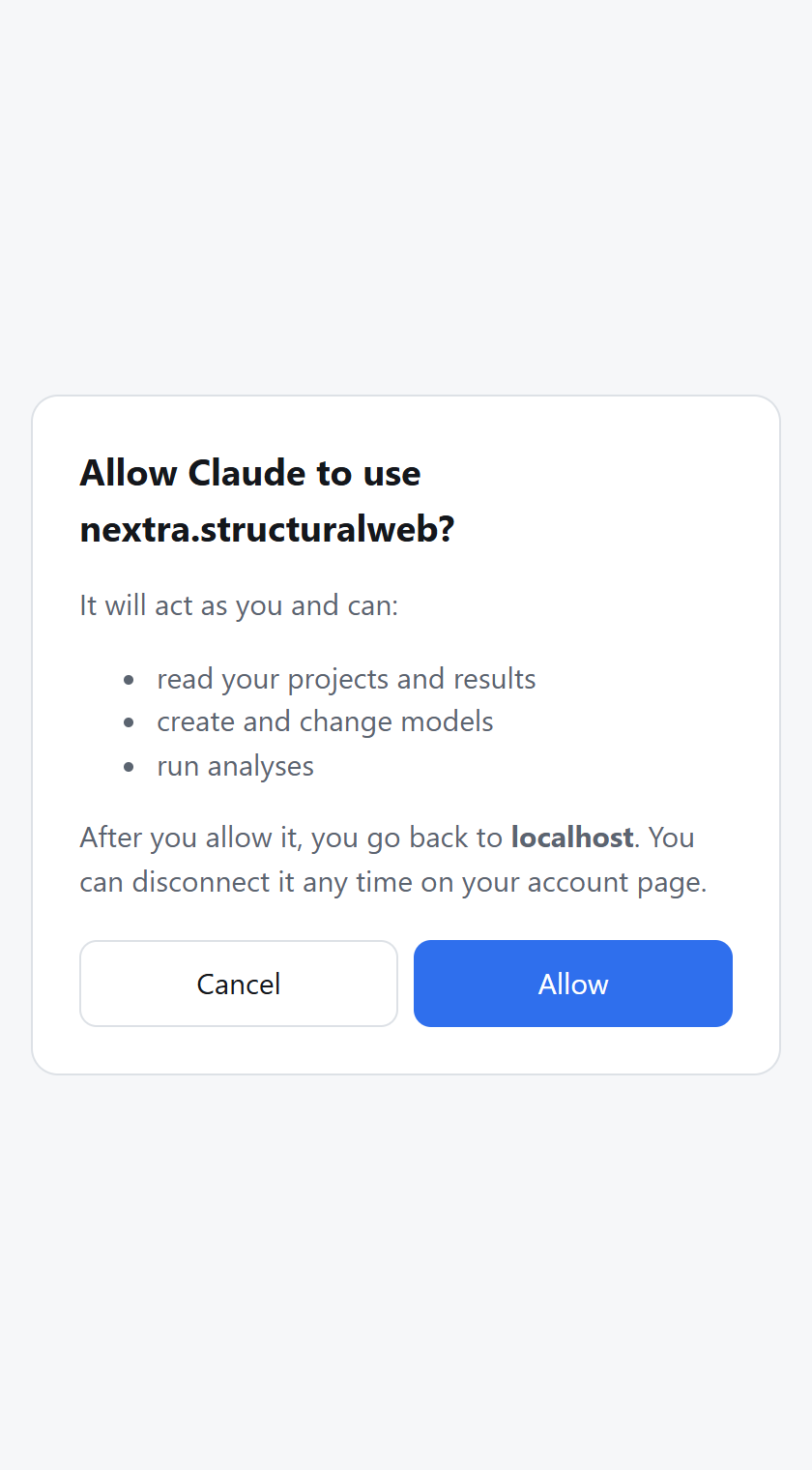
Admin accounts connect like any account (as an ordinary owner: no admin rights through the assistant). An admin account's own Nextra token is not accepted by the connector or the app; admins connect through this sign-in page.
#The project stays there
The connection remembers the project you work on. Once the assistant has created a project, or worked on one you named,
that project is the current project of this connection: in a new conversation you can say "add a beam" or "run the
analysis" without naming it, and the assistant continues on the same model. Its answers then start with the project it
used (project Office block (…, current)), and its list of projects marks it (current). Name another project and
that one becomes current. Only your own projects can be current; a project you move to the trash is not current any more.
If you connect a second assistant, it starts on the project you used last.
#What the assistant can and cannot do
- Every change it makes is a revision marked as made by an assistant; you can undo it in the app. If the project is open in the app, the change shows there within a few seconds (Updated by the assistant (rev N)), without reloading the page.
- It has the same limits as you (storage, projects, analyses a month) and its own rate limit.
- It never sees other people's projects, and Nextra staff never see yours.
#How the assistant checks its work (2026-11-18)
- A trial run asks the engine too. Before the assistant saves a change, the trial run (dry run) checks the load cases and combinations with the engine, so a load category the annex does not have is refused there with the reason, and nothing is saved.
- The summary says what it assumed: member ends left to the engine (auto), combinations on or off, the annex and consequence class, members on the design defaults, and beams drawn as separate segments (checked per segment until they are joined into one physical member).
- One answer to audit a run: equilibrium per load case, the governing combination, the reactions at each support, the governing members with the check, clause and buckling lengths used, and the deflection limits. Ask the assistant to "verify the results".
- Optimising is a proposal: you can keep beams identical, leave members out or give the sections to choose from; the answer says whether a new analysis passed with the proposal. Nothing changes until you agree.
- A stability repair is a hypothesis: it makes the model stable; the assistant says which connections it assumed rigid.
#Pictures in the chat
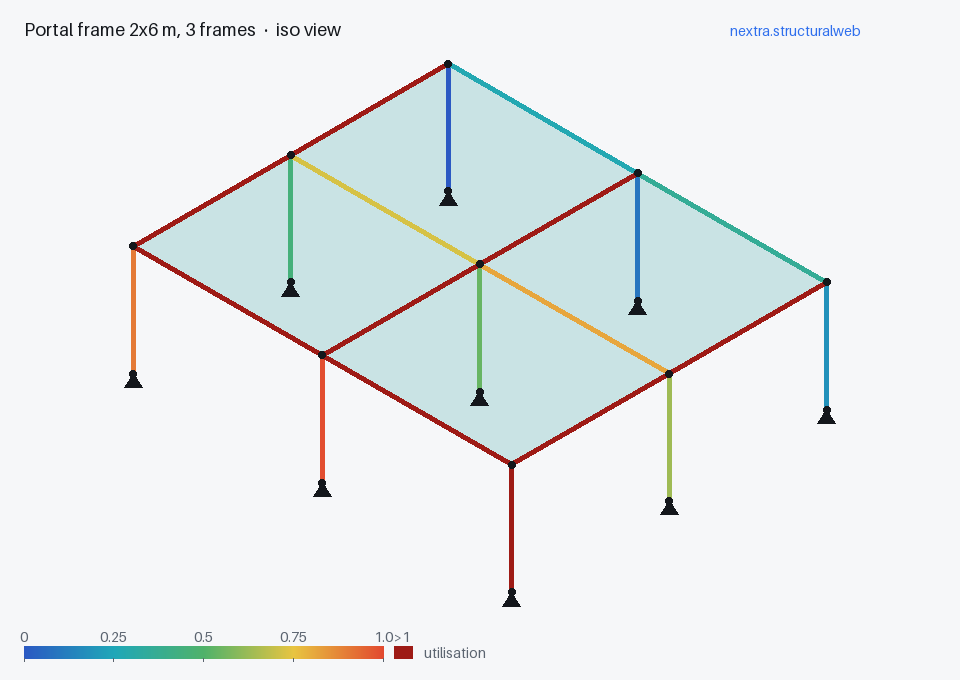
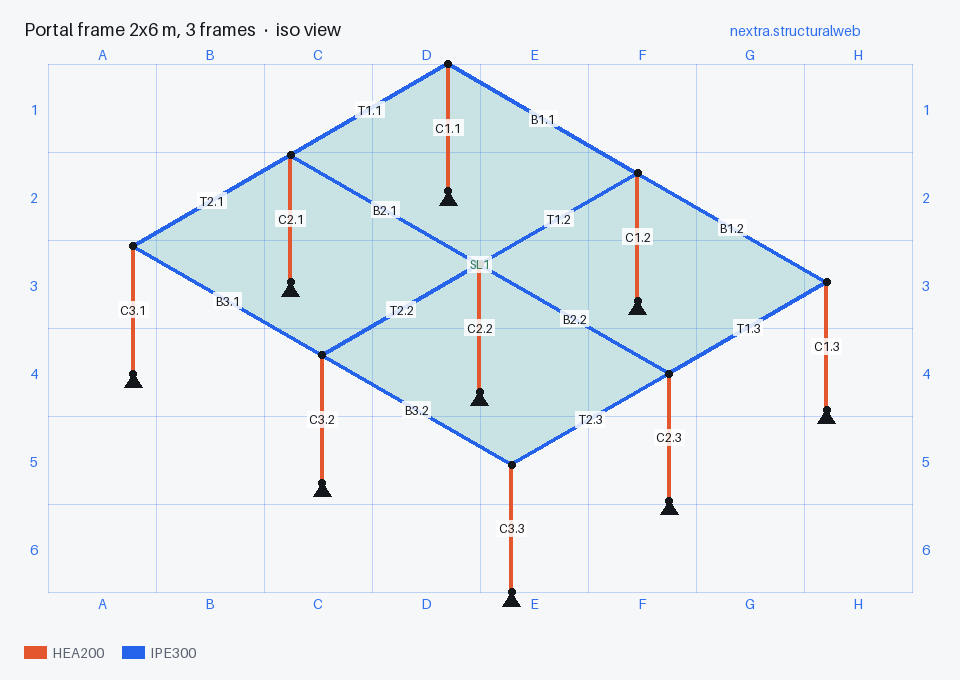
Ask the assistant to show the model: it can send a picture coloured by section, or after an analysis by utilisation on the same blue-to-red scale as the app (0 blue, 1.0 red, deep red above 1).
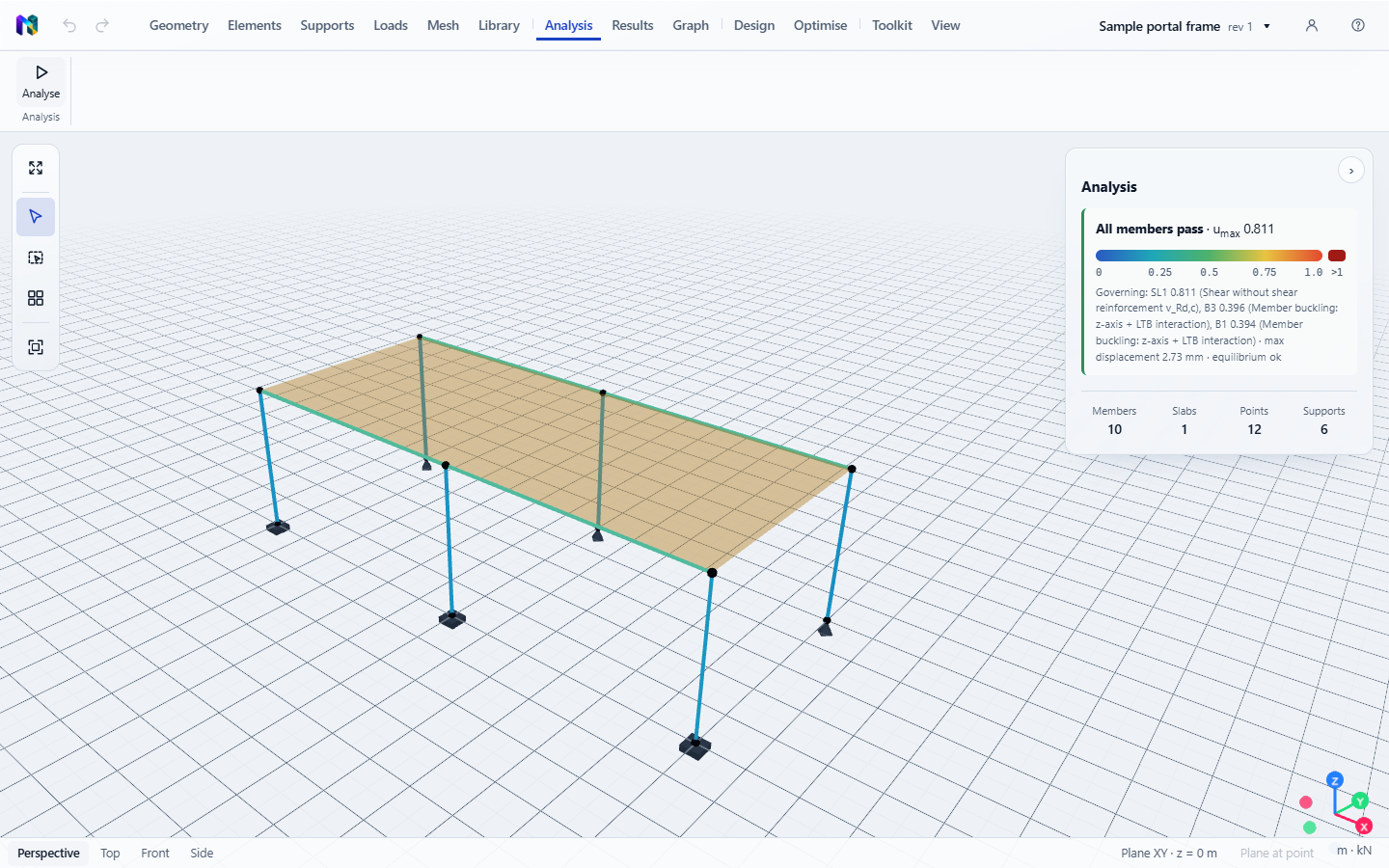
In the app the result card shows the same scale, and members and slabs take its colours:
Ask for the picture with a grid to talk about parts of it: the assistant gets cells A1… (letters left to right, numbers
top to bottom), the member ids on the drawing and a list of which objects are in which cell, so you can say "the beam in
C3" and it knows which one. It can also read the structure graph (structure_graph): how loads reach the supports,
what a member connects to, what is unsupported, without running an analysis. It reads it rough to detail, so a large model
does not fill the conversation: first a short overview, then one thing at a time (ask member, joint, list, load path…),
each answer about 350 tokens (The structure graph).
More it can do without the app open:
- Analysis only (
run_analysiswithdesign=false): forces and displacements, faster, no design checks. - Deflections as Nextra Design (
get_resultswithdeflection): instantaneous, creep, final, net final or additional, per member, in mm or as a share of the limit, with the parts they are made of (Deformation types). - Mesh check (
previewwithkindmesh): meshes the slabs and walls without a run and reports poor elements and rigid zones.
#Colours the assistant shows you
To explain something, the assistant can colour parts of the model: members, slabs, points and loads, in up to six groups, each with one colour and a few words ("blue carries the roof", "red is the load"). You see the colours in the picture it sends, and, if the project is open in the app, in the app too within a few seconds, with a legend of what each colour means. Nothing in the model changes: no revision, nothing to undo.
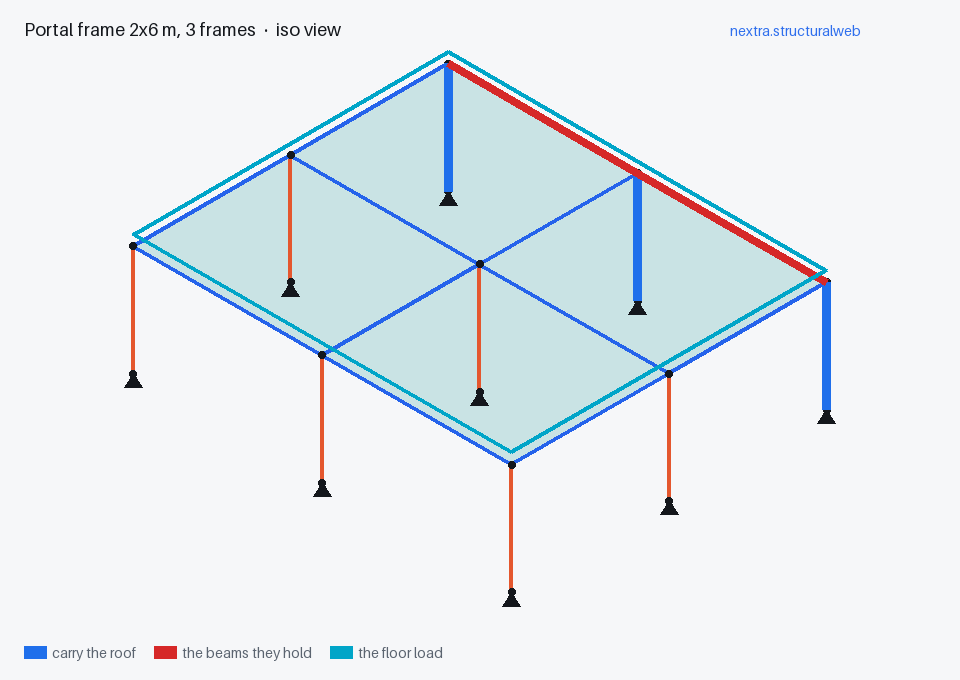
In the app they look the same as the in-app assistant's colours:
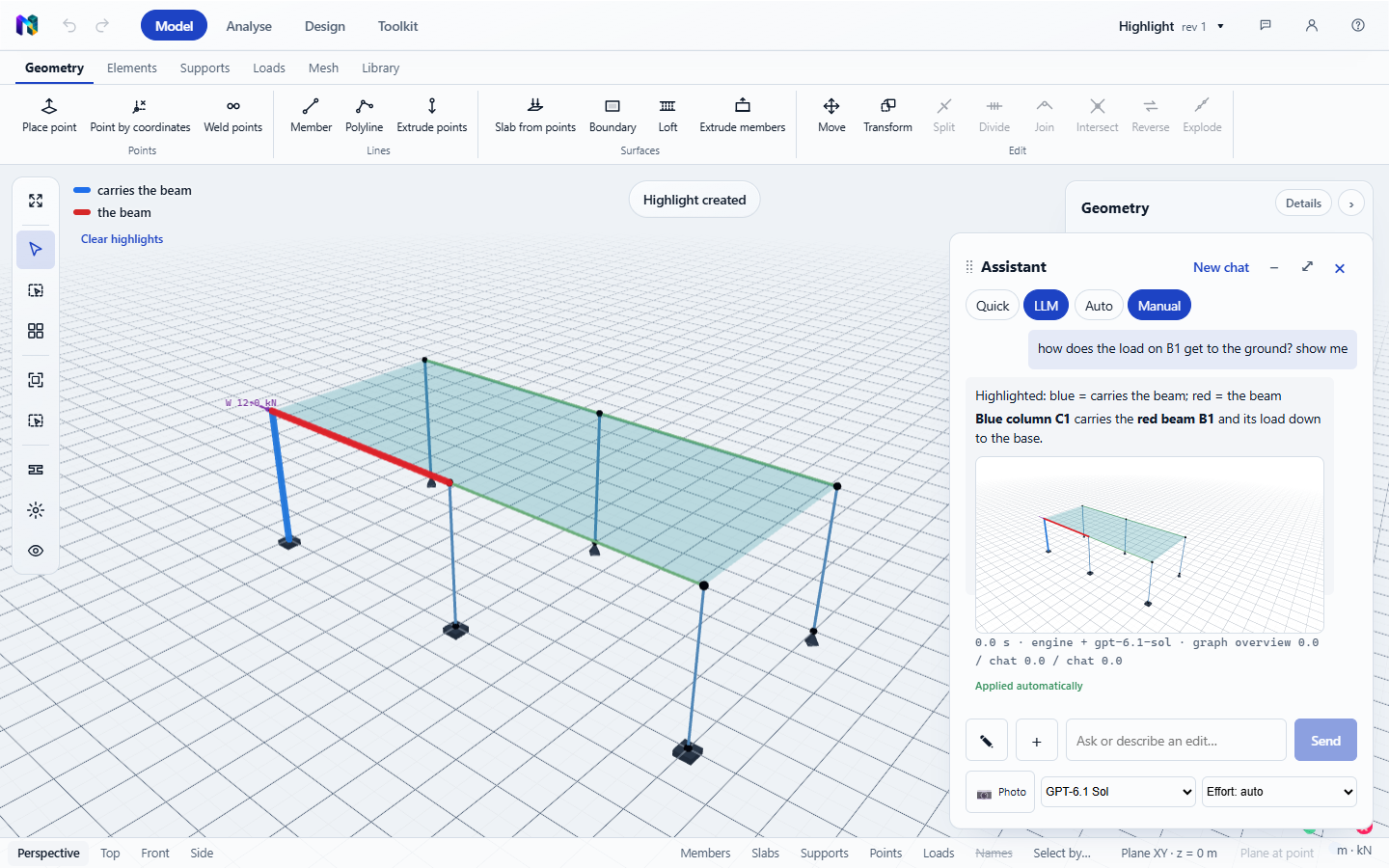
Colouring needs a connection allowed to create and change models: one allowed only to read gets pictures without colours.
Clear highlights under the legend removes them, in the app and for the assistant. Ask the assistant to clear them, or to add a colour to those already shown. Colours older than two hours are not shown again when you open the project later.
#See and disconnect your assistants
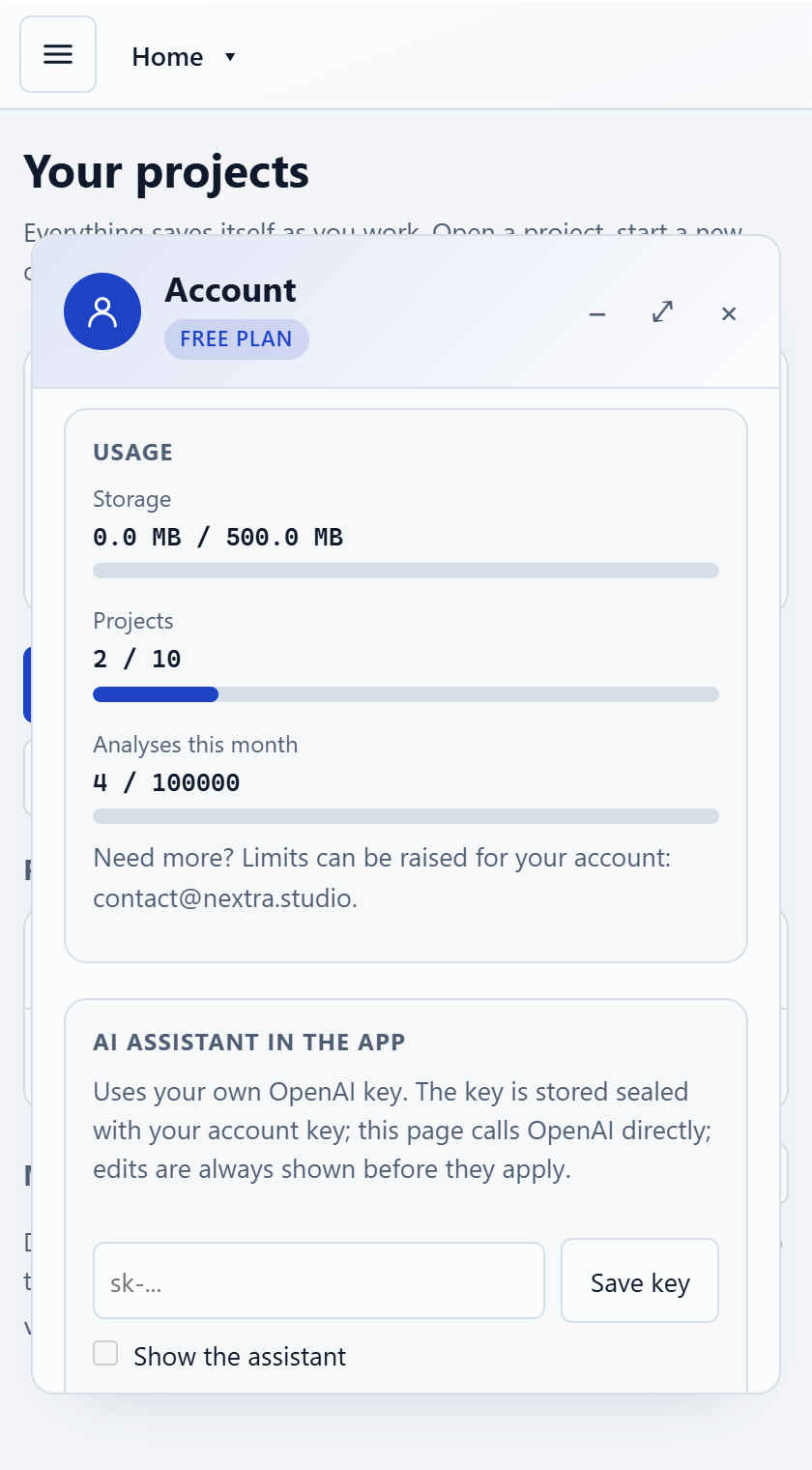
In the app: Account (the person icon at the top right; on a phone: ≡ → Account), under Connections and data.
It lists every assistant connected to your account: its name, the site it belongs to (for example claude.ai or
chatgpt.com; an assistant chooses its own name, the site tells you where it really comes from), when it connected and when
it was last active. Disconnect next to one ends that one at once; the others keep working. Disconnect all
assistants ends all of them; so does Sign out everywhere, and the button on
nextra.studio/structuralweb/account.
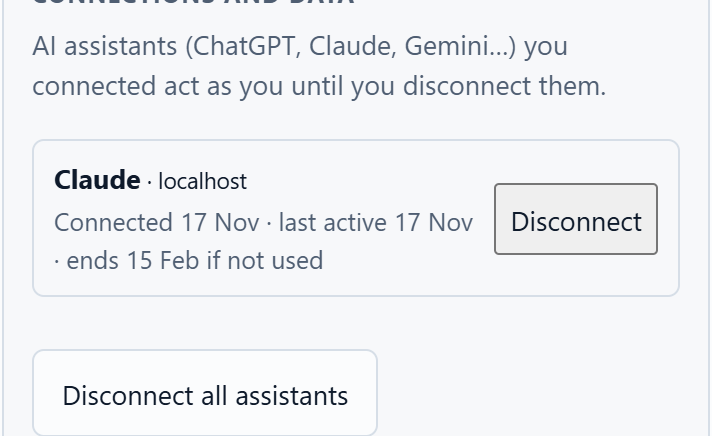
You can connect again any time. A connection also ends by itself after 90 days without use.
Screens captured from the running app (the list of connected assistants is not in the capture yet).