 Nextra
Files and export
Files and photos
#Files and photos
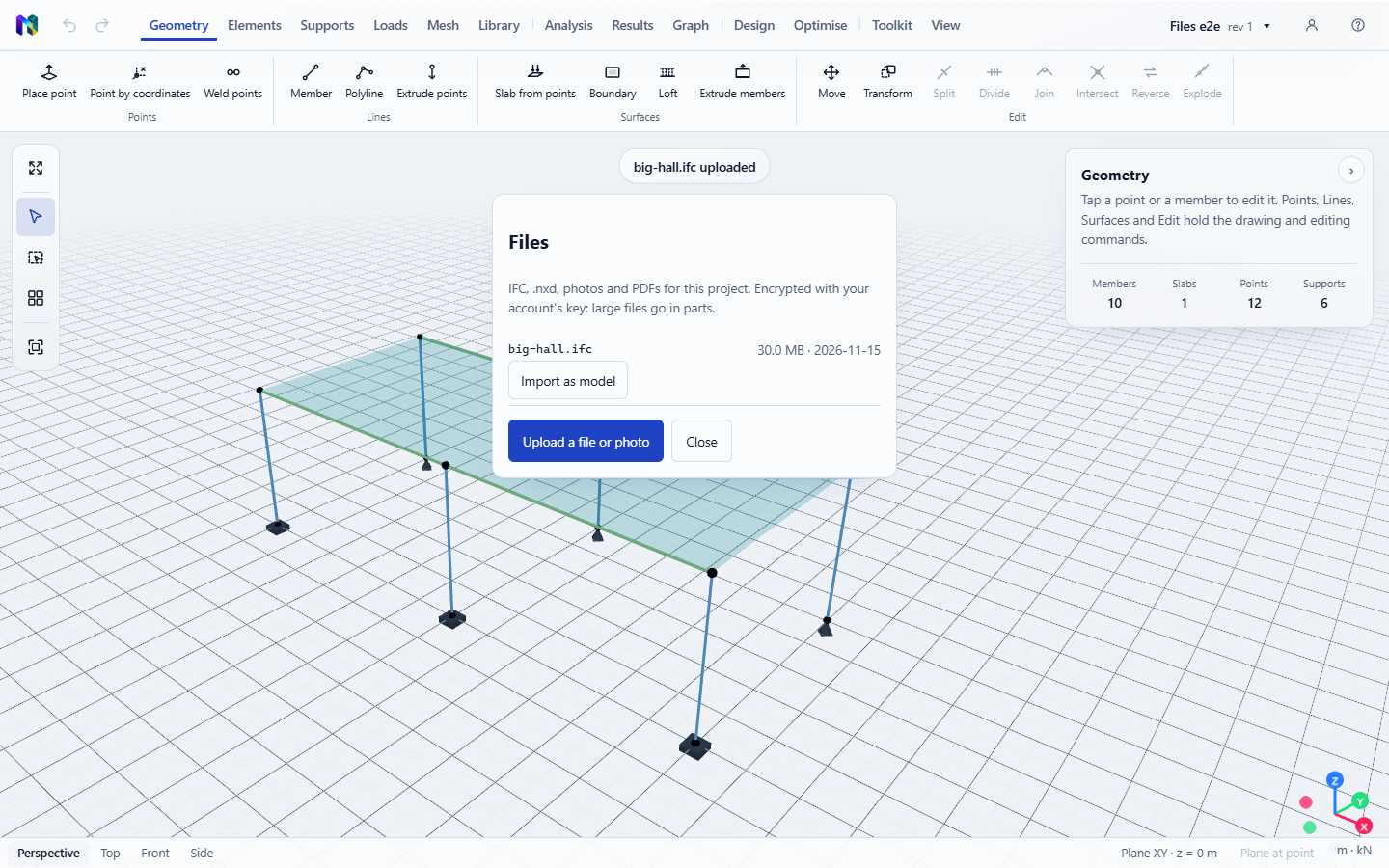
Each project has its own files: IFC models, .nxd models, Rhino .3dm files, photos (PNG, JPEG, WebP) and PDFs.
Open them with the project name at the top → Files… (the same on a phone). Projects save themselves, so there is
nothing to save first.
#Save as
The project name → Save as… saves a copy of the open model as a new project under the name you give and opens the copy; the original stays in Home. The copy starts its own history.
#My files
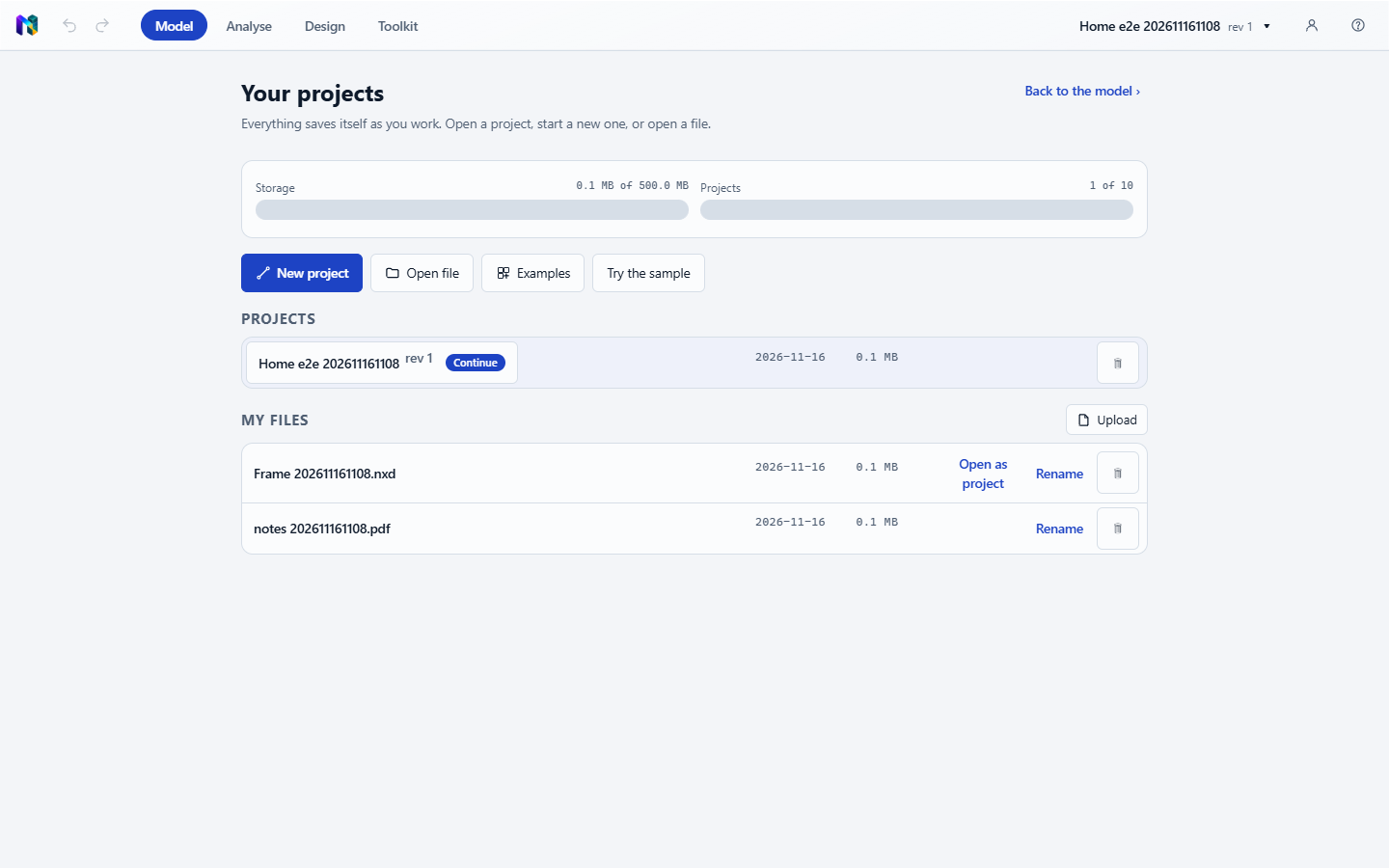
Files you keep with your account, outside any project, are under My files on Home (the project name → Projects…):
- Upload adds PDFs, images, IFC,
.nxdand.3dmfiles; they count toward your storage (500 MB on the free plan; the bar at the top of Home shows how much is used). - A click on a name downloads it.
- Open as project turns an
.nxdor an.ifcinto a new project named after the file (the file stays in My files). - Rename: folders are part of the name, for example
Reports/site visit.pdf. - The bin deletes the file and frees its storage at once.
Nobody else can see, download, rename or delete your files (checked by tests on every change).
#Upload
Choose Upload a file or photo. On a phone you can take a photo directly. A bar shows the progress.
- Every file is checked before it is kept: its size, its SHA-256 (so nothing changed on the way) and that it really is what its name says (a renamed program is refused).
- Files are encrypted with a key that belongs to your account. Nextra staff cannot open them.
- Large files go up in parts of 8 MB; a dropped connection retries the part, and an interrupted upload is cancelled without using any of your storage.
- Files count against your storage limit (see Account: the person icon at the top right; on a phone ≡ → Account).
#Open a Rhino model (.3dm)
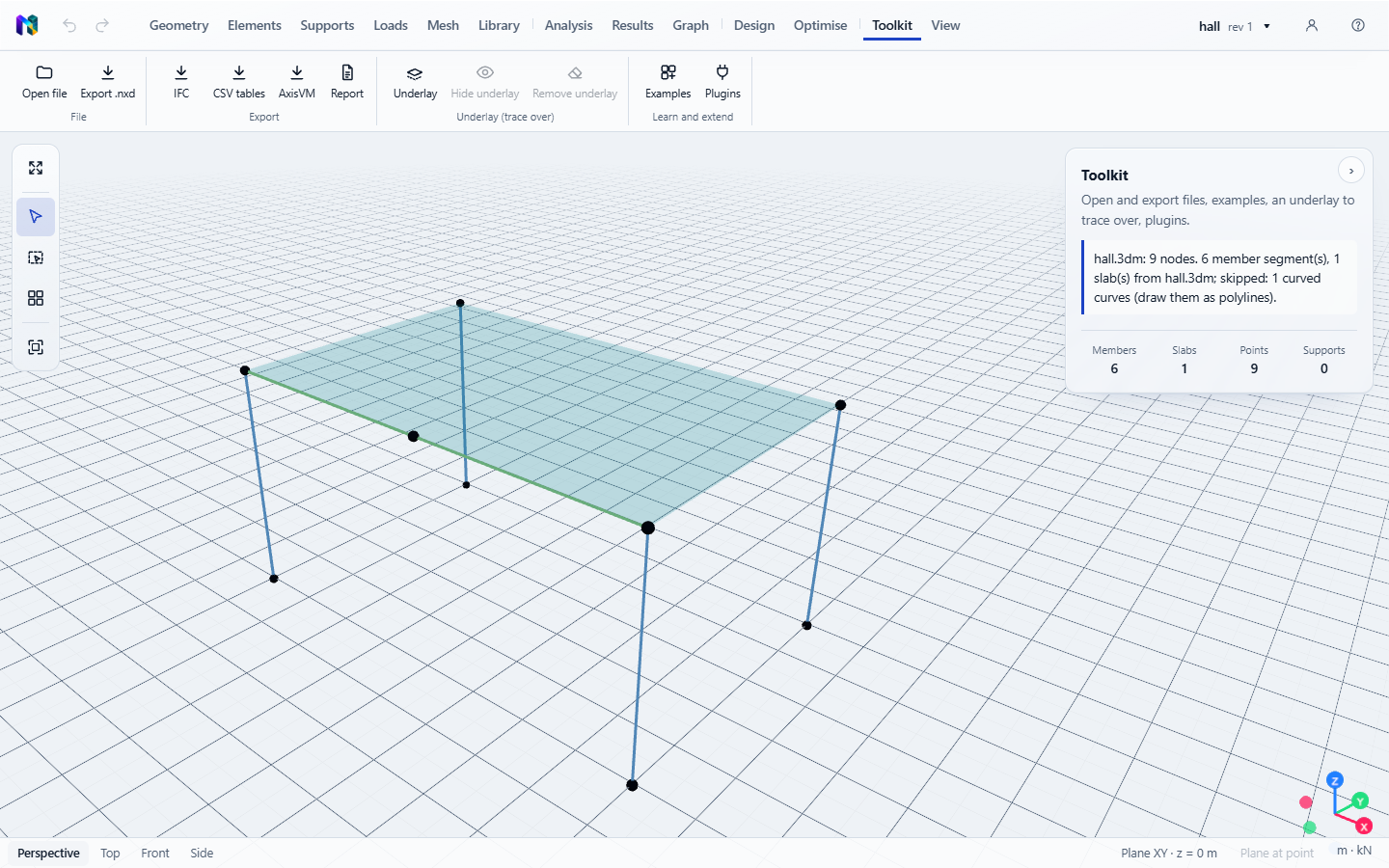
Toolkit → Open file reads Rhino .3dm files directly in the browser:
- lines and polylines become members; a polyline stays one physical member (buckling over its whole length), as in Nextra Design;
- flat four-sided surfaces become slabs;
- Nextra Design user text on the objects is used:
Nx_Section,Nx_Material,Nx_Thickness(mm); the object name becomes the id; - anything else (curved curves, meshes, points) is listed as skipped, not guessed. Curved surfaces and meshes come in with Toolkit › File › Import curved surfaces… (Import curved surfaces).
#Open a DXF or OBJ
- DXF (AutoCAD, saved as ASCII):
LINE,LWPOLYLINE, 3DPOLYLINEand3DFACE. Polylines become one physical member, flat 3D faces become slabs; other entities (circles, text, blocks) are listed as skipped. Units are taken as metres. Layers named after a section give that section: lines on a layerHEA200,IPE 300orS-COLUMNS_HEB240come in as HEA200, IPE300, HEB240 (any name from the Nextra Design library). The import message lists which layers were used and which had no section name. - OBJ:
lrecords become members (one physical member each), flatfrecords become slabs; Z is up, as Rhino writes it. A file with hundreds of faces is a render mesh, not a structural model, and is refused with that reason.
Other sections and all materials come in as defaults; set them in Elements afterwards (Assign properties). An opened file becomes a new project by itself.
#Trace over a reference (underlay)
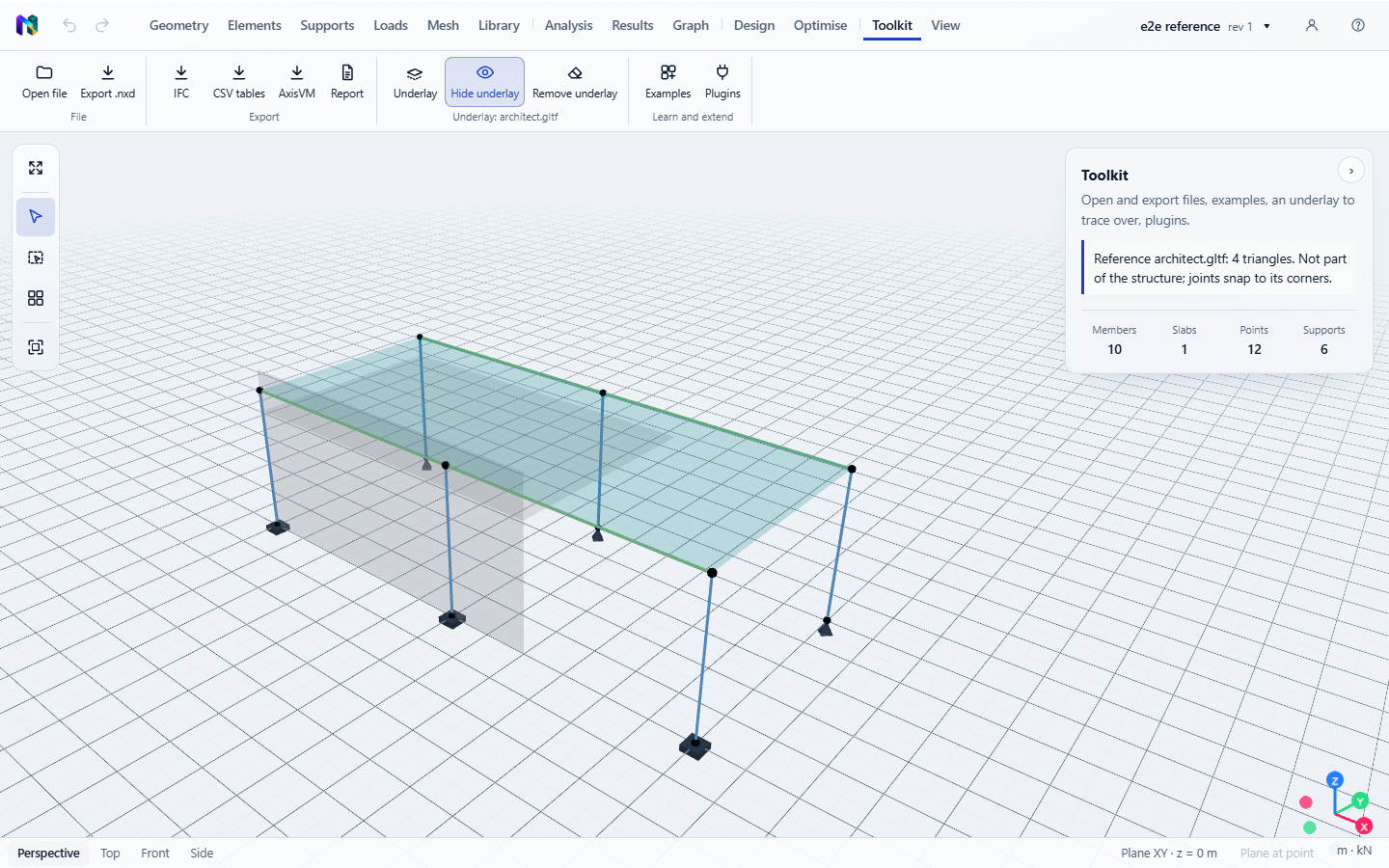
Toolkit → Underlay (on a phone: Toolkit in the bottom bar, the Underlay (trace over) button, then Underlay) shows an architect's model or a drawing under your structure: glTF / GLB (most 3D programs export it; Y-up is turned Z-up), STL or PLY (binary or ASCII), OBJ or DXF. It is drawn grey and see-through.
Units and axes for STL and PLY: read as metres and Z up, as they are, not rotated (Rhino and most CAD programs export them that way; unlike glTF / GLB, which is turned from Y up to Z up). Export in metres, or scale before export.
Up to 400,000 triangles are drawn (the notice says when a larger file is cut off); files up to 150 MB. A PLY with only points (a scan without faces) draws nothing but gives its points as snap corners. PLY faces with more than four corners are skipped (triangulate before export).
It is not part of the structure: nothing is analysed, saved or exported from it, and it stays only in this browser tab.
Place point puts a point on its corner when you tap near one (within about a finger's width), and dragged points snap to its corners, so you can trace columns and beams over it.
Hide underlay / Show underlay and Remove underlay are next to it. Textures are not loaded; a glTF that points to separate files needs exporting as one
.glb.
#Open a table (CSV, or paste from Excel)
Toolkit → Open file also reads tables (.csv, .tsv, .txt): one row per member with the columns x1 y1 z1 x2 y2 z2 and optionally
id, section and material; a row with a fix value (six 0/1 digits, ux uy uz rx ry rz) and x1 y1 z1 is a support.
Commas, semicolons or tabs work, and decimal commas too, so a block copied from Excel and saved as text opens as it is.
Ends at the same place become shared points. Rows that cannot be read are listed, not guessed.
id;x1;y1;z1;x2;y2;z2;section;material;fix
C1;0;0;0;0;0;4;HEA240;S355;
B1;0;0;4;8;0;4;IPE400;S355;
;0;0;0;;;;;;111111
#Import an IFC model
Import as model next to an IFC file turns it into the project's model, as a new revision you can undo: analysis models are taken over as they are; physical models become centre lines and flat panels, marked for checking. The import report lists what to check (supports, profiles, unknown material grades).
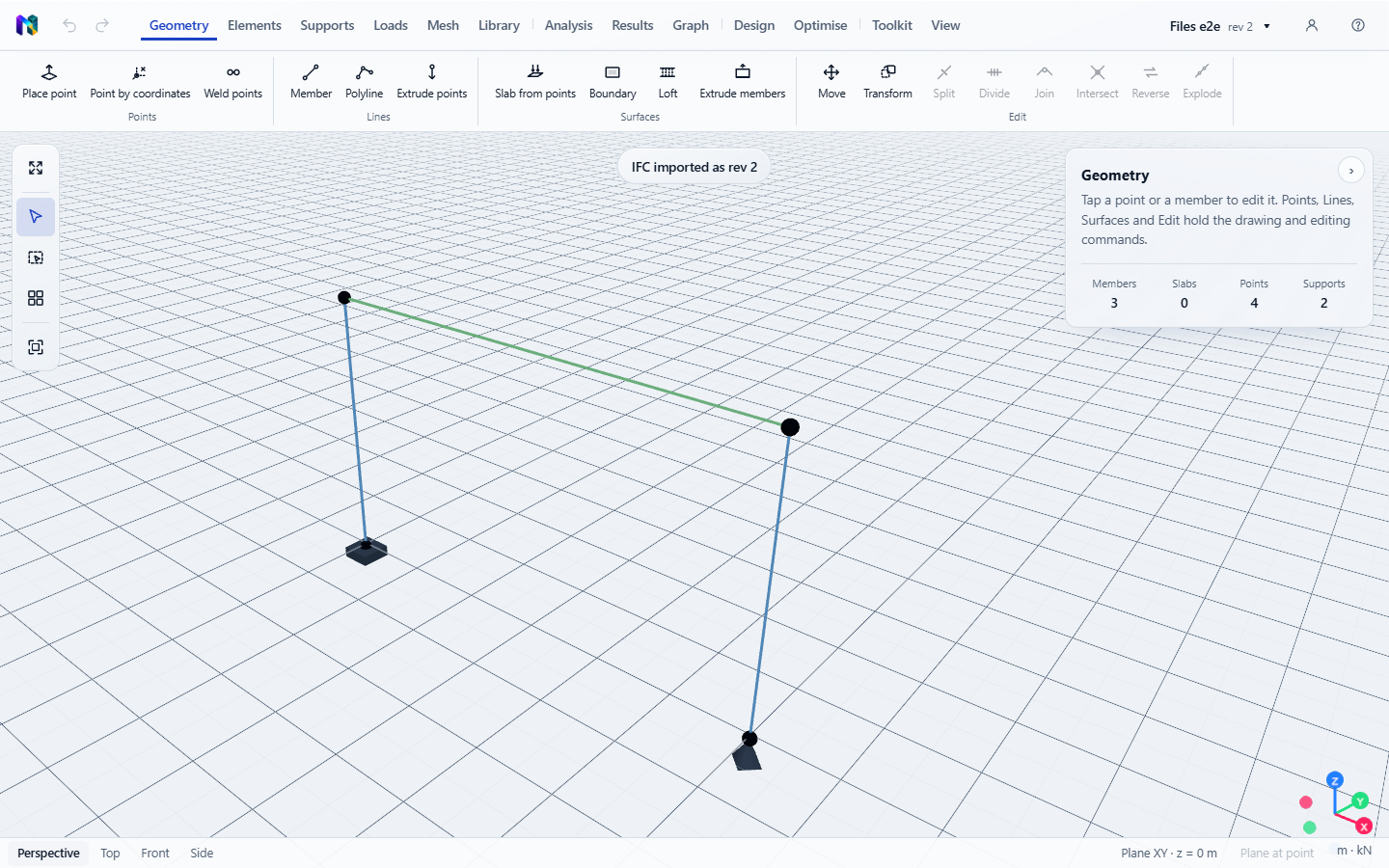
What comes over from files exported by Revit, Tekla, ArchiCAD and other programs:
| In the IFC file | In your model |
|---|---|
A profile named HE200A, HE 200 A, HE-Profile:HE200A (Revit family:type), IPE 300, HEB-220, RHS100*50*5, SHS100/100/5.0 |
The library section (HEA200, IPE300, HEB220, RHS100x50x5, SHS100x100x5) |
A profile that is not in the library (Welded box 300x300) |
Kept by its own name and listed under unmatched profiles: define it in Sections |
| An L-, U- or any other non-convex slab or wall | The same outline, corner for corner, at its mid-plane |
| Openings cut into a slab (IfcOpeningElement) | Openings of the panel |
 IFC slab (top view)          your panel
 ┌──────────┐                 ┌──────────┐
 │  ┌──┐    │                 │  ┌──┐    │   outline = the slab's own edge
 │  └──┘    └────┐    ──▶     │  └──┘    └────┐   opening = the cut-out
 │               │            │               │   (before: the convex hull, without the hole)
 └───────────────┘            └───────────────┘
A profile is matched only when its name reads as one library section; it is never guessed from its dimensions. The test files
(tests/fixtures/ifc/revit_like.ifc, tekla_like.ifc, archicad_like.ifc) are written the way those programs write theirs.
#History
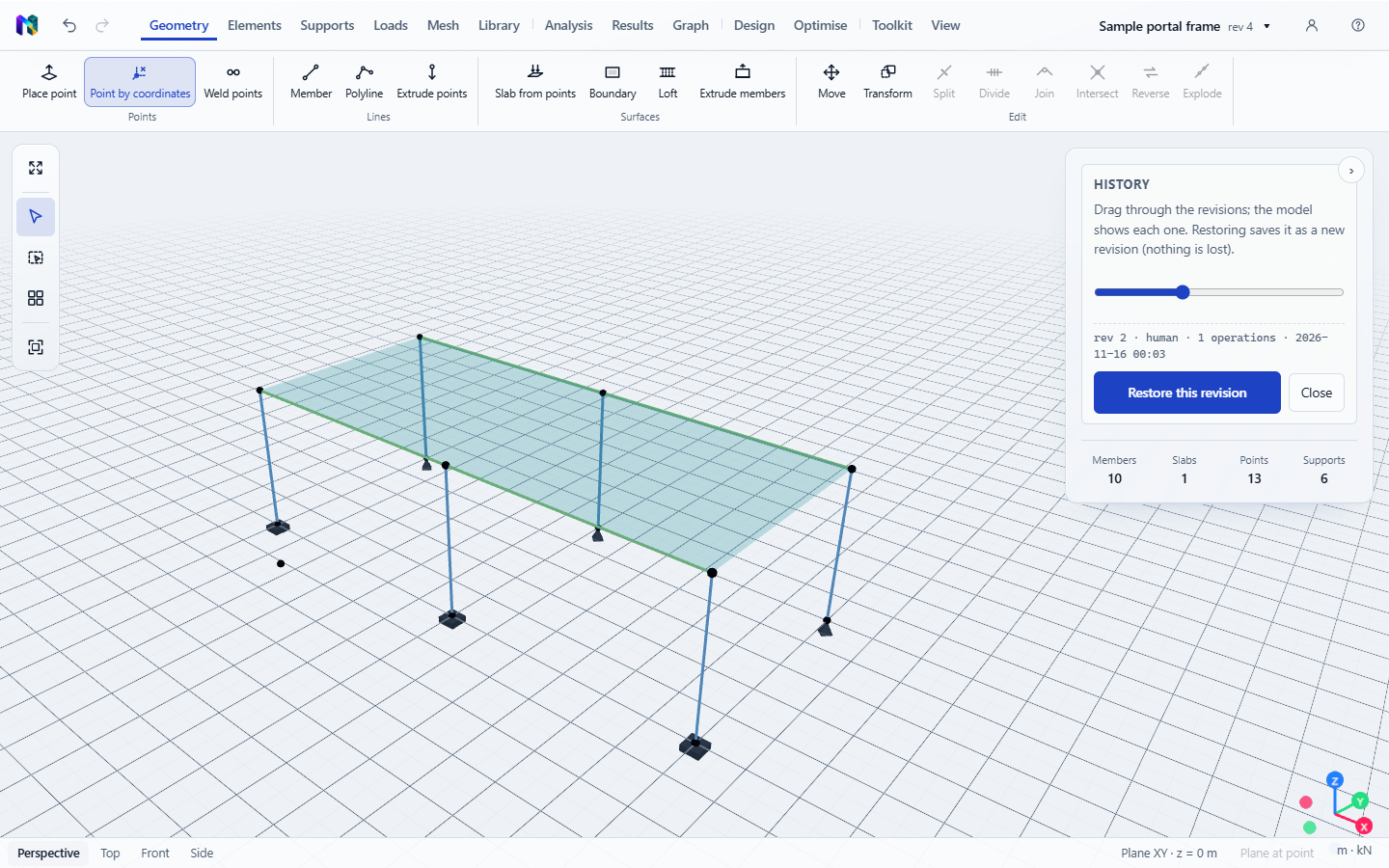
The project name → History… shows a slider over every saved revision of the project. Drag it: the model and the counts show that revision (nothing changes yet). Restore this revision saves it as a new revision, so the history is never rewritten and you can come back.
#Delete a project: the trash
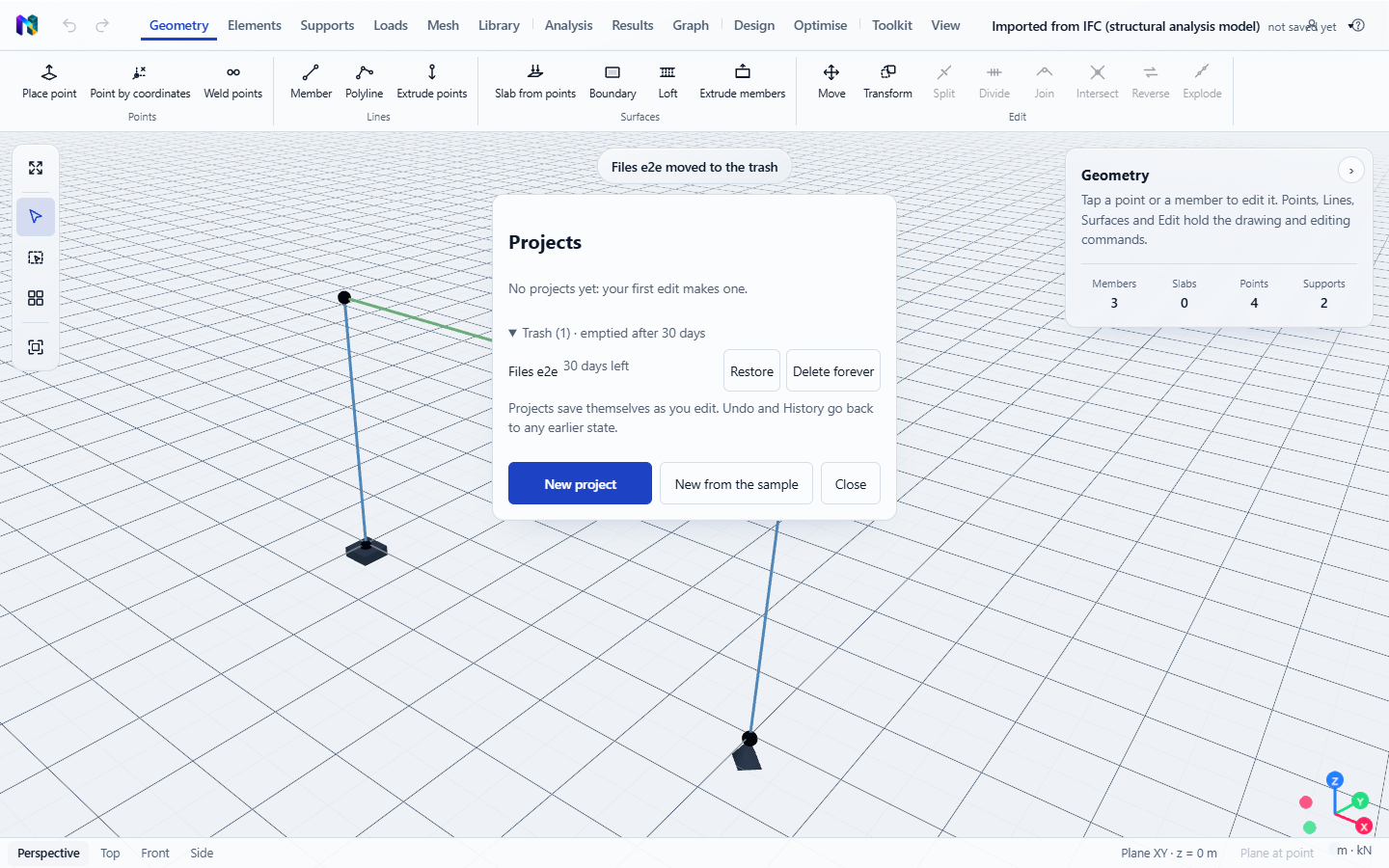
In Projects… (the project name menu), the bin next to a project moves it to the Trash. It stays there for 30 days and you can Restore it. After 30 days it is deleted for good, with its files; Delete forever does that at once. Projects in the trash still count against your limits until they are deleted.
The free plan keeps no trash. There the bin says Delete and asks first: the project is deleted for good at once, with its files, and its storage is free again. Paid plans keep the trash as above (the number of days is the plan's).
#Download all your data
Account → Download all my data (.zip) (the person icon at the top right; on a phone ≡ → Account) gives one zip with a folder per project: the current model as model.nxd
(opens in Nextra Design and in the app), history.json with every revision, and your uploaded files.
Screens captured from the running app.