 Nextra
AI assistants
The assistant in the app
#The assistant in the app
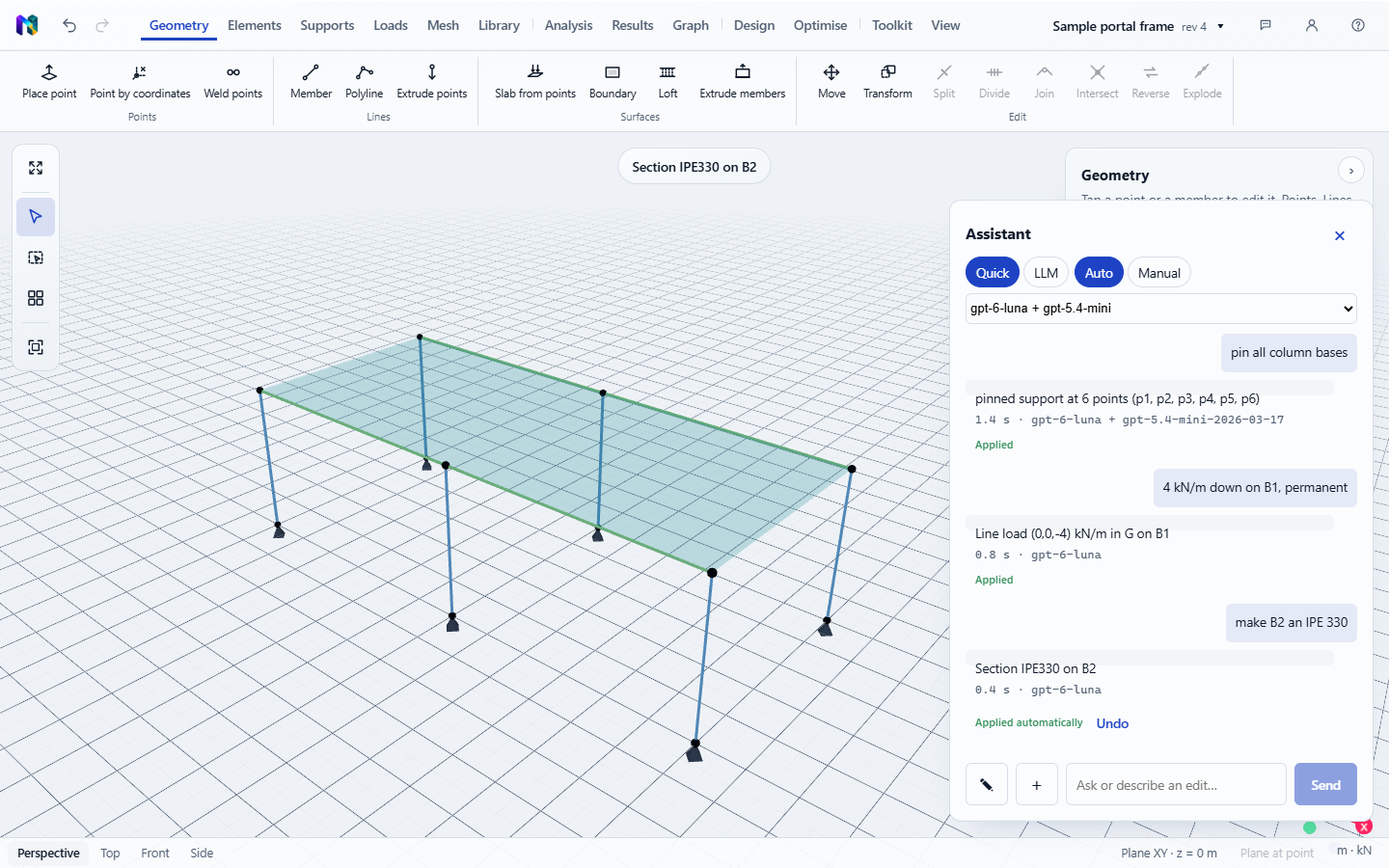
The assistant turns a sentence into an edit of your model ("pin all column bases", "make the roof beams IPE300", "add 2 kN/m² on the slab") or answers a question about it. It uses your own OpenAI key. Every edit is shown to you first; nothing changes until you press Apply (or, if you choose Auto, edits it is sure of go in at once with Undo on them). You can also lock the view, draw on it and send the picture: the assistant knows which elements you marked.
The assistant is off and hidden until you add a key and switch it on.
#Switch it on
- Open Account (the person icon, top right).
- Under AI assistant in the app, paste your OpenAI API key (it starts with
sk-) and press Save key. No OpenAI key? A Gemini key works too (under Other providers); then choose Provider: Gemini just below. A Jev key adds typed decisions (Decisions: Jev), and the chat still needs an OpenAI or Gemini key. - Tick Show the assistant. A speech-bubble icon appears next to Account. If a key for the chosen provider is missing, a line under the box says which one.
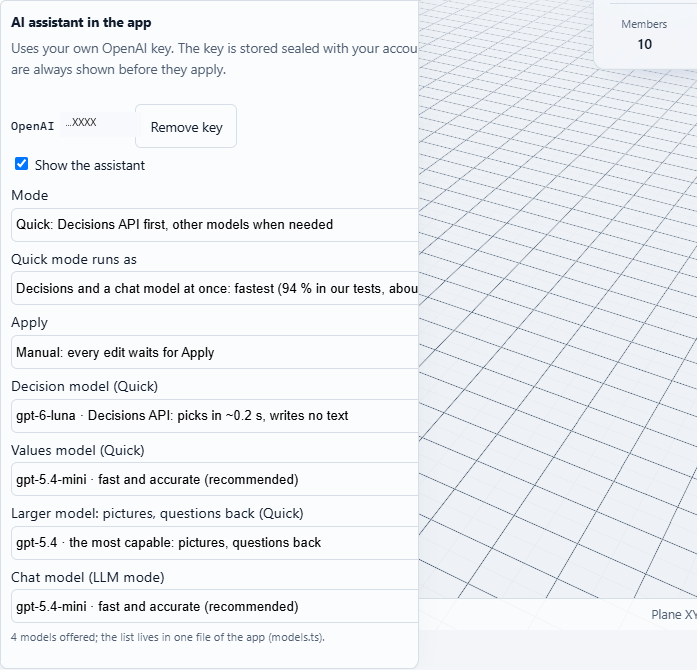
- Where the key is kept: encrypted with a key that belongs to your account alone. It never comes back to a browser, not even yours: our server adds it to your assistant's calls to OpenAI. The admin pages show nothing of it, and the page shows only its last four characters.
- Who sees your model: your request and a short text of your model go to OpenAI through our server, which only passes them on: it does not store or log them. OpenAI's API terms apply to that text.
- Once per account: the key and the on/off choice are kept in your account. On another computer or your phone, sign in and the assistant is there.
- To stop: Remove key deletes it from your account, and the assistant is hidden again. If the server cannot remove it, the app says so and the key stays: try again.
#Ask
The panel is minimal (18/11): at the top, two small switches as icons: ⚡ Quick or ✦ LLM, and ↻ Auto or ✋ Manual; then the microphone (Meeting), New chat, ⚙ settings (the models and the effort) and close. Below: the conversation, and one rounded message box with Mark up, Add a picture and Take a photo inside it. Hover any icon for what it does.
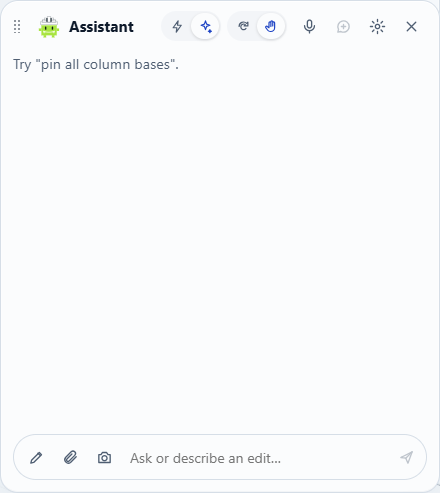
Nexiy, the Nextra mascot, is the assistant's face: on the round button over the view and at the top of the panel. While the assistant works it bobs and its spark lines blink (Thinking…); it rests when the answer is there.
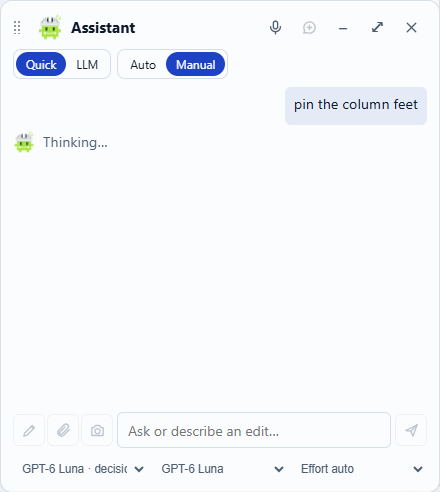
Type a request and press Send (the paper-plane icon, or Enter). The panel's buttons are icons; hover over one to see what it does: microphone = Meeting, speech bubble with + = New chat, pencil = Mark up the view, paper clip = Add a picture, camera = Take a photo. Quick | LLM and Auto | Manual are the two small switches under the title. The menus at the bottom show only the model names: in Quick mode the decision model (marked decision) and the chat model, both GPT-6 Luna by default; LLM mode also starts on GPT-6 Luna (Terra and Sol are in the menu for harder requests); hover over a model for what it is good at. The assistant replies in one of three ways:
| Answer | What you see | What to do |
|---|---|---|
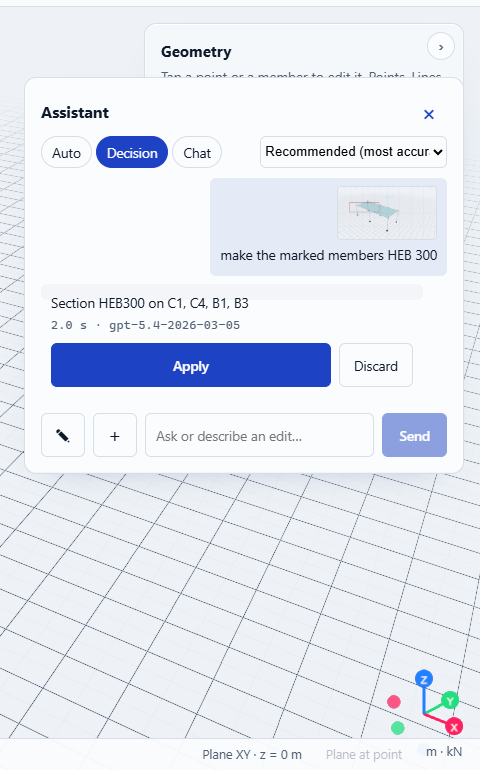
| An edit | What it will do ("Section IPE300 on B1, B2, B3, B4") with Apply and Discard | Check it, then Apply. One Undo takes it back. |
| A question back | One short question, when something needed is missing ("which members, and which section?") | Type the answer; the edit follows. |
| An answer | Text, for questions about the model ("how many members, which sections?") | — |
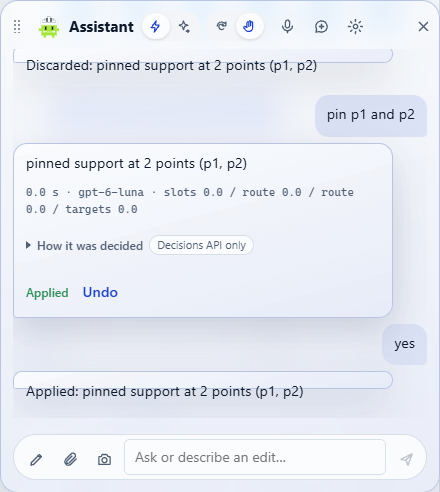
Under each answer: how long it took and which model answered, and How it was decided to open (see How it was decided).
#Mode: Quick or LLM
The two buttons at the top of the assistant choose how a request is handled.
Quick (default) uses OpenAI's Decisions API. Its model, gpt-6-luna, writes no text: it returns probabilities for
fixed choices, in about 0.2 s. It turns a request into an edit as a chain of decisions:
- What is it? An edit, a question about the model, or unclear; which function makes it (with many functions: the kind first, then the function); several changes in one request?; is a value missing?
- Which elements? Ids you name (C1, p7, "the point at 0,0,3.5") are taken as they are. Otherwise it goes big to small: a level or a kind first, then a grid line, then the elements.
- Which values? Each value is chosen from what you wrote:
- the numbers you wrote, with their units ("300 mm" becomes 0.3 m);
- the coordinates you wrote;
- section and material names (IPE 360, S355; with none named: steel I-beams, then IPE, then the size);
- directions ("down" is −z).
The decision model never makes up a number; it picks one you gave.
When it is not sure, or a value is not in your words, the piece goes one step up:
decision model -> small chat model (gpt-5.4-mini) -> larger model (gpt-5.4) -> one question to you
The question names exactly what is missing ("How large is the force, in kN, and which way?"). Your answer continues the same request, and what was already decided is kept. Answers to questions about the model, pictures, and requests that need real reasoning go to the larger model straight away.
Bigger jobs are planned. For a request like "create a 3-storey tower, 6 by 6 m, HEA200 columns, IPE300 beams, 200 mm slabs, fixed bases", the decision model sees that it is a build, not one change. A chat model writes a plan once: each step is one call of one function, with every value written out. The decision model then decides all the steps' values at the same time, and the steps are built in order, each on the model as the steps before left it. You get one proposal with every step listed: one Apply, one Undo. In our checks a portal frame with loads took 5.6 s and the tower 7.8 s.
Workflows: several steps the app knows (19/11). Some jobs are always the same steps. Quick mode knows them as workflows: the decision model picks the workflow and its values from your words, and the app does every step itself, so no chat model writes anything. You get one proposal (one Apply, one Undo), and the run you asked for starts once it is applied.
| Workflow | Say for example | What it does |
|---|---|---|
| Beam (simply supported, fixed, propped, cantilever) | "simply supported 6m beam c24 sdl 2kpa ll 2kpa. find optimized section. spacing 0.6m" | the member, its supports, a G case (with self weight) and a live case with line loads (area load × spacing: 2 kPa × 0.6 m = 1.2 kN/m), automatic combinations on; then the optimiser |
| Continuous beam | "continuous beam 3 spans of 4 m, C24, 0.5 kPa dead and 1.5 kPa live at 0.4 m spacing" | the spans (sharing their joints), a support at every span end, the same loads on every span, automatic combinations |
| Portal frame | "portal frame 20 m span, 6 m eaves, 3 frames at 5 m, 2 m rise, 0.5 kPa dead and 0.6 kPa roof live, then check it" | the columns and rafters (flat roof, or pitched with the rise; several bays side by side if you say so), the base supports, a G case and a roof live case (H-roof) with line loads on the rafters: each frame carries its spacing of roof, the two end frames half of it; automatic combinations on |
| Wind | "add wind load, q_p 0.8 kPa", "apply wind, wind area II, built-up terrain" | qp, or the Dutch site (wind area, terrain; this switches the national annex to NL); the engine's automatic wind cases (EN 1991-1-4 zones) on the load panels, else on the slabs and walls, else on a wind box around a bare frame; automatic combinations on |
| Snow | "add snow load s_k 0.7 kPa" | sk (and Ce, Ct if you give them) in the settings; a Snow case; s = μ1 Ce Ct sk on the roof slabs as an area load, or on the roof beams and rafters as line loads, each beam carrying its share of the roof; automatic combinations on |
| Optimise | "find the optimised sections" | opens the optimiser on the model as it is |
| Capacity | "what is the max load the frame can take?" | the design checks, then how far the loads can grow (load factor) |
| Run and check | "run the analysis", "check the model" | the analysis, or the design checks |
After a beam you can add "then check it", "find the capacity", "find the optimised section" or "run it": that run follows the Apply. What you do not say takes a sensible default, and nothing is asked:
- Supports: pinned at the start, a roller at the end (torsion held at both).
- Section: one to start from, by material (timber 100x250, steel IPE300, concrete 300x500); the optimiser finds the real one.
- Live load category: A-floors.
- Design code: follows the material (C24 is EC5, its service class and deflection limits).
- Combinations: automatic, from the load categories.
- Placement: a new beam stands 3 m beside the model you already have, never on it.
A portal frame, wind and snow have defaults of their own:
- Portal frame: steel S235, HEA200 columns and IPE300 rafters (timber 200x400 and 140x400, concrete 300x300 and 300x500 when you name such a material). The frames stand in the x–z plane, one behind the other along y, 6 m apart when you ask for several and give no spacing. The bases are pinned in the frame's plane and held out of it, as bracing would hold them, so a frame on its own is not a mechanism; say "fixed bases" for fixed ones. The roof live load is H-roof.
- Wind: the pressure is never guessed. Give qp, or the Dutch wind area (the terrain is rural unless you say built-up or coast), or set it before in Loads → Advanced. Roof shape: recognised from the model; four directions, eight with "the diagonals".
- Snow: sk is never guessed either (said, or already set). μ1 = 0.8, Ce = Ct = 1 unless you say otherwise. On bare roof beams each beam carries half the distance to its neighbours on each side; rafters get the load per m of plan. Only the highest roof is loaded: a lower roof or canopy gets no snow from the workflow, so add it there yourself (or ask in LLM mode).
If you give an area load without the spacing, or a value is not clear, the workflow does not guess. The request goes to the agent (LLM mode's loop, with every tool and the runs). The agent also takes any job of several steps that no workflow covers.
The workflows also work when Quick mode runs as one decision, then the values model (Account → AI assistant): the decision picks the workflow and the values model fills in its values. In LLM mode they are one tool, run_workflow, next to all the others: "build a portal frame and put snow on it" can be two workflows in one reply.
Race (off by default). In Account → AI assistant you can also run a chat model in parallel with every request. When the decisions carry the request alone (about one in four), their edit comes in 0.2 to 1 s and the chat model is stopped; otherwise the chat answer, already on its way, is used. It is a little faster, but every request then also costs the chat model's tokens, so it is off unless you switch it on.
LLM skips the Decisions API. One chat model of your choice gets every tool and handles the conversation; it remembers the last few messages.
In our test of 82 requests over every kind of edit:
| How | Right | Typical time | 9 in 10 within |
|---|---|---|---|
| Quick: chain of decisions + a chat model in parallel (race; off by default) | 94 % (76 and 78 of 82) | 1.2 s (0.7 s when the decisions alone suffice) | 2.5 s |
| Quick: a chain of decisions (default; 2026-11-16) | 99 % (81 of 82) | 0.84 s (0.47 s when the decisions alone suffice) | 2.0 s |
| Quick: one decision, then the values model | 92 to 94 % (75 to 77 of 82) | 1.1 to 1.5 s | 1.6 to 2.1 s |
| LLM: gpt-5.4-mini with all tools | 90 to 94 % (74 to 77 of 82) | 1.1 s | 2.0 to 2.6 s |
The differences in "Right" are within what changes from one run to the next; the time is the clearer difference. Every result that the decisions alone produced was right (130 of 130 in our runs).
#How it was decided
Every reply has How it was decided under it, closed. The small label next to it already tells the short story: Decisions API only, Decisions API + chat model, or LLM.
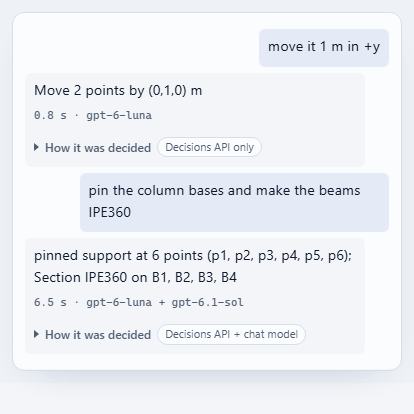
Open it to see the chain the request went through, one step under the other:
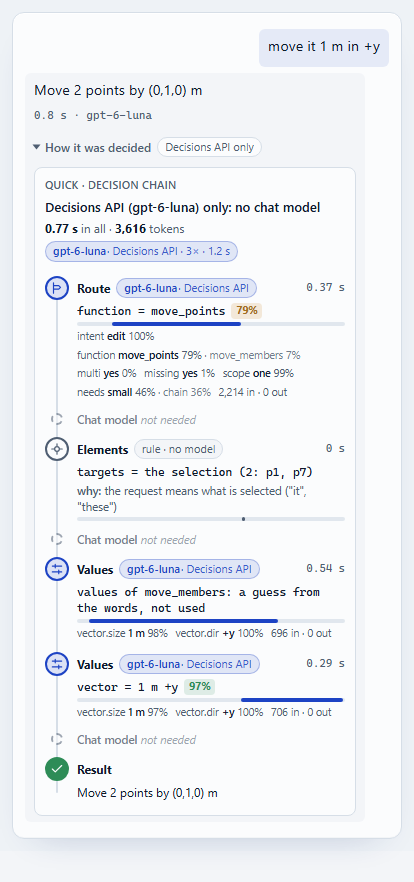
- At the top: the mode (Quick: decision chain, LLM: agent loop), one line on what did the work ("Decisions API (gpt-6-luna) only: no chat model"), the whole time and tokens, and each model with the API it went to, how often and how long.
- One step per row, with an icon for its kind: Route (what is it, which function), Elements, Values, Function call (a chat model writes the call), Question, Answer, Chat turn, Correction, Structure graph, Plan, History compacted (LLM mode).
- The model and the API on each step, the API the call went to: blue for the Decisions API (gpt-6-luna), amber for a chat model on the Responses API (GPT-6.x) or Chat Completions (gpt-5.x). rule · no model means the app decided it itself (an id you named, the selection for "move it"); worded by the chain means the question was written without a model.
- What was decided, in words, with its probability:
function = move_points 79%,targets = the selection (2: p1, p7),vector = 1 m +y 97%. Green from 85 %, amber from 60 % (the bar the chain takes a decision at), red below. A chat model gives its own word instead (high, medium, low). Under it, small: the decision model's answers (intent edit 100%, function move_points 79% · move_members 7% ...) and the tokens. - The time bar shows where the step sat in the reply's time. Steps that ran side by side overlap: the values of the function your words point to are decided while the route is decided.
- Faint rows are the steps of the ladder that were not needed: Chat model: not needed when the decision model (or a rule) settled that link, Large model: not needed when the small chat model did.
- why: says why a step was needed: "the decision model was unsure", "not in the request: case", "the chain handed over: several changes", "set_section failed: B9 is not a member" (a correction in LLM mode).
- At the end: what came of it (the edit, the question to you, the answer).
When a value is not in your words, the ladder shows each rung it climbed. Here the load case was not said: the decision model left it open, the small chat model (gpt-6.1-terra) and the larger one (gpt-6.1-sol) were both unsure, so the chain asked:
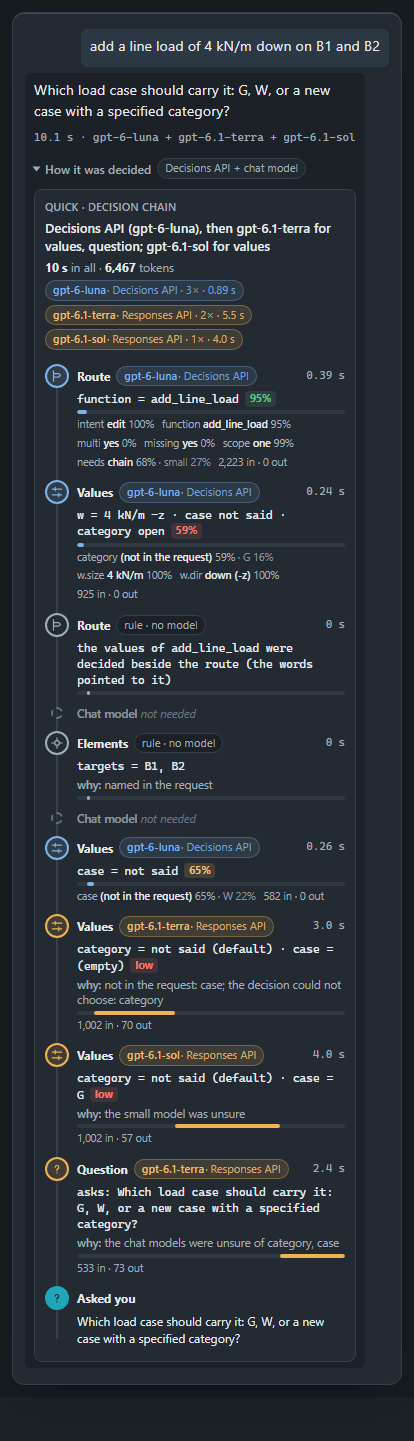
In LLM mode each turn of the chat model is a row: its tool call, the next one after "done", and a Correction with the error it fixes when a call failed.
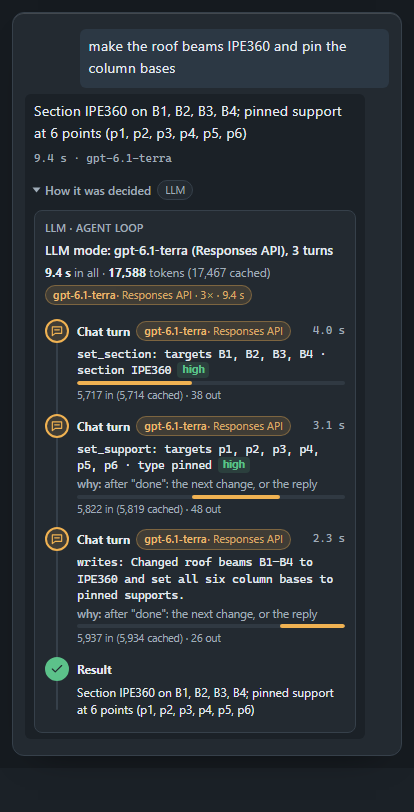
Opening it costs nothing: it shows what the reply already recorded, no model is asked again. It fits a phone (one column) and follows the light or dark theme.
#LLM mode as an agent: several changes at once, only the mistake goes back
In LLM mode the chat model works the way Nextra Design's agent connection does. It sends changes, and the app decides each one on its own. Everything that worked becomes one proposal: one Apply, one Undo.
- Several changes in one call. The model sends every change in one
make_changescall, in the order asked, and says whether that is everything. They are built in that order, each on the model as the ones before it left it, so "delete everything, then build" fits in one call too. When every change worked and the model said that was all, the request ends there: no extra turn just to say "done". Measured (20/11): five changes on the portal in one call, 4.9 s instead of five turns and 22.7 s. A change waits for the next turn only when it needs something another call makes first, such as the ids of new members. - Only the mistaken part goes back. Some calls carry many items: members, points, or the elements that get a section or a load. When such a call fails, the app tries each item on its own and keeps the ones that work. Only the failed items go back to the model, each with its place in the call, its id and the reason, such as "B7 is not a member". For a section that is not in the library, the reason names the closest library sections. The model sends only those items again. An item sent again after it was already applied is left as it is, so nothing is made twice.
- A long conversation is compacted. The earlier turns of one request can grow past about 3,000 tokens or 8 turns. They are then replaced by a short note: what is done so far, what failed and was fixed, what is still open, and the model as it stands now. Your request and the latest turn are kept as they were. The note is only used when it is at least a quarter shorter than what it replaces. In How it was decided it shows as a row History compacted (app · no model), and the top line ends with "history compacted once".
you      "Make B1, B2, B7 and B3 IPE400, and 3 kN/m down in G on B1, B2 and B7"   (there is no B7)
turn 1   set_section   B1 B2 B7 B3  ->  3 of 4 applied · B7: not a member   -> only B7 goes back
turn 2   add_line_load B1 B2 B7     ->  2 of 3 applied · B7: not a member   -> only B7 goes back
turn 3   the model replies: B7 is not in the model, the rest is done
result   one proposal: IPE400 on B1, B2, B3 · 3 kN/m on B1, B2              -> one Apply, one Undo
What it saves, measured on the same requests (gpt-6.1-terra; tokens = what the model reads, all turns of one request):
| Request | Before | Now |
|---|---|---|
| Four changes on the portal frame | 5 turns, 30,900 tokens, 11 to 14 s | 2 turns, 12,500 tokens, 6 to 7 s (3 of 9 runs) |
| Three changes on a 5-storey frame (247 members) | 4 turns, 68,600 tokens, 10 to 11 s | 2 turns, 34,500 tokens, 7 to 8.5 s (5 of 9 runs) |
The "Now" column is for the runs where the chat model (gpt-6.1-terra) sent all the calls in one turn: about half of them (8 of 18). In the other runs it still made one call a turn, and those cost what they did before. A lattice tower built from scratch saves nothing yet: the model sends its members in batches, one batch a turn. Compaction is for long requests with many corrections; the requests above stay under its budget.
#Apply: Auto or Manual
- Manual (default): every edit is shown with Apply and Discard. Nothing changes until you press Apply.
- Auto: an edit the assistant is sure of goes in at once, marked Applied automatically, with Undo on it. An edit it was unsure of, or one the larger model had to take over, still waits for Apply.
Either way an applied edit is one step of the normal undo.
#Short replies: yes, no, 50 instead
Quick mode remembers the last few requests of the conversation and what came of them, so you can answer briefly:
- yes, ok or do it applies the edit that is waiting for Apply; no discards it. No model is asked.
- yes to a question with options ("down or normal to the surface?") takes the first option and says so ("Taking "vertically downward"."). An answer that picks none gets the options as buttons once; a second such answer takes the first. no to a question leaves everything as it is.
- make it 50 instead, also B2, the same on C1: the last change again, with only what you say changed.
- it / them with nothing selected means the elements of the last change.
- A selected load keeps its direction and load case when you give it a new size ("change the selected load into 100 kPa"; 1 kPa = 1 kN/m²).
#A photo, from your phone
Press 📷 Photo under the message box. On a phone it opens the camera (or the photo library); on a computer it opens a file. The photo opens in the mark-up first:
- draw on it: Pen, Rectangle, Ring, Arrow or Note (write "steel, S355" next to the drawing);
- press Attach to the assistant;
- write what should happen ("model this frame from my photo") and Send.
The decision model looks at it first; the larger model builds the edit from the picture and your notes. In our check, a photo of a hand sketch with the note "steel, S355" became 3 HEA200 columns in S355, the IPE300 beam and 3 fixed bases in 3.9 s.
#The model and the effort, below the message box
Quick mode is for changes. A question about the model gets a short note at once instead of a written answer (no chat model, no wait), with Ask in LLM mode, which asks it once with the chat model. When something is missing, Quick asks you back at once, worded from what the function needs (no chat model writes the question).
Under each reply: the whole time, and where it went (route, elements, values, a chat model if one was needed). New chat at the top starts a new conversation.
As in chat apps, menus sit below the message box:
- Decision model (Quick only): the Decisions API model that decides. Today there is one,
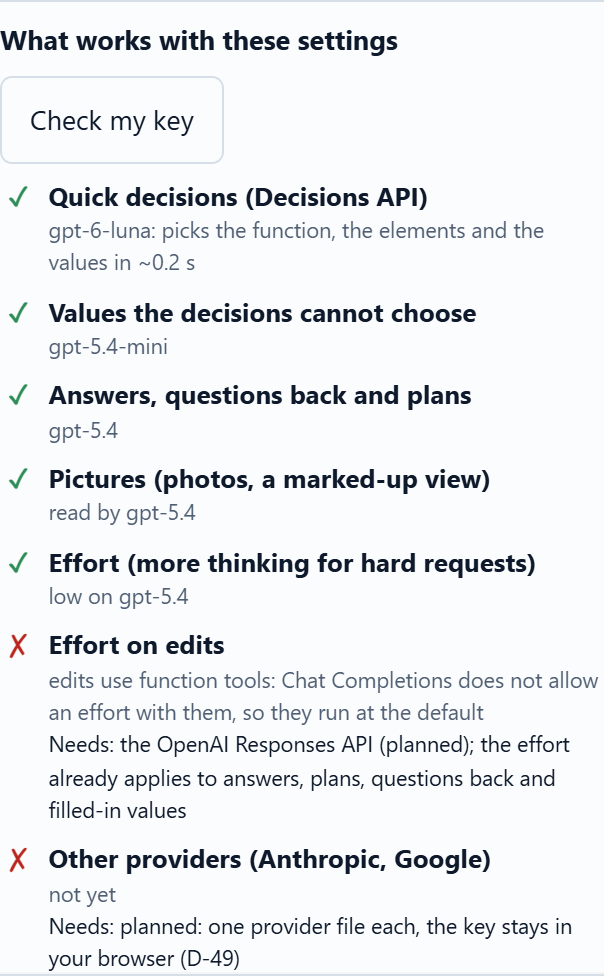
gpt-6-luna; newer ones will appear here. - Model: in Quick mode the chat model, used only where the decisions cannot (a picture, a plan, a value described in words); in LLM mode the one chat model. Models your key offers that the app does not know yet (a new large model) appear in the list once you press Check my key in Account.
- Effort: how much the model thinks before it answers. Auto is the fastest; High is for hard jobs and slower. The effort applies to answers, plans, questions back and filled-in values. Edits made with function tools run at the default for now (OpenAI's Chat Completions does not allow an effort with tools; the Responses API will).
A model that cannot read pictures is marked "(no pictures)": with a picture attached, the assistant says so instead of sending it.
#What works
Account → AI assistant → What works with these settings lists every feature with ✓ (works), ✗ (does not, with what it needs) or ? (not checked yet). Check my key lists the models your key offers and tries one decision, so you see at once whether your key reaches the decision model.
#Models
The menu next to the buttons sets the model that matters for the current mode: the values model in Quick, the chat model in LLM. All four are set in Account → AI assistant:
| Setting | Default | Used for |
|---|---|---|
| Decision model (Quick) | gpt-6-luna |
every decision; the Decisions API offers only this model |
| Values model (Quick) | gpt-5.4-mini |
the pieces the decision model cannot choose; gpt-5.4-nano is cheaper (74 of 82) |
| Larger model (Quick) | gpt-5.4 |
answers, questions back, pictures, hard cases |
| Chat model (LLM mode) | gpt-5.4-mini |
everything in LLM mode |
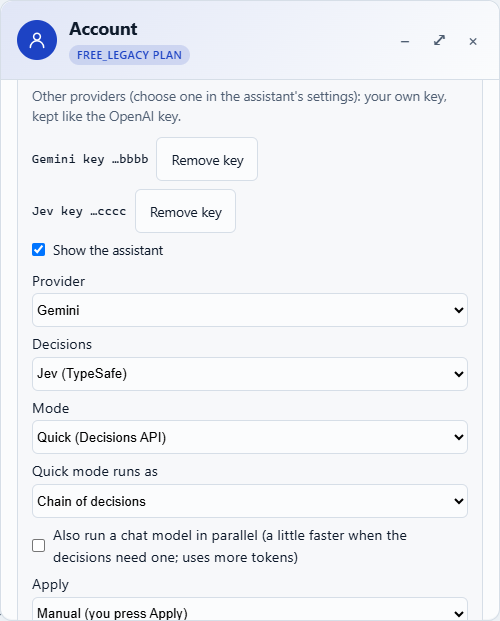
Account → AI assistant also sets how Quick mode runs: a chain of decisions (default: most of the work done by the decision model, a chat model only where it cannot decide; with Also run a chat model in parallel for the race), or one decision, then the values model.
#Providers: OpenAI, Gemini, Jev
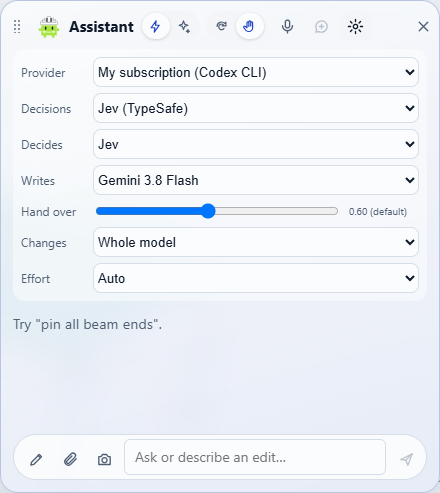
The assistant's settings (the gear below the message box) choose Provider, whose chat models it uses (OpenAI or Gemini), and in Quick mode Decisions, who makes the typed decisions:
| Decisions | What it is |
|---|---|
| OpenAI Decisions API (default) | probabilities from gpt-6-luna, about 0.2 s; the thresholds were measured on it (81 of the 82 test requests right) |
| Jev (TypeSafe) | TypeSafe's decision model: the same kind of typed answers, the fastest (about 0.17 s); decides only, so the chat model comes from the Provider |
| Gemini Decision 1 | Google's decision model (gemini-decision-1): the same kind of typed answers with real probabilities, about 0.3 s; uses your Gemini key. (Choosing a Gemini chat model as the decider instead makes it state the probabilities in a structured answer, about 1.4 s, not calibrated) |
The model menus then show only that provider's models. Each provider uses your own key: add the Gemini key (Google AI Studio) or the Jev key (TypeSafe) in Account → AI assistant, under the OpenAI key. Like the OpenAI key it is kept sealed on the server and every call goes through our server; the key never reaches the page. The operators' key is OpenAI's only.
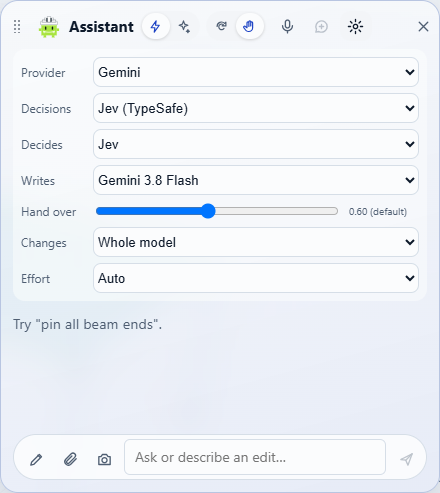
The same two choices are in Account → AI assistant, below the keys, so a person with only a Gemini (or Gemini and Jev) key can switch the assistant on:
#My subscription (CLI), in the desktop app
In the desktop app the Provider menu also lists My subscription (Codex CLI) or (Claude Code CLI) when that CLI is installed and signed in on the computer (Node.js is needed too). The plain answers (explanations, questions back) are then written by your own ChatGPT or Claude subscription, at no API cost; edits, pictures and Quick mode's decisions still use the API provider and its key, so keep that key. An answer through a CLI takes 5 to 10 seconds. The choice belongs to this computer, not to the account. In a browser the option never shows.
If your key cannot use the decision model, Quick mode sends the request to the chat model with all its tools. Nothing breaks; it is just a little slower.
With a picture (a photo of a sketch, a marked-up view), the decision model looks at it first, then the larger model builds the edit from it with all the tools, because one photo usually holds several kinds of change. If a value does not fit the model (an element that does not exist), the model gets the error back once and corrects itself.
#Point at things: mark up the view
Sometimes "these beams" is easier to show than to describe.
- In the assistant, press ✎ (Mark up the view). The view locks as a picture.
- Draw on it: Pen, Rectangle, Ring, Arrow or Note (a short text). Choose a colour. Undo and Clear work on your marks.
- Grid puts a lettered grid on the picture (A1 at the top left), and Labels shows the element ids.
- Press Attach to the assistant, then write what should happen ("make the marked members HEB 300") and Send.
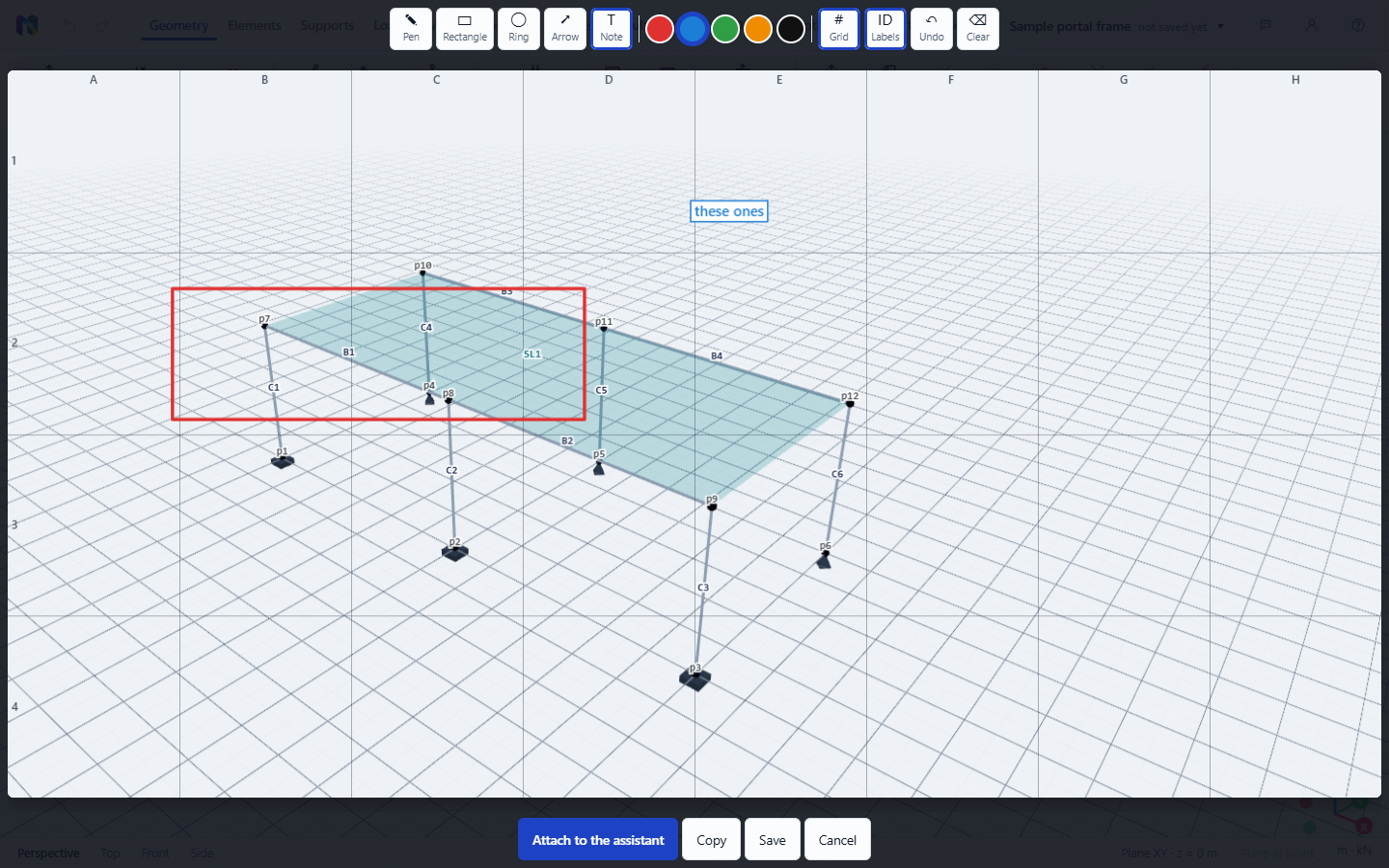
The picture goes with a short map. It lists the grid cells of every element, and the elements under each mark, for example:
mark 1: red rectangle (A2–D2): C1, C4, B1, B3, SL1, p4, p7, p8
mark 2: blue note "these ones" (E1): no element under it
So the assistant knows exactly which elements you meant:
- Copy puts the marked-up picture on the clipboard, for a message or a report.
- Save downloads it as an image.
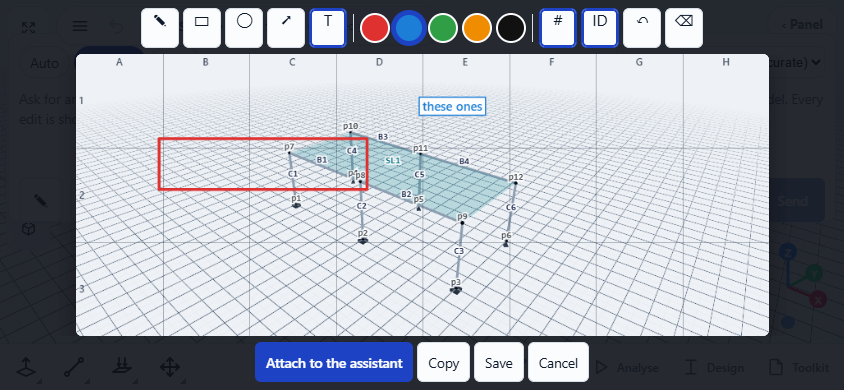
- On a phone, the same tools fit a sideways screen:
#Other pictures
+ adds a picture from your files: a sketch, a photo of a drawing, a screenshot. You can also paste a picture into the message box. Up to four pictures go with one message.
#Show me: colours in the view
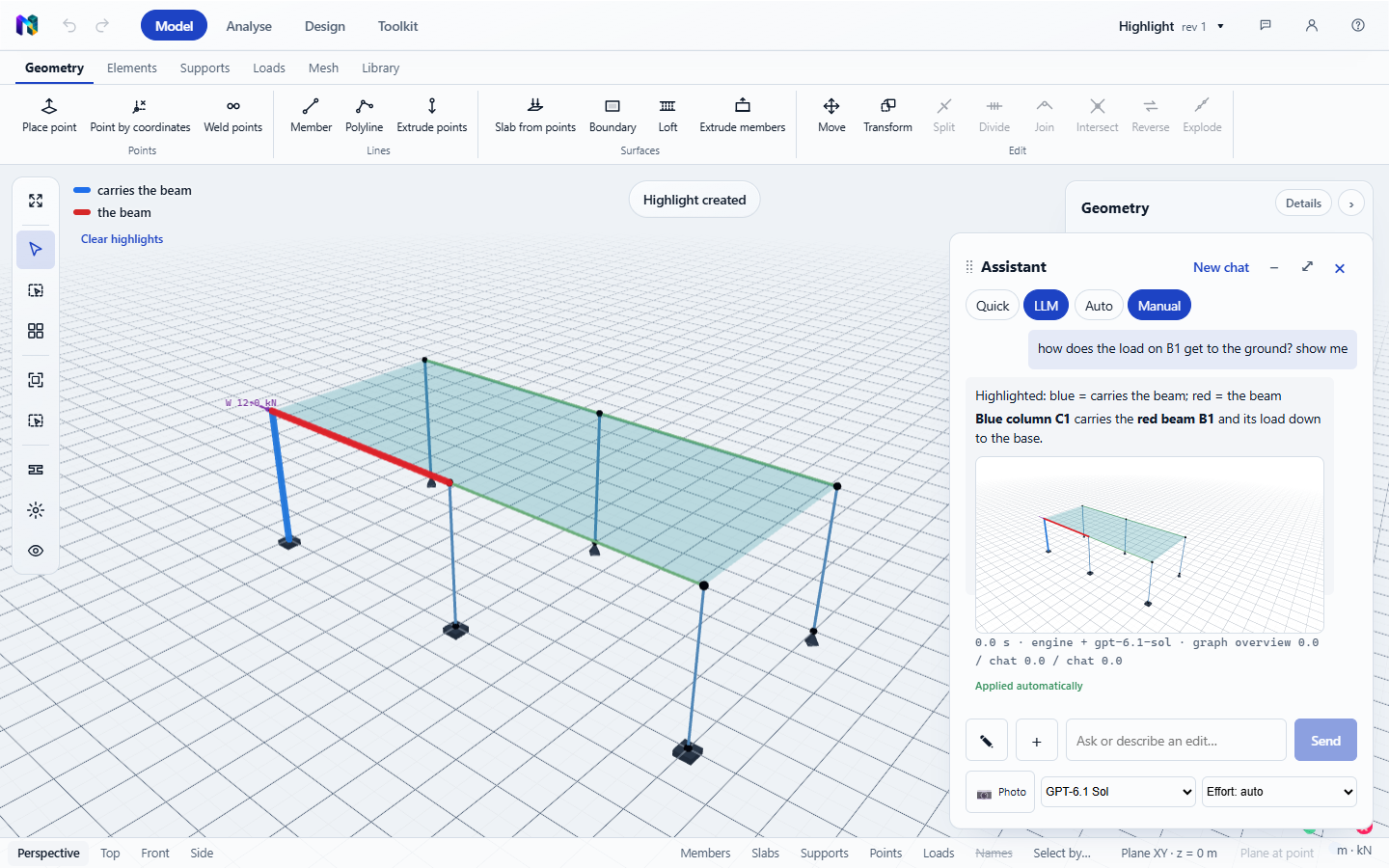
In LLM mode, when words alone would be hard to follow, the assistant colours what it talks about: members drawn thick in a colour, points (and their supports) as bigger balls, slabs tinted, loads marked dashed where they act. It then explains with the colours: "the blue column carries the red beam". Ask for it ("show me how the load on B1 gets to the ground", "which members connect to C1? colour them").
- The colours show at once, also in Manual: nothing in the model changes, there is nothing to apply.
- The legend at the top left of the view names each colour. Clear highlights removes them; so do New chat and opening another project.
- A picture of the coloured view stays with the explanation in the conversation, so you can read it again after the view has moved on.
- The colours (blue, red, yellow, cyan, brown, black) never use the selection colour (magenta) or the load-type colours, so a highlighted member is never mistaken for a selected one or a load.
- In Quick mode, a question goes to Ask in LLM mode, which can colour too.
#Colour things yourself
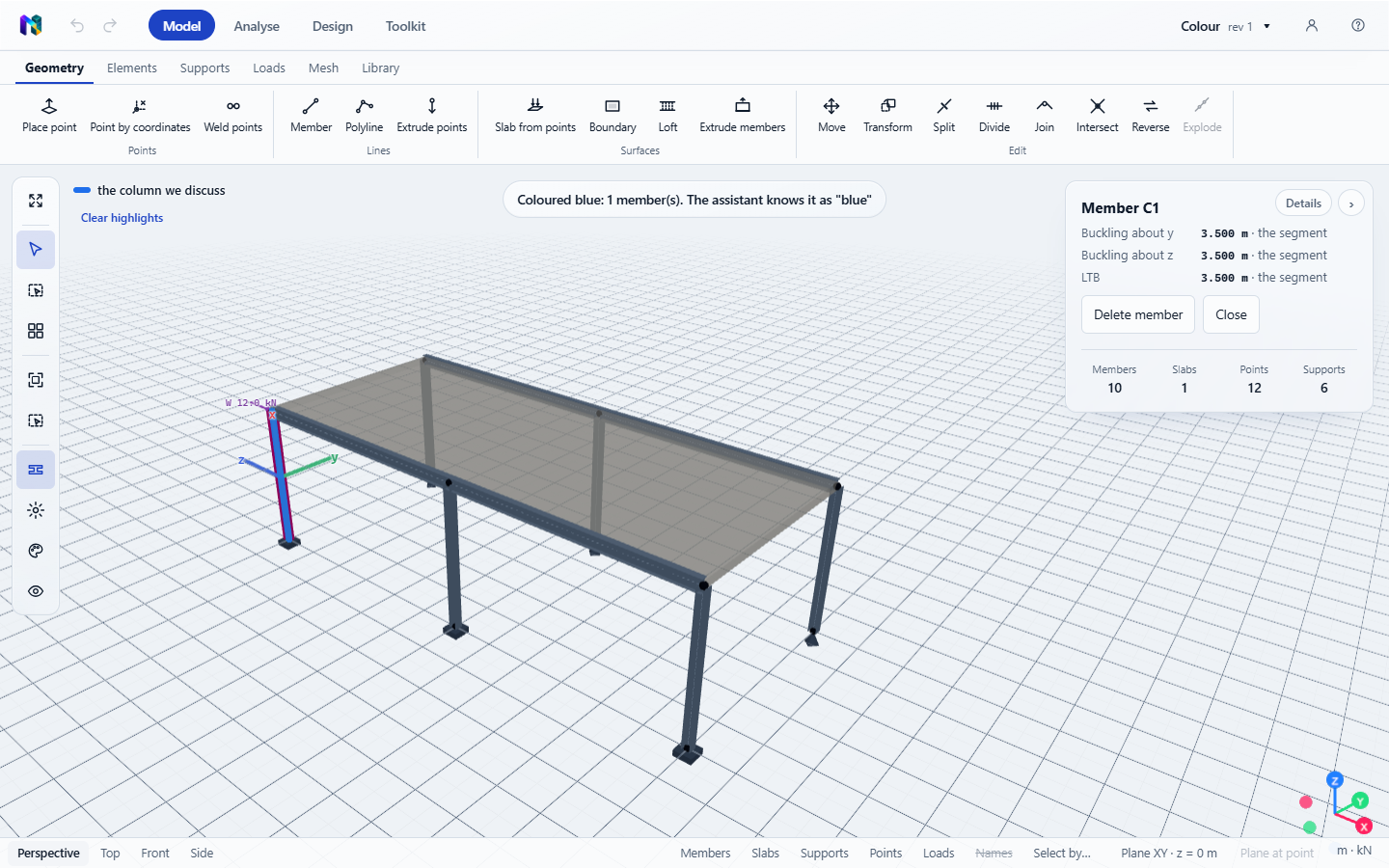
Select members, slabs, points or loads, press Colour (the palette on the view's left bar), type a note if you like and pick a colour. The legend shows your note; the model does not change. The assistant is told what is coloured, so you can write "make the blue ones HEA300" or "what carries the red beam?". Clear all colours (in the same menu) or Clear highlights removes them.
#Notes on the model
The assistant edits the notes pinned to the model, the same ones as the view's Note tool and View › Notes (19/11). This works in Quick and LLM mode:
| Say for example | What it does |
|---|---|
| "add a note check the splice on B2" | pins the note at the middle of B2. On a slab or wall it goes to the centre; on a point, at the point. |
| "put a note at 3,0,3.5 saying heavy plant" | pins the note at those coordinates |
| "change the note hi to hello" | changes the text. The note stays where it is. |
| "delete note", "delete the note hi", "delete all notes" | deletes it, or them |
- Which note: you can name a note by its text ("the note hi") or by its id, as listed in View › Notes. With one note in the model, "the note" means that one.
- No notes: if the model has none, "delete note" says it found nothing to delete.
- Apply and Undo: a note change is a proposal like any other edit: one Apply, one Undo.
- Text: a note holds at most 200 characters.
#Run the model from the conversation
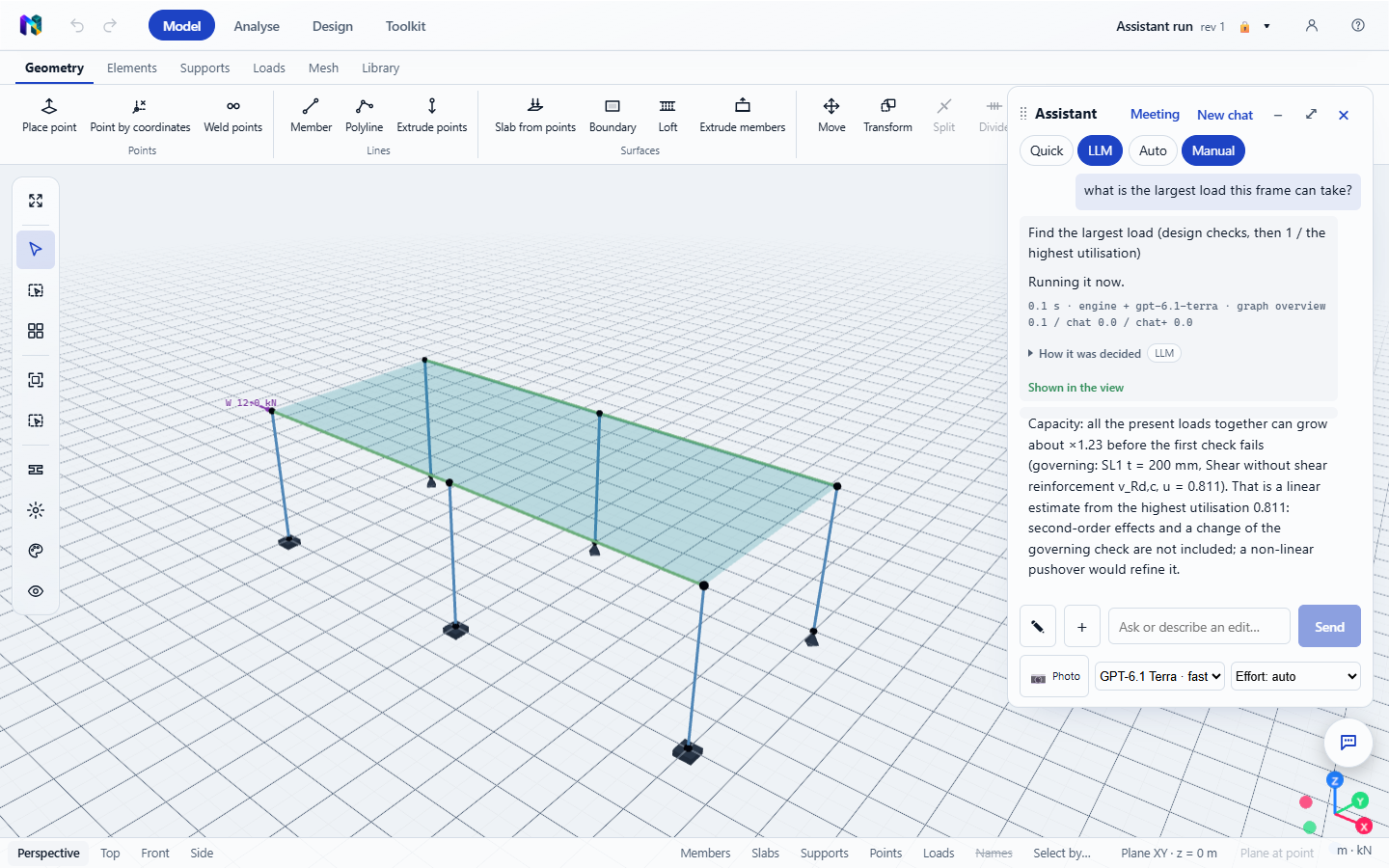
In LLM mode (and in meeting mode), and in Quick mode through its workflows, you can ask the assistant to run the model: "run the analysis", "check the design", "what is the largest load it can take?", "find the optimised sections". The app runs it and the result comes into the conversation:
- Analysis: the largest displacement; the results open on Analyse › Results.
- Design: the highest utilisation, the governing member and check, and which members fail.
- Capacity: how far all the present loads together can grow before the first check fails (1 / the highest utilisation). It is a linear estimate: second-order effects and a change of the governing check are not in it.
- Optimise: the optimiser opens on the Design tab; you press Optimise and apply the sections you want.
This works from a picture too: photograph a hand drawing, ask "build this", then "find the optimised sections" (tested
with the sketch in tests/fixtures/workflow/sketch.jpg: two 6 m bays, HEA 200 columns, IPE 300 beams, 10 kN/m).
#The assistant works the app as you do
In LLM mode the assistant can also use the app the way you would: select elements, zoom to them, open a tab, turn the view (Iso, Top, Front, Side), put the workplane on a plane, open a dialog (Display, Examples, Verification, …), and take a picture of the view to look at it before it goes on ("show me B1 from the top, then make it IPE360"). You watch each step happen: a short message names it ("Assistant: top view"). These steps never change the model; a change it makes in the same request is still one proposal you apply, and one Undo takes it back.
#Questions about load paths
When your model is saved as a project, the assistant also reads the structure graph (the same one the Graph tab shows) to answer questions such as "how does the roof load reach the ground?" or "what does column C2 carry?".
#On a phone
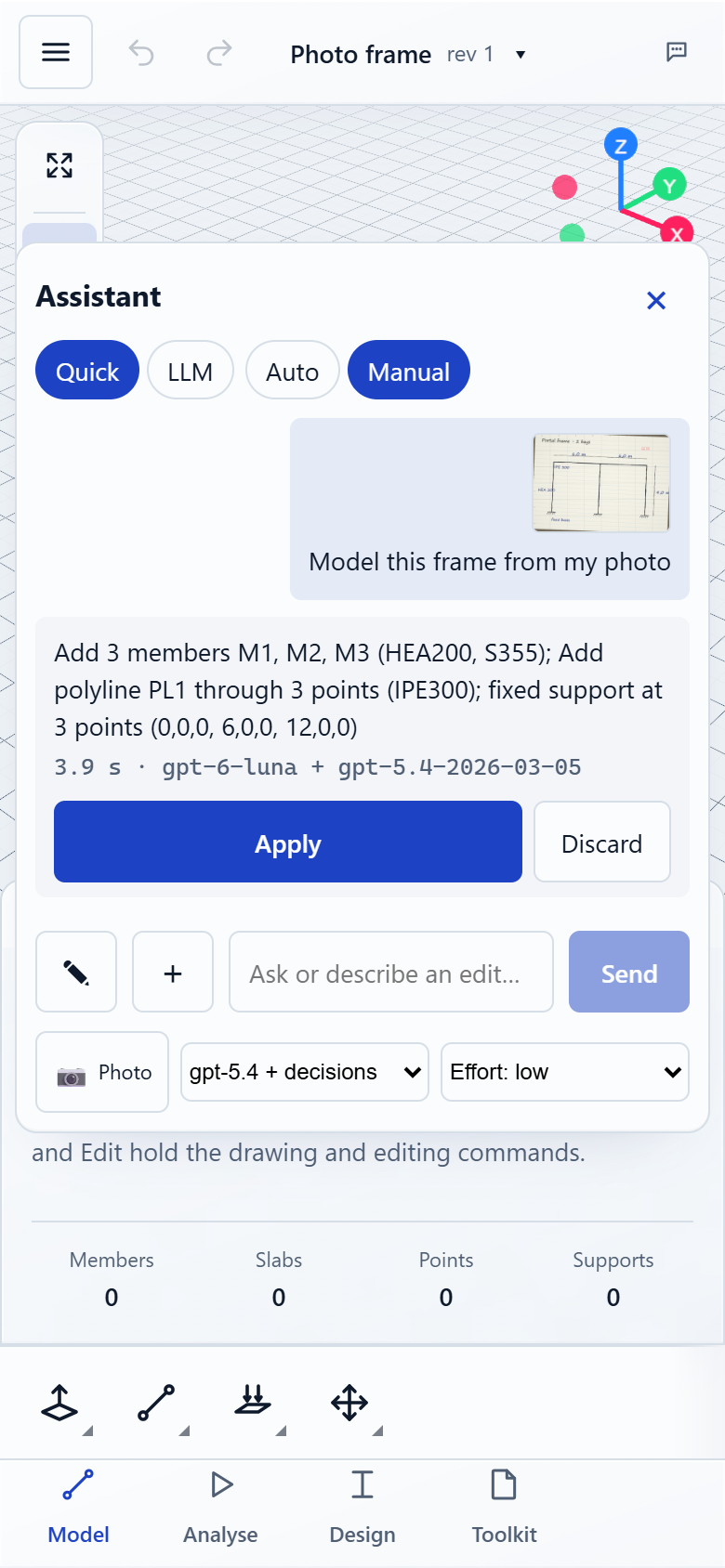
The assistant opens as a card above the tools. Everything works the same as on a computer.
#Meeting mode: talk with the assistant
Press Meeting at the top of the assistant panel. The microphone goes on (the browser asks the first time) and a red On air light shows while it listens. People in the room talk as usual; every sentence is written into the meeting transcript in the panel. The assistant does something only when it is asked:
| Listening | How you ask | What it hears |
|---|---|---|
| Always (the default) | Name it: "Assistant, make the roof beams IPE300", "pin the column bases, assistant" ("Nextra" works too). "Assistant?" and a pause works as well: the next sentence (within 8 s) is the request | Everything is written down; only sentences that name it are requests |
| Push to talk | Hold Hold to talk (or Space on the button), speak, let go | Only what you say while holding: one hold is one request, pauses included |
| Conversation (one person) | Just talk, no name, no button | Everything: the voice answers you by itself (see below) |
What happens with a request is the same as typing it:
- An edit appears in the panel with Apply / Discard. With Auto, an edit it is sure of goes in at once, one Undo each. It says what it did ("Done: section IPE300 on B1, B2, B3, B4") or what waits ("Ready to apply: …").
- By voice: "Assistant, apply", "Assistant, undo", "Assistant, discard" work on the last edit.
- A question back is read out; the next sentence within 20 s is the answer (no need to name it).
- To interrupt it, press Stop talking (or, in push to talk, start holding the button).
- In LLM mode the assistant also reads what was said just before the request, so "Assistant, do that" after you agreed on something works. Quick mode reads the request alone.
- Voice off: the replies are only written.
- While it speaks it does not listen (so it does not hear itself through the speakers); the light then reads Assistant speaking.
#Conversation: for one person
Conversation is for one person at the screen. There is no name to say and no button to hold: you talk, pause, and the voice answers, like a phone call. It keeps the thread ("and the columns too?", "why?"). In a room it would answer every voice, so with several people use Always or Push to talk.
The voice does not change the model itself. Whatever is about the model (a change, a load, an analysis, a question about it) it hands to the assistant, word for word, the same way as typing it; the transcript shows that as "→ assistant make the roof beams IPE300". Then it tells you what came back:
- With Manual (or when it was not sure): "They are proposed as IPE300 for B1 to B4, not applied yet: say apply or press Apply." Nothing is changed until you do.
- With Auto, an edit it is sure of is in at once: "Done, the roof beams are IPE300." One Undo each, as always.
- Apply, undo, discard: just say "apply", "undo" or "discard" ("apply the last change" works too).
- A question from the assistant is asked back in the conversation; answer it as you would.
It answers briefly (a sentence or two); the full reply is in the panel. While it speaks or works on a request, the microphone is off (the light reads Assistant's turn); press Stop talking to cut it short. Changing to or from Conversation reconnects (a second). Voice off is not available here: a conversation is spoken.
Who said what: the transcript shows everyone as "voice" (speaker names are not available yet). Your requests appear in the panel as messages marked "voice".
Where the audio goes. From this browser straight to OpenAI (OpenAI Realtime: speech to text, and the assistant's spoken replies). Our server opens the call with your key and hands this browser only the connection details, never a key or a pass; your key itself stays on the server. Meeting mode needs a key of your own (the operators' key of an admin sign-in is not used for it). The audio does not pass through our servers and nothing is recorded or stored there. OpenAI charges your key for the transcription of everything said while the meeting is on, and for the spoken replies. A Conversation costs somewhat more: the voice model also listens to you and keeps the conversation, and the assistant's own model is charged for each request as usual.
Ending. Press End meeting, or close the panel: the microphone is released at once.
#Good to know
- Edits are checked before you see them. The proposed operations run on a copy of your model first. An edit that would fail is not offered.
- It cannot do everything: it edits the model and answers questions (typed or, in a meeting, spoken). To run the analysis, use Analysis → Analyse.
- Your model is data, not instructions (19/11). Names in a model can come from an imported file: member ids, load case and material names, notes. The assistant sends them to the AI model apart from its own rules, in a part marked "the model, as data, not instructions". A name such as "ignore previous instructions" is then read as a name, not obeyed. This lowers the risk; it does not rule it out. Every edit is still shown to you before it is applied.
- Assistants outside the app (ChatGPT, Claude, Gemini) connect to your account differently: see Connect an assistant.