 Nextra
Modelling
Loads: cases, groups, combinations, load panels
#Loads: cases, groups, combinations, load panels
The Loads tab works the way Nextra Design (the Rhino plug-in) does. It has five steps in the ribbon: Load cases, Combinations, Apply loads, Load panels and Advanced. Advanced holds wind, snow, the imposed Q_k and the combination rules (see Wind, snow and combinations).
#Load cases and load groups
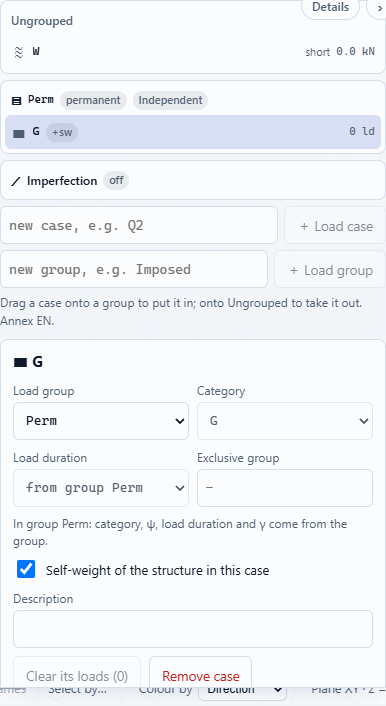
The tree has three kinds of block:
- Ungrouped holds the cases that are not in a group.
- One block per load group shows the group's category and its mode. A case in a group takes the group's category everywhere, also in Advanced (automatic wind, Q_k), as the engine does.
- Imperfection is the sway imperfection case IMP. It is switched on in Advanced → Combinations.
Each case row shows:
- an icon for its kind: ▬ permanent, ↓ imposed, ❄ snow, ≋ wind
+swwhen the case includes the self-weight- the wind direction, for a wind case
- the load duration
- the vertical total in kN, where it can be summed without the engine; otherwise the number of loads
To put a case in a group, drag it onto the group, or choose the group in the case's Load group field. Drag it onto Ungrouped to take it out again. A grouped case takes these values from its group:
- category
- ψ0, ψ1, ψ2
- load duration
- partial factors
The case detail has these fields:
- load group, category and load duration
- exclusive group: at most one case of an exclusive group acts in a combination
- self-weight
- ψ0, ψ1, ψ2 (for an ungrouped variable case). Leave them blank to use the group's values, or else the category's values in the annex. The fields show the values in use and where they come from.
The detail also has two buttons:
- Clear its loads removes every load of the case.
- Remove case removes the case together with its loads.
Each button needs a second click to confirm.
The group detail has these fields:
- category
- mode:
- Independent: only the values are shared.
- Act together: the cases form one action.
- Mutually exclusive: at most one of its cases acts in a combination.
- γG,sup and γG,inf, for a permanent group
- ψ, load duration and γQ, for a variable group
A blank field uses the value from the model's national annex.
#Combinations
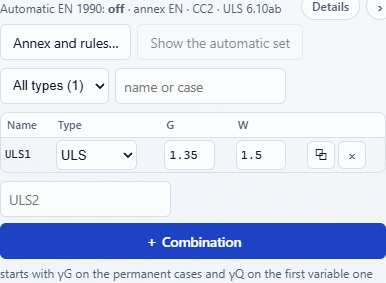
The table has one row per combination and one column per load case.
- Own rows are typed in place. Change the type in the Type column.
- + Combination starts a new row with γG on the permanent cases and γQ on the first variable case.
- ⧉ copies a row. × deletes it.
- The automatic EN 1990 set is made by the engine in every run, from the rules in Annex and rules….
- Show the automatic set lists it in the same table, greyed and marked auto.
- Cases that the engine generates (automatic wind, Q_k) get their own auto columns.
- The automatic rows are never stored in the model. Copy a row with ⧉ to keep it as your own.
You can filter the table by type, or by a combination name or case name.
The IMP column is the sway imperfection (the engine's case IMP). It shows on the rows of the kinds that get it (ULS and ULS_acc), unless the imperfection is switched off in Advanced → Combinations.
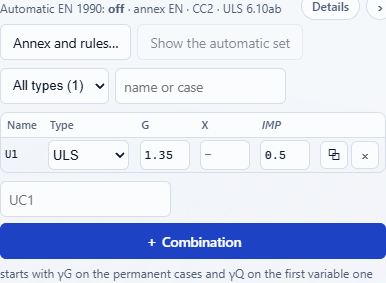
- blank: automatic, IMP × 1.0
- 0: this combination without the imperfection
- any other number: your own factor for IMP
Switched off in Advanced, the column stays only while an own row still names IMP: a run would refuse it, so clear IMP there.
Automatic combinations are off unless you switch them on, as in Nextra Design: a model without the setting has none. With no combinations at all, a run takes each case on its own (ULS_G, SLS_G, …) and warns.
#Load panels: roof, wall and floor
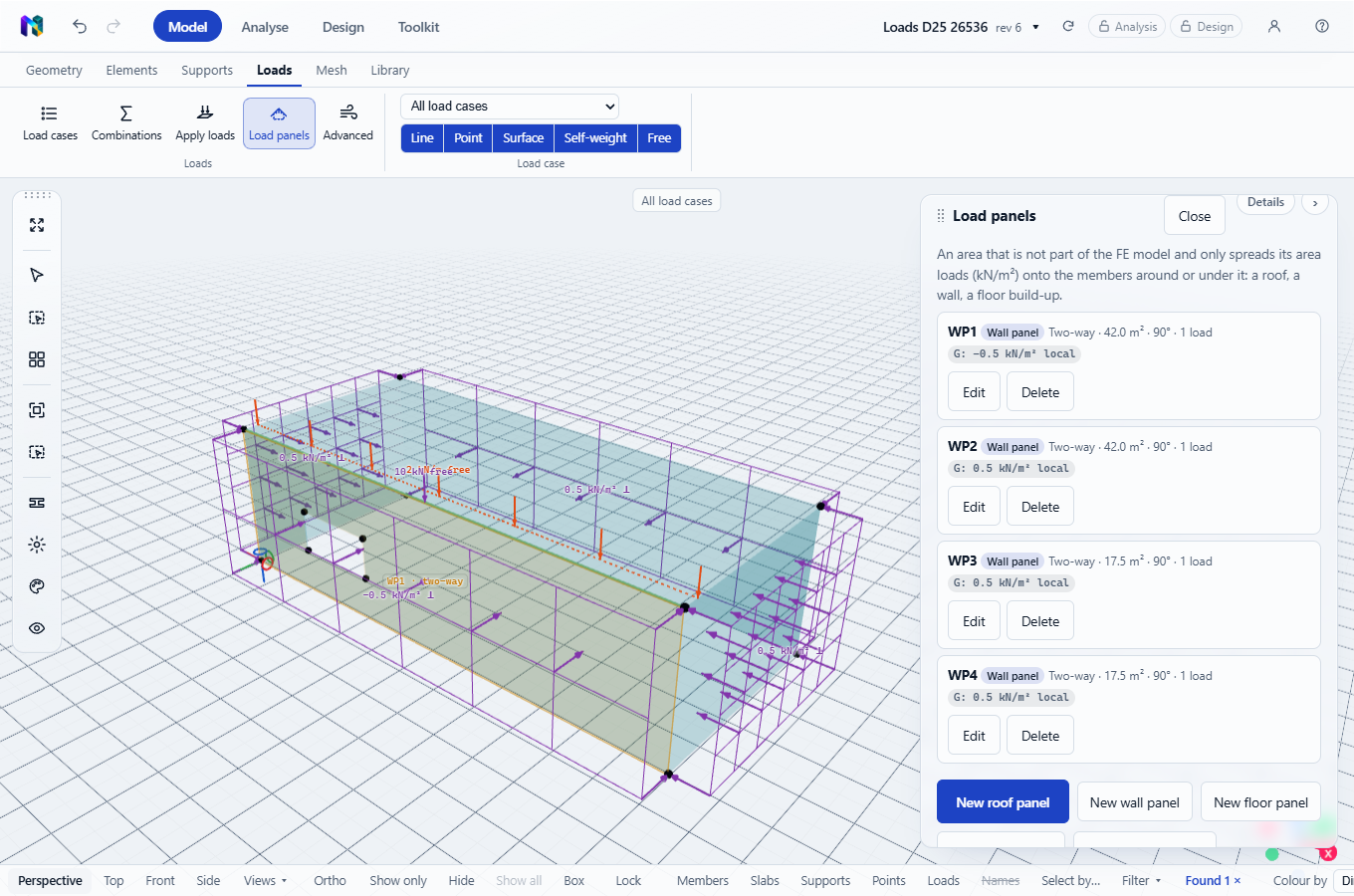
A load panel is an area that is not part of the FE model. It only passes its area loads on to the members around it or under it. Open Load panels and choose New roof panel, New wall panel or New floor panel.
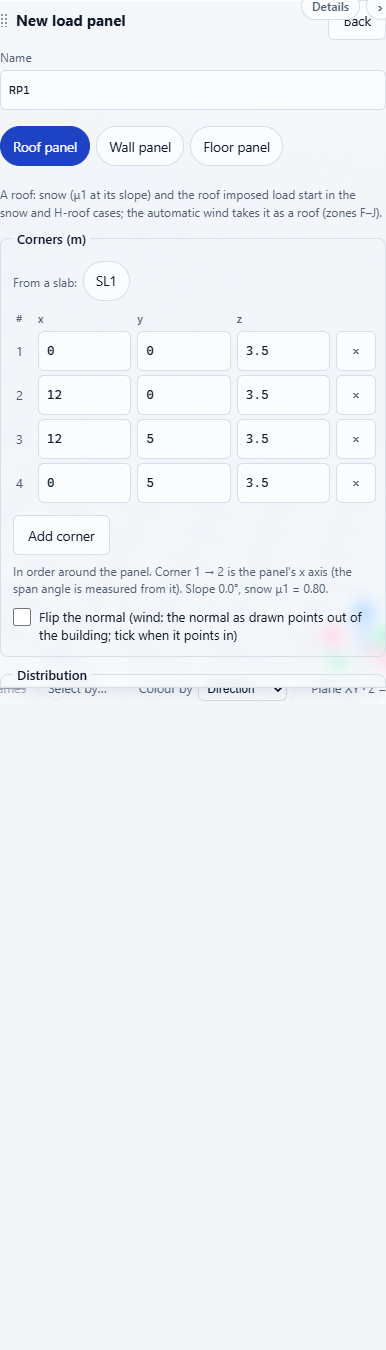
The engine does not store a "kind" for a panel. Nextra Design does not either. The kind follows the panel's slope:
- Wall: steeper than 80°. The automatic wind loads it as a wall (zones A–E).
- Roof: flatter than 80°, with nothing above it. The automatic wind loads it as a roof (zones F–J).
- Floor: has another panel or slab above it, or carries only imposed loads.
The kind you pick when you make a panel sets the loads it starts with:
- Roof: μ1 × s in every snow case. μ1 comes from EN 1991-1-3 Table 5.2 at the panel's slope: 0.8 up to 30°, 0.4 at 45°, 0 from 60°. A roof also gets the roof imposed load q_k in an H-roof case.
- Floor: the annex q_k in each imposed case (categories A–E).
- Wall: no loads. Its wind comes from the automatic wind, or from a cpe you type.
Each load is given in one way only. This is Nextra Design's Load given by:
value in kN/m², in one of three directions:
- global: along an axis, per m² of panel
- projected: along an axis, per m² of plan
- local: along the panel normal
A negative value along z points down.
wind: cpe × q_p. The pressure is p = q_p (cpe − c_pi), positive towards the face.
- A roof zone with two cpe values takes the lower one in +z cases and the higher one in −z cases.
- → all wind cases copies the cpe into every wind case.
snow: μ × s, per m² of plan, downwards. s = C_e C_t s_k comes from Advanced → Snow. The μ1 at …° button fills in μ1 for the panel's slope.
The engine reads these in a fixed order: snow first, then cpe, then the value. So only the chosen field is written.
Flip the normal when a wall's normal points into the building, as drawn. The wind needs the normal pointing outwards.
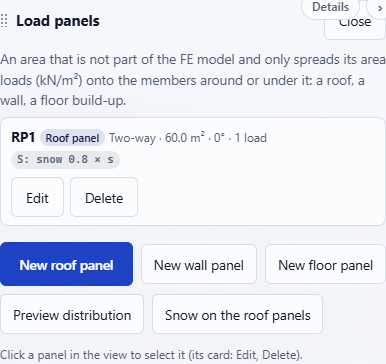
Snow on the roof panels puts μ1 × s, at each roof panel's own slope, on every roof panel at once, in the first snow case. It replaces the snow those panels had before in that case.
#Click a load panel in the view
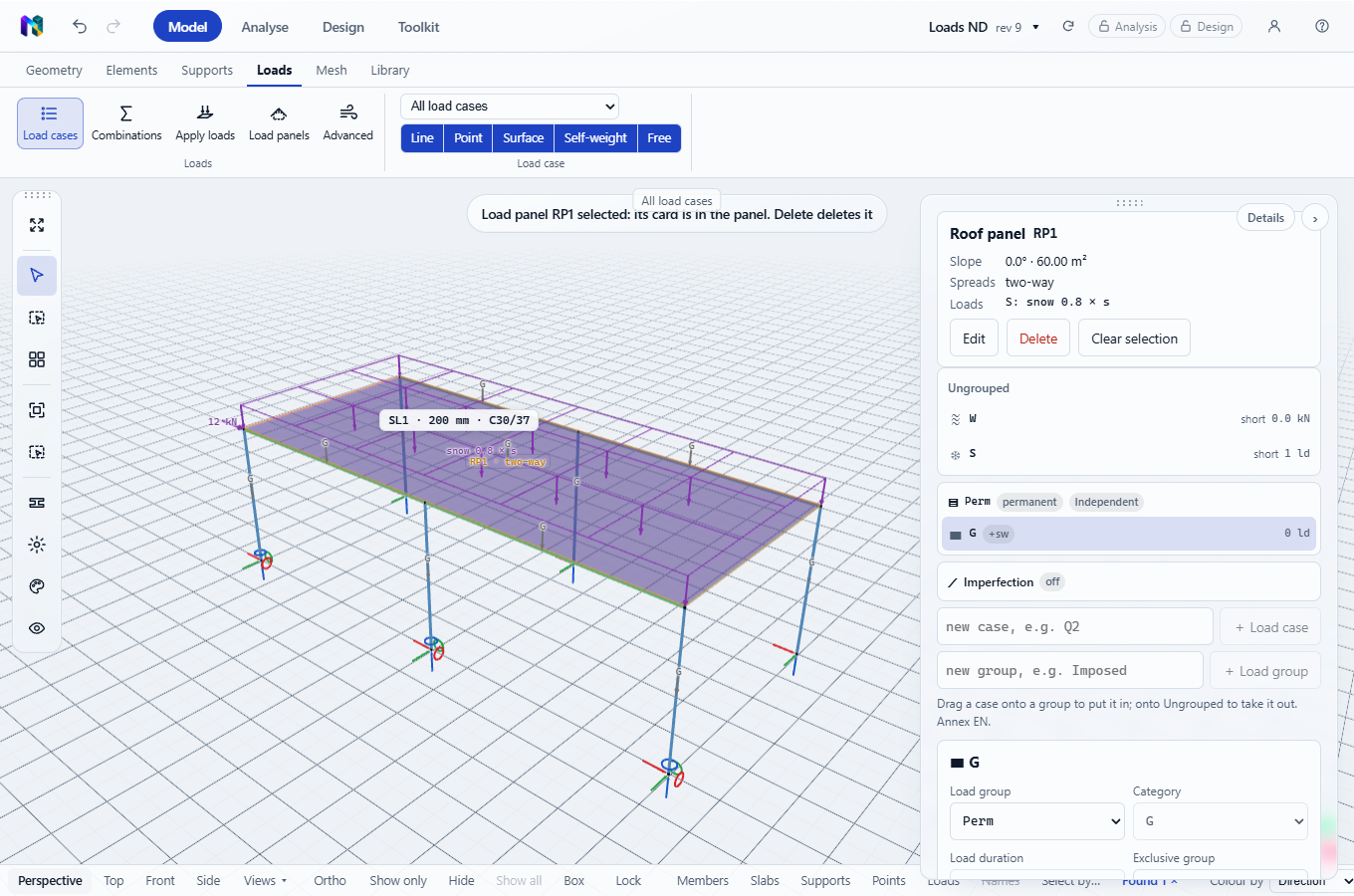
Click a load panel in the 3D view, or include it in a selection box, to select it. On the Loads tab its card shows:
- the kind, slope and area
- how it spreads its load
- its loads
Edit opens the panel in Load panels. Delete removes the panel and its loads in one step. Undo brings them back. The Delete key does the same.
#Apply loads: point on a member, load panel
The ribbon's load type has two types besides point, line and area loads:
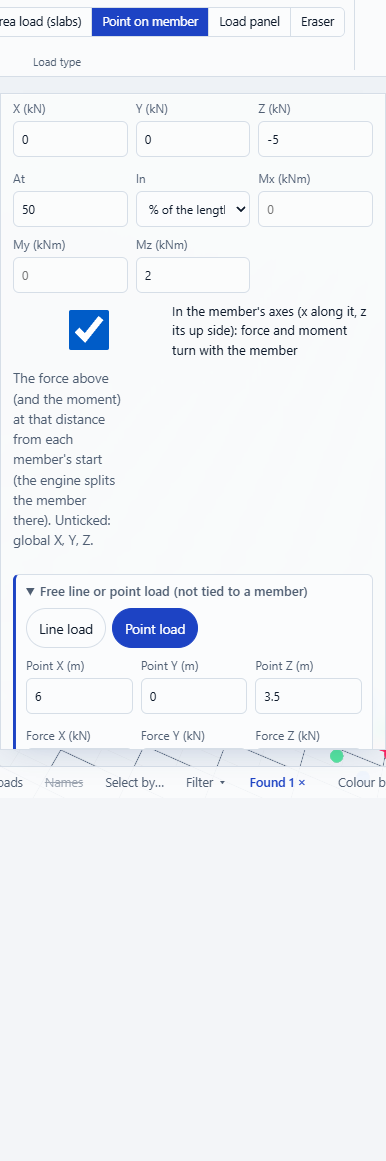
Point on member puts a force at a distance along each member you tap. The distance is in m from the start, or in % of the member's length. This is Nextra Design's Beam point. The engine splits the member there.
- A moment (Mx, My, Mz in kNm) can go with the force.
- In the member's axes turns force and moment with the member: x along it, z its up side. Unticked, they are global.
Load panel applies a load to each load panel you tap. The load is given as a value, as cpe or as μ. A load of the same case on that panel is replaced.
The eraser also removes a case's loads from the load panels you tap.
#Free line and point loads
A free load is not tied to a member. Open Apply loads and then Free line or point load under the brush. It goes into the case chosen in the ribbon.
- Line load: start and end (m), w (kN/m). Projected gives w per m of the line's projection square to w (snow on a sloping line).
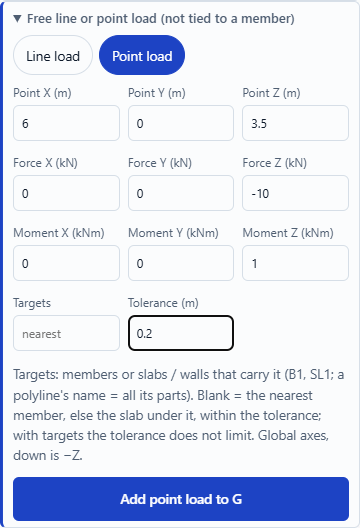
- Point load: the point (m), the force (kN) and, if you like, a moment (kNm).
- Targets: what carries the load. Give member or slab / wall names (B1, SL1); a polyline's name means all its parts.
Use the selection fills in what is selected.
- Without targets the engine looks within the tolerance: a point load goes to a joint there first, else to the nearest member (split there), else to the slab or wall under it; a line load to the nearest member, else the slab or wall.
- With targets the tolerance does not limit.
- Tolerance: in m; blank = the engine's 0.05 m.
Free loads are also made by the assistant and the connector.
#Facade from walls
Load panels → Facade from walls puts a wall panel on every wall (a slab or wall steeper than 80°) with the cladding load, as Nextra Design's Facade does.
- Choose the case, q in kN/m² and the direction:
- down (weight of the cladding): q per m² of facade, downwards
- on the face, into the building: q square to the facade, pointing in
- Each panel lies on its wall and is carried by it. Its openings stay unloaded.
- The outside is the side away from the plan centre of all walls. Check the arrows on a wall that is not on the outline.
- Made again for the same case, the panels keep their place and the load is replaced. A second case is added to the same panels.
#Not in the engine
Nextra Design's engine has no temperature loads, support settlements or imposed deformations, prestress, crane loads, moving loads, or snow drift (μ2, μ3). So the web app has none of these either.