 Nextra
Results and design
Examples
#Examples
The examples are six of Nextra Design's own building models, one or two per material, each checked to load and analyse as Nextra Design does in Rhino: a steel portal hall, a steel braced frame, a timber frame house, a glulam hall, an RC frame building and a hybrid timber-concrete tower. You choose one, change its main dimensions, and the Nextra Design engine builds the model with your values. It opens in the editor as a new project of yours: you can analyse it and edit every member, support and load. Their roof, wall and floor loads sit on load panels: the view draws each panel load as arrows over its panel with its value (pick one load case in the strip on top to see that case alone). The textbook checks are on their own page: Toolkit → Verification.
Open them from Toolkit → Examples (on a phone: Toolkit in the bottom bar, the Learn and extend button, then Examples); the engine builds each one.
#Find an example
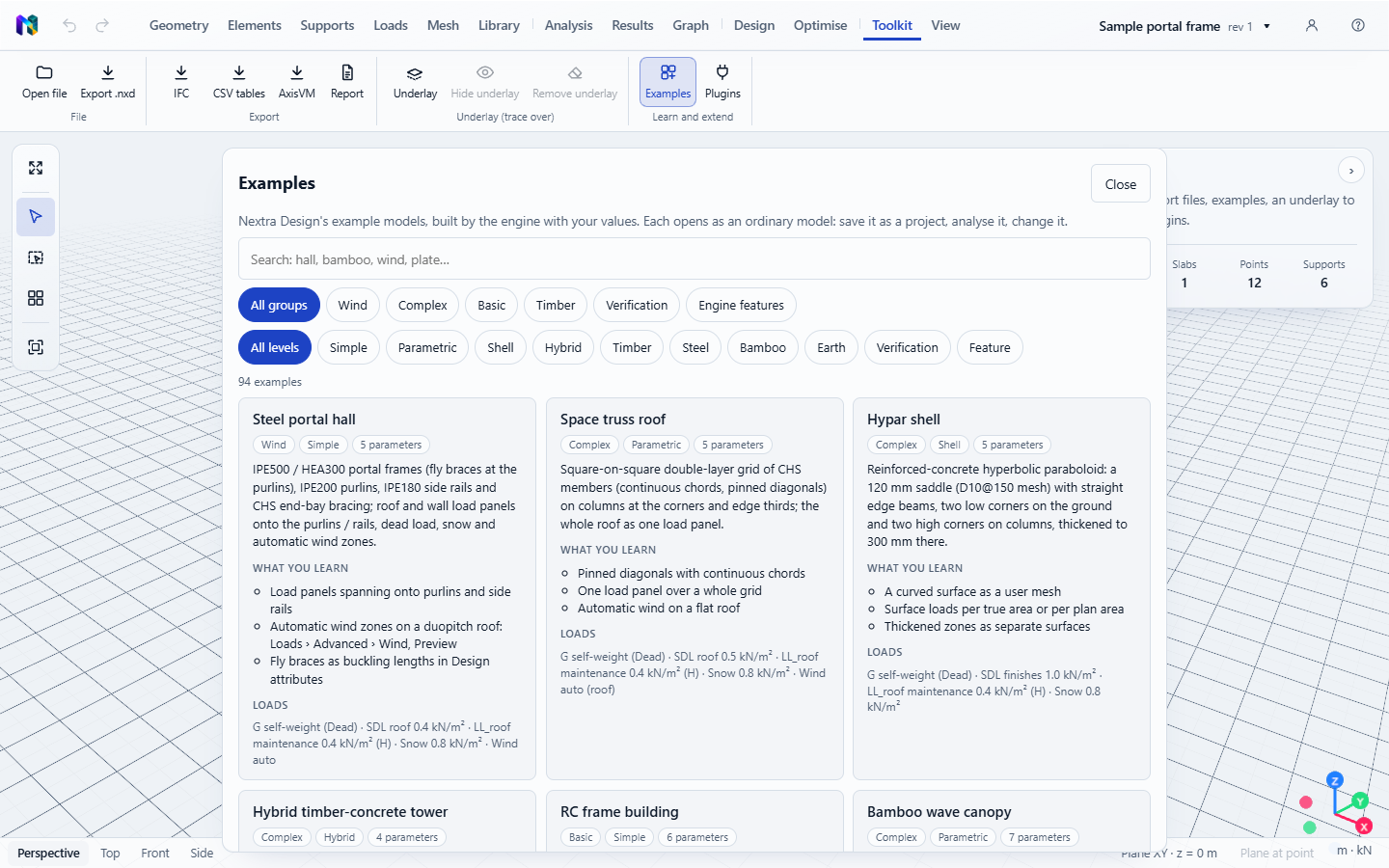
Toolkit → Examples opens the gallery. Each card shows the example's group and level, what it is, What you learn from it, and its Loads.
- Search matches the title, the description, what you learn and the loads: try hall, bamboo, wind or plate.
- Group chips sort the six by their engine group (for example Wind, Complex, Basic, Timber).
- Level chips narrow it further (simple, parametric, shell, timber, bamboo, earth, …). They follow the chosen group.
Choose a card's title (click, tap, or Tab to it and press Enter) to open it. Escape goes back to the list, and again closes the gallery.
#Change the dimensions and open it
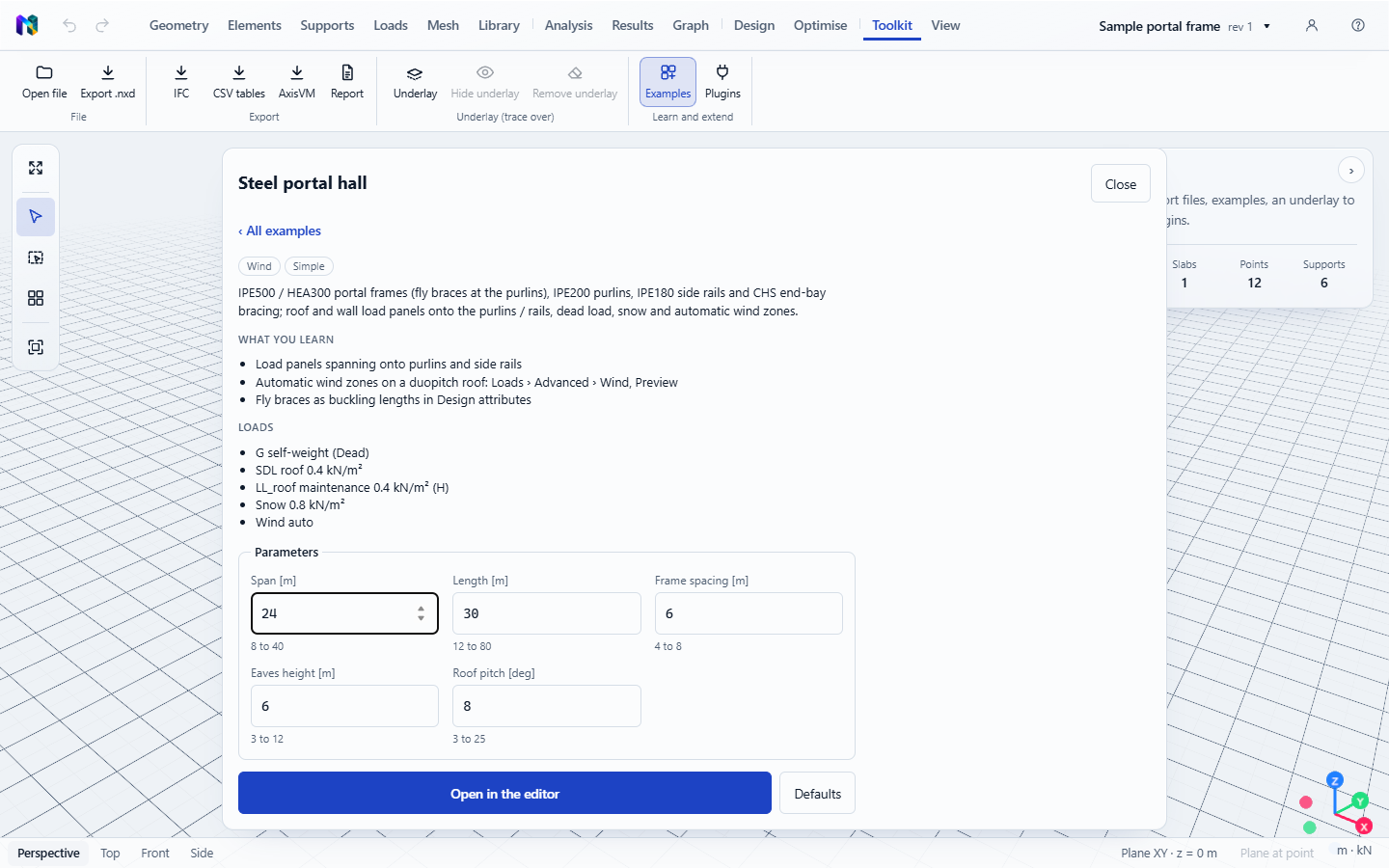
The building examples have parameters: spans, lengths, bay spacing, heights, pitch, storeys, mesh divisions. Each field starts at the engine's default and shows its allowed range under it (for the hall: span 8 to 40 m). A value outside the range is marked red and Open in the editor stays off until it is corrected. Defaults puts every field back.
Open in the editor asks the engine to build the model; this takes a few seconds. The example opens as a new project; the project you were working on stays saved and is in Projects…. If the engine refuses, the reason and what to do about it appear in red under the fields.
The verification and engine-feature examples have no parameters: they open as the engine builds them.
#What you get
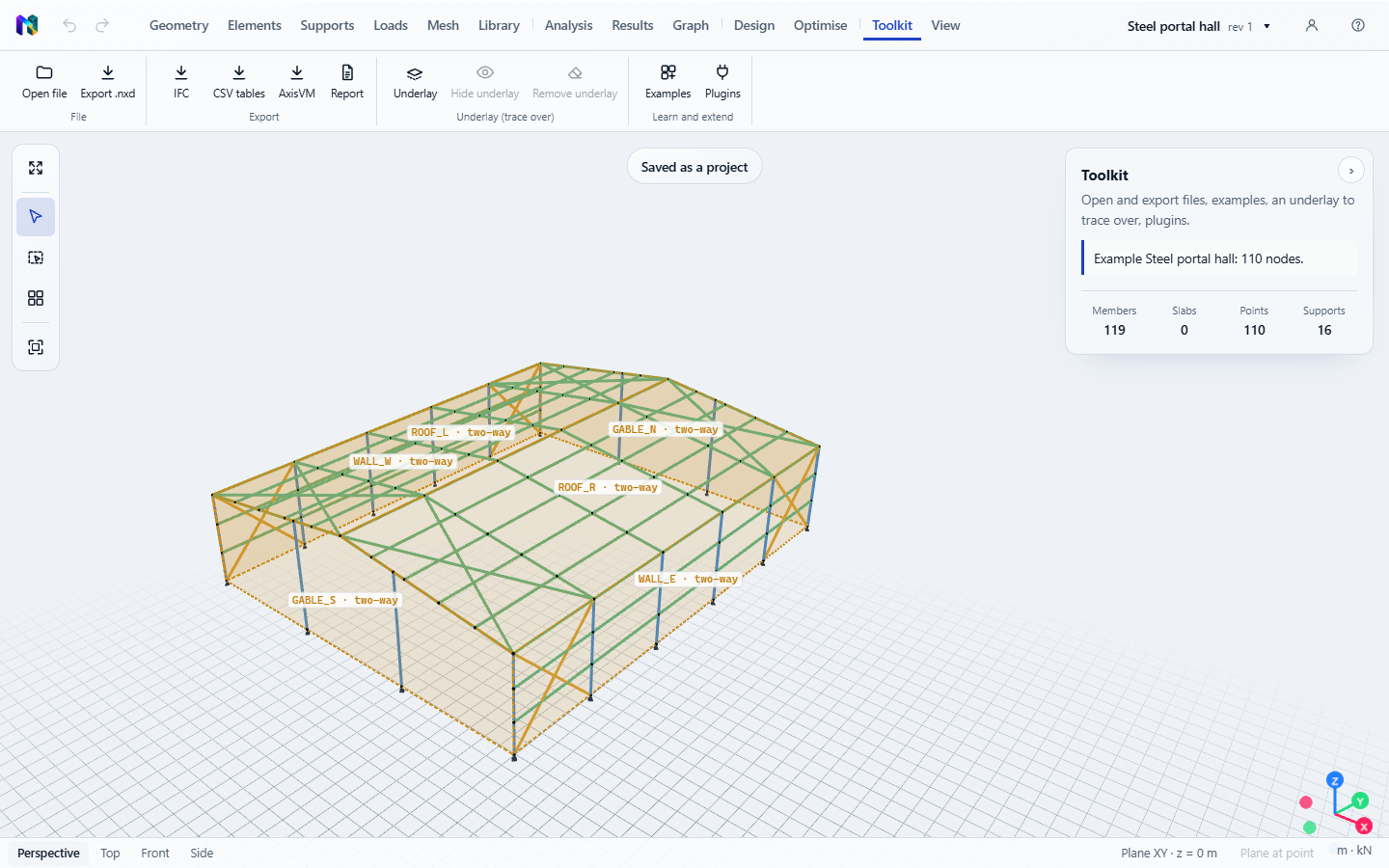
The panel confirms it, for example Example Steel portal hall: 110 nodes, and the counts below show members, slabs, points and supports. The example is a complete Nextra Design model: sections, materials, supports, load cases, load panels and design attributes, as the engine defines them.
It is saved as a project by itself, under the example's name: Analysis → Analyse analyses it (see Read the results). It is your project: edit it like any other model (Edit the geometry, Assign properties), and every change is in its History.
#On a phone
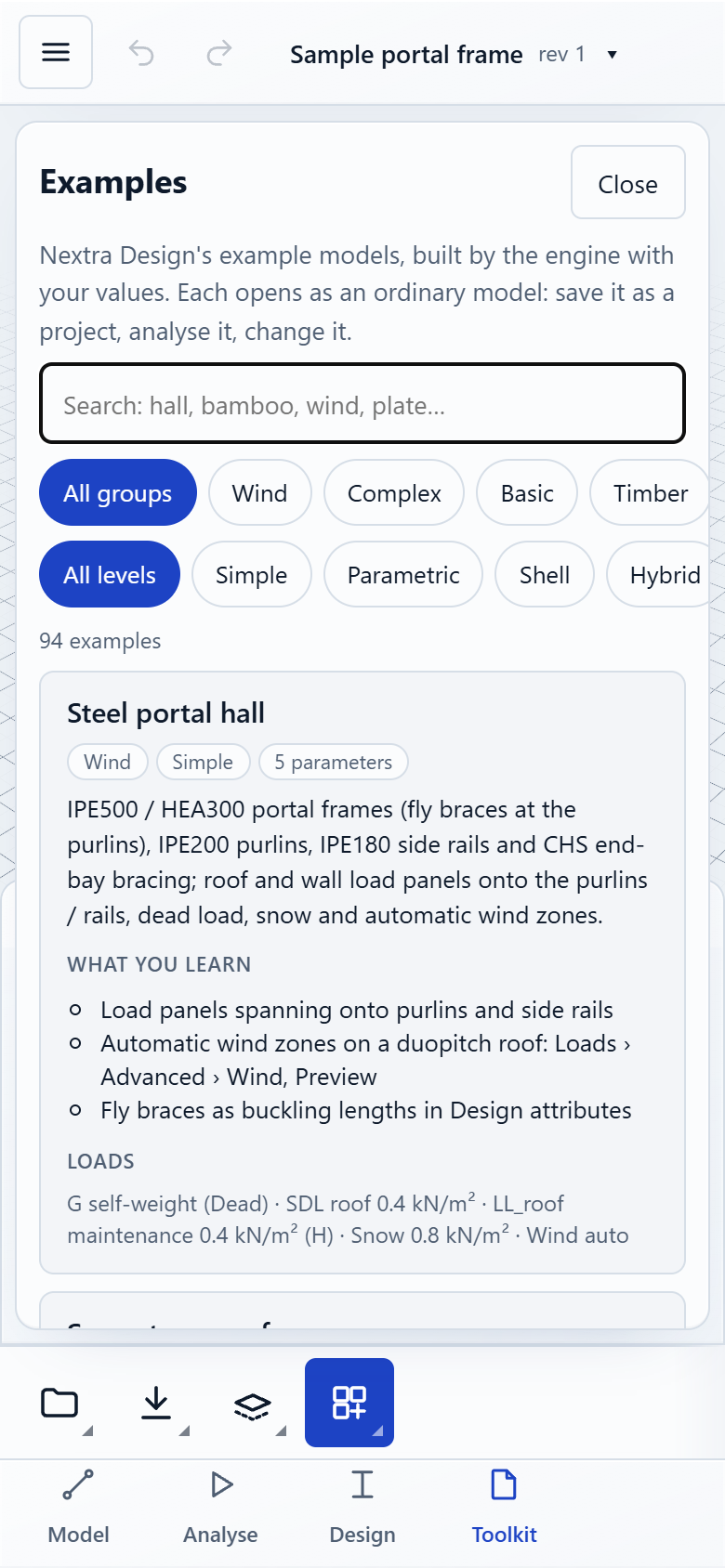
The gallery fits a phone screen: one card per row, and each row of filter chips swipes sideways. Open it from Toolkit in the bottom bar, the Learn and extend button, then Examples.