 Nextra
How-to20 Nov 2026
Set up Nexiy, the assistant in Rhino: your own key, your own CLI or your desktop app
Nexiy now opens an assistant panel inside Rhino. Set it up in a minute with your own OpenAI, Gemini, Claude or Jev key, with Claude Code, Codex or Gemini CLI, or keep using Claude or ChatGPT on your desktop.
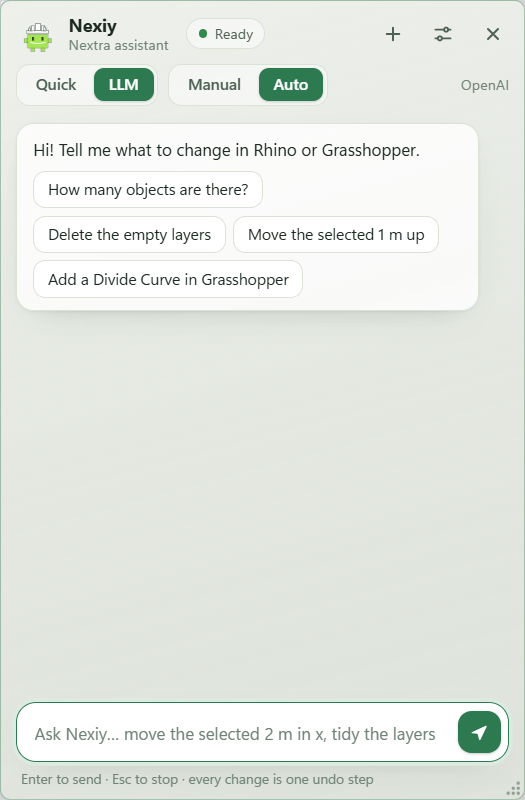
NextraRhinoGh puts Nexiy, a small figure, in the bottom-right corner of Rhino. Nexiy shows whether an AI app is working in Rhino, and it opens an assistant panel right inside Rhino: type what you want, and Rhino and Grasshopper change. The assistant is optional and off until you set it up. It uses your own AI key or your own AI command-line tool, so there is nothing extra to pay to us.
#Before you start
- Rhino 8 with NextraRhinoGh 0.2.0 or newer: in Rhino, PackageManager, search Nextra-RhinoGh, install or update, restart Rhino. The full install guide: Install.
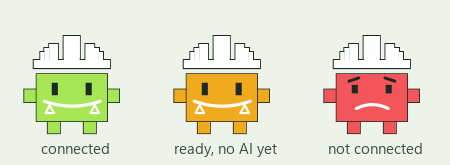
- Nexiy appears in the bottom-right corner of the Rhino window. Amber means ready, green means an AI app is working in Rhino.
#Step 1: open the settings
Click Nexiy and choose Set up the assistant…. The panel opens. Press the settings button (the sliders, top right). Under Connection you pick one of three ways:
| Way | Who does the thinking | You need |
|---|---|---|
| API key | the AI provider, with your key | an OpenAI, Gemini, Claude or Jev key |
| CLI | your own AI command-line tool and its subscription | Claude Code, Codex or Gemini CLI |
| Desktop app | Claude or ChatGPT on your desktop | the NextraRhinoGh plug-in in that app |
#Step 2a: with an API key
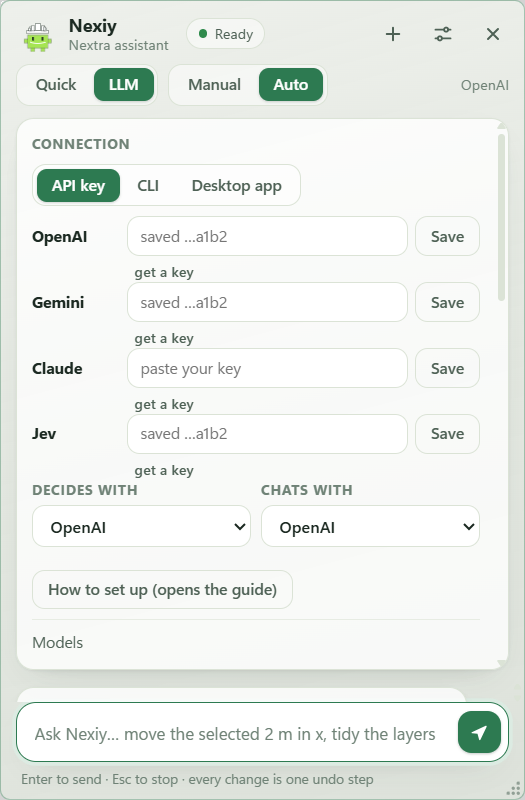
- Paste a key next to OpenAI, Gemini, Claude or Jev and press Save. get a key opens the provider's page where you make one.
- Decides with is the model behind Quick mode (OpenAI, Gemini or Jev). Chats with is the model behind LLM mode (OpenAI, Gemini or Claude). Jev only decides.
Not sure which? One key for everything: OpenAI. Fastest: Jev plus a chat key. Fewest chat calls: Gemini.
Your key is kept by your operating system (Windows encrypts it for your user account, a Mac keeps it in the Keychain) and goes only to the provider it belongs to. The panel shows only its last four characters.
#Step 2b: with your own CLI
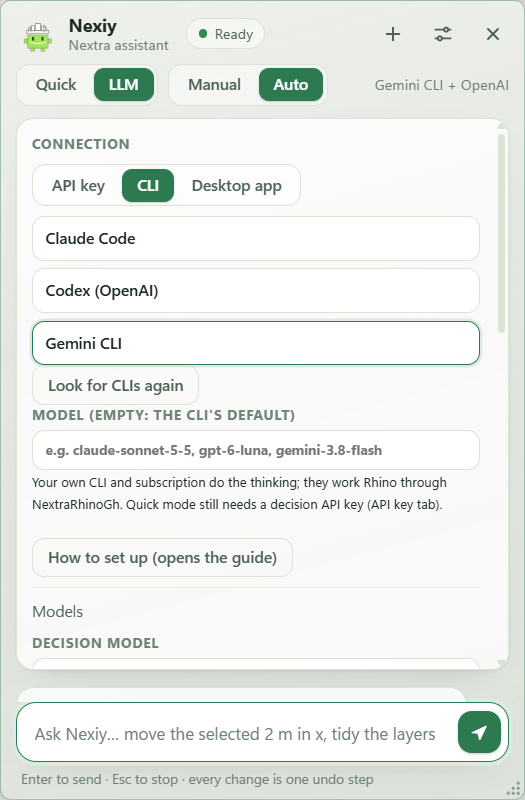
Already pay for Claude, ChatGPT or Gemini? Then the CLI does the thinking with your own sign-in, in the same chat panel. No API key needed for LLM mode.
- Install one, then sign in once in a terminal:
| CLI | Install (in a terminal) | Version |
|---|---|---|
| Claude Code | npm install -g @anthropic-ai/claude-code, then claude and sign in | 2.1.300 or newer |
| Codex (OpenAI) | npm install -g @openai/codex, then codex login | 0.170 or newer |
| Gemini CLI | npm install -g @google/gemini-cli | the latest; with a Gemini key saved under API key, it uses that key |
Already have one? Run the same command to update it.
- In the panel: CLI, and pick the CLI. Installed it while Rhino was open? Press Look for CLIs again.
- Model can stay empty (the CLI's default), or name one, such as claude-sonnet-5-5.
Quick mode still needs a decision key under API key.
#Step 2c: with the desktop app
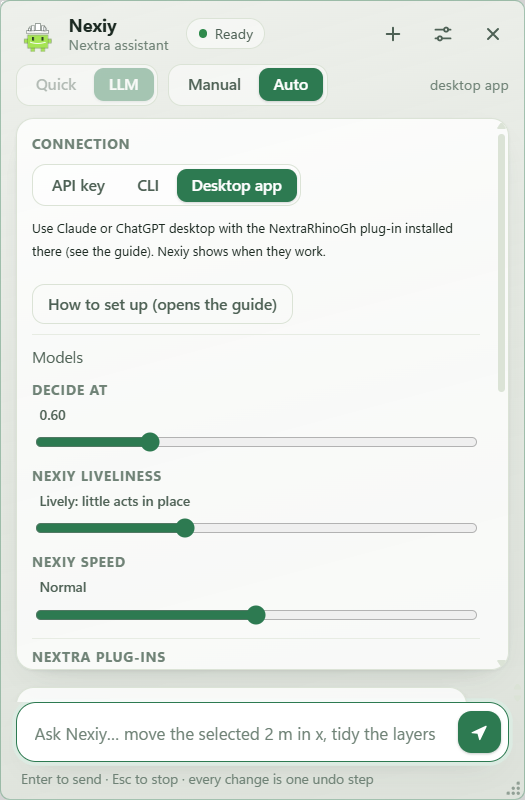
Prefer to chat in Claude or ChatGPT on your desktop? Install the NextraRhinoGh plug-in there (Install) and choose Desktop app. The panel then only shows how to connect, and Nexiy shows when the app works in Rhino.
#Step 3: ask
From now on one click on Nexiy opens the panel, and another click closes it. Right-click Nexiy for its menu (size, liveliness, speed, hide).
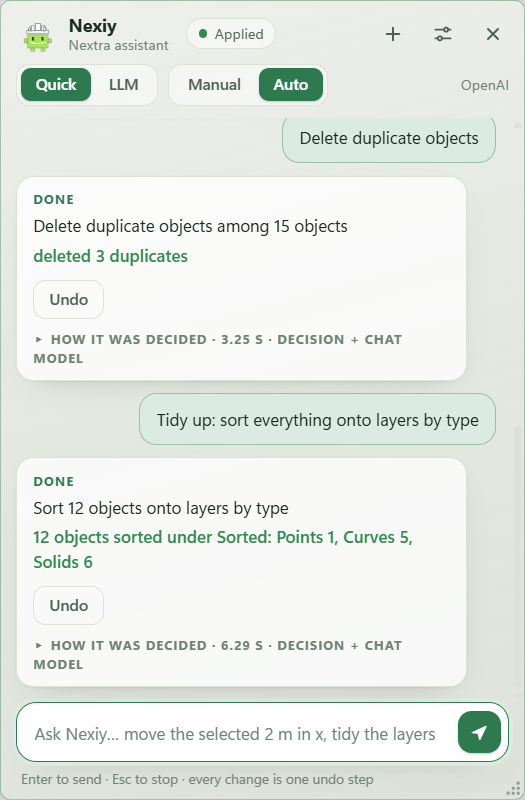
- Quick picks one of over 60 typed Rhino and Grasshopper functions with a decision model, often in under a second. LLM lets a chat model use every tool, for bigger or open work.
- Auto makes changes at once; Manual shows each one first with Apply.
- Every change is one undo step, and every answer has Undo.
Try: Delete the empty layers, Move the selected 2 m in x, Build a 4-storey massing, 5 by 3 columns at 6 m, Add a Divide Curve in Grasshopper.
#Settings worth knowing
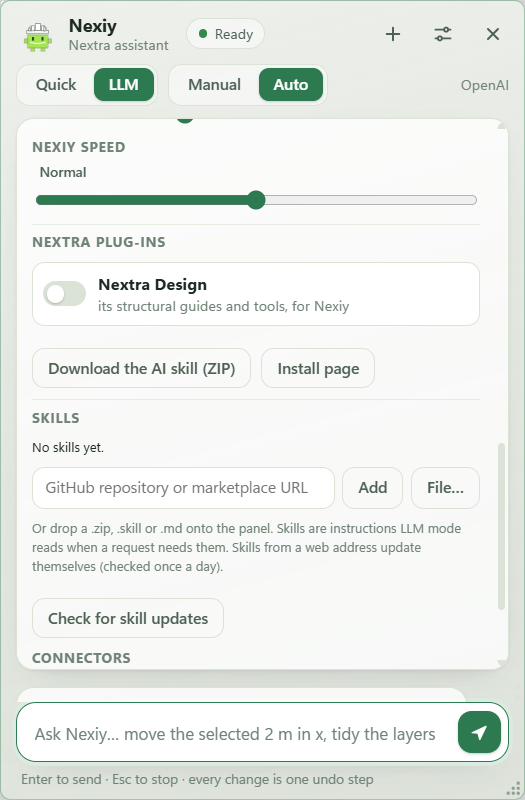
- Nexiy liveliness: Calm (never moves), Lively (little acts in place, the default), Playful, Chaos (runs over Rhino and Grasshopper while working). Nexiy speed: Slow, Normal, Lively.
- Nextra Design: switch it on and Nexiy gets Nextra Design's structural guides and tools. It updates itself.
- Skills: add instructions from a GitHub or marketplace address, a file, or drop a .zip onto the panel.
- Connectors: other apps' tools (MCP servers), used in CLI mode.
#More
- The full how-to: Nexiy, set-up, using it, settings, troubleshooting.
- What it does in practice: tidy a messy model, a Grasshopper definition with Claude Code, a building massing in LLM mode.
- How well it works, measured: the decision API in Rhino.
- Meet the figure itself: Meet Nexiy.