 Nextra
 Install Nextra Rhino & Grasshopper
About 3 minutes from download to your first request.
- Windows
- Rhino 8
- ChatGPT desktop (any plan, also free) or Claude desktop (paid plan)
The pictures are simplified guides of the app menus. Labels can vary by version.
Install the plug-in in Rhino
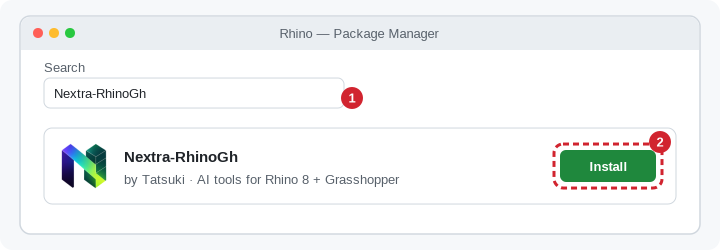
- In Rhino, type PackageManager and press Enter.
- Search for Nextra-RhinoGh and click Install.
- Restart Rhino. A small status dot appears when it is ready.

Add Nextra to ChatGPT
You do this once. ChatGPT then keeps the plug-in up to date for you.
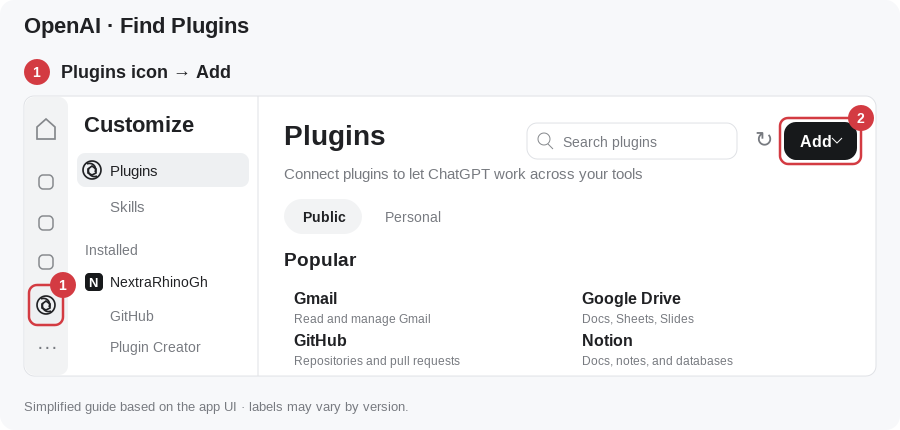
Works on any ChatGPT plan, also the free one. You need the ChatGPT desktop app.- Click the Plugins icon in the far-left bar, then Add at the top right.
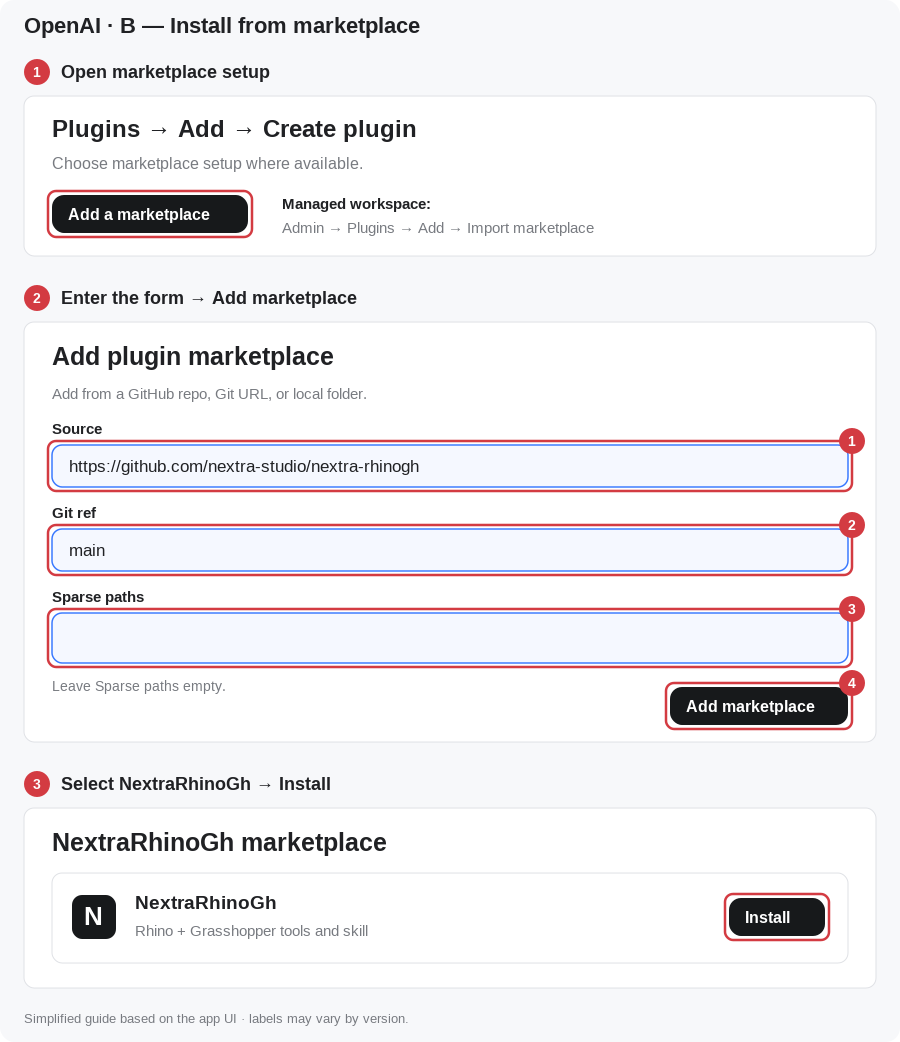
- Open Add, then Create plugin, then Add a marketplace.
- Fill in Add plugin marketplace exactly like this, then click Add marketplace:
- Source
- https://github.com/nextra-studio/nextra-rhinogh
- Git ref
- main
- Sparse paths
- Leave empty
- Open NextraRhinoGh, select NextraRhinoGh, and click Install (or +).
 Add marketplace fails or says it cannot clone from Git? This sometimes happens in ChatGPT. Close ChatGPT completely: open Task Manager (type it in the Windows search), search ChatGPT, select it and click End task. Then start ChatGPT again and add the marketplace again.
Or install from a ZIP instead
Download the ChatGPT plug-in (ZIP)- Keep it zipped.
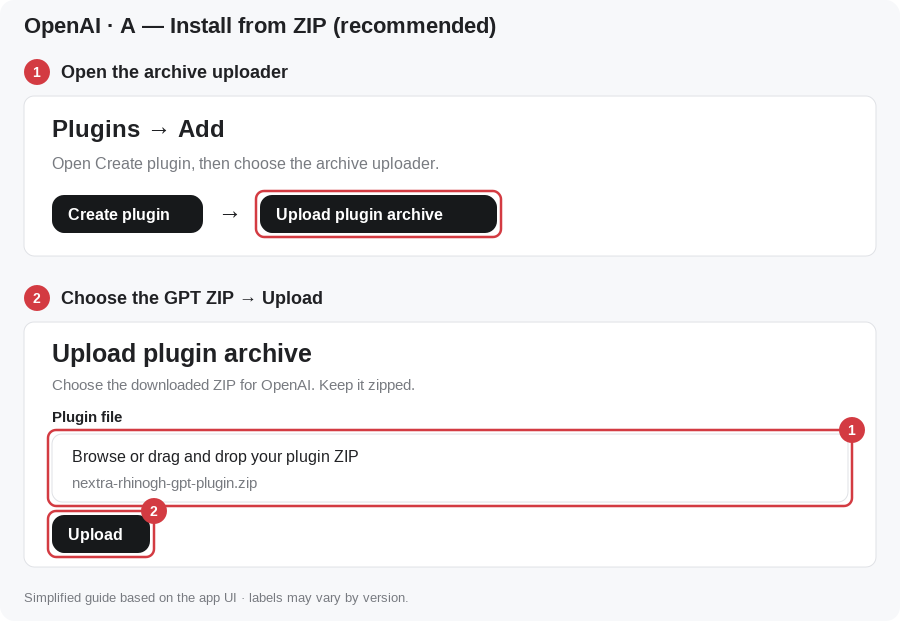
- From Add, open Create plugin, then Upload plugin archive (or Upload plugin).
- Select nextra-rhinogh-gpt-plugin.zip and finish the installation. Repeat this for updates.
Install Node.js
Download setup (.bat)- Your AI app starts the Rhino connection with Node.js. Download the setup with the button above and double-click NextraRhinoGh-Setup.bat.
- If your browser asks, choose Keep. If Windows asks whether to run it, click Run (or More info, then Run anyway). Allow the Node.js installer when Windows asks.
- Setup does nothing if Node.js is already installed. When it finishes, restart your AI app.
- If setup cannot install it: download the LTS Windows Installer (.msi) from https://nodejs.org/en/download, run it with the default options, then restart your AI app.
Send your first request
Start a new session in Work (not Chat): plug-ins do not run in Chat. Type @NextraRhinoGh, then your request.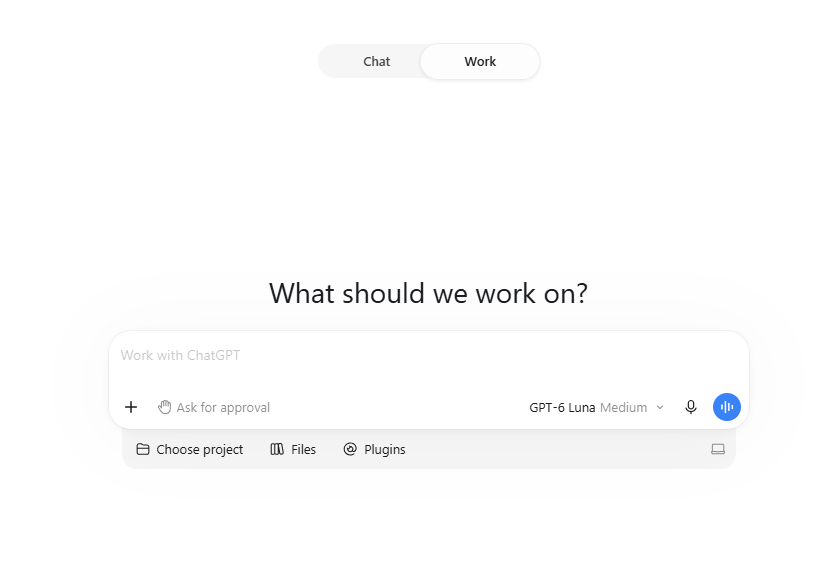
Open Rhino 8, then send:
@NextraRhinoGh Create a timber skyscraper in Rhino
Other AI agents
For any other agent that supports MCP: the agent kit has the skill, the server and the workspace settings. Extract it, open the folder as your agent's workspace and follow AGENTS.md inside.
Download the agent kit (ZIP)If something does not work
PackageManager or Nextra-RhinoGh not found
Try updating Rhino 8: Help > Check for Updates. Restart Rhino, then search again.
The AI says there are no Rhino tools
Restart the AI app and start a new session.
The plug-in does not start, or “node” is not found
Node.js is missing. Run NextraRhinoGh-Setup.bat from the Install Node.js step (or install the LTS from https://nodejs.org/en/download), then restart the AI app.
Nothing happens in ChatGPT
Switch the toggle at the top from Chat to Work.
No status dot in Rhino
Restart Rhino, then type NextraRhinoGhOn.
Several Rhino windows are open
Tell the AI the file name, for example “Use house.3dm”.