 Nextra
News20 Nov 2026
Meet Nexiy: the status dot in Rhino got a body
The green dot in the corner of Rhino is now Nexiy. It still shows the connection, it acts out what the AI is doing, and you choose how lively it is: from Calm to Chaos.
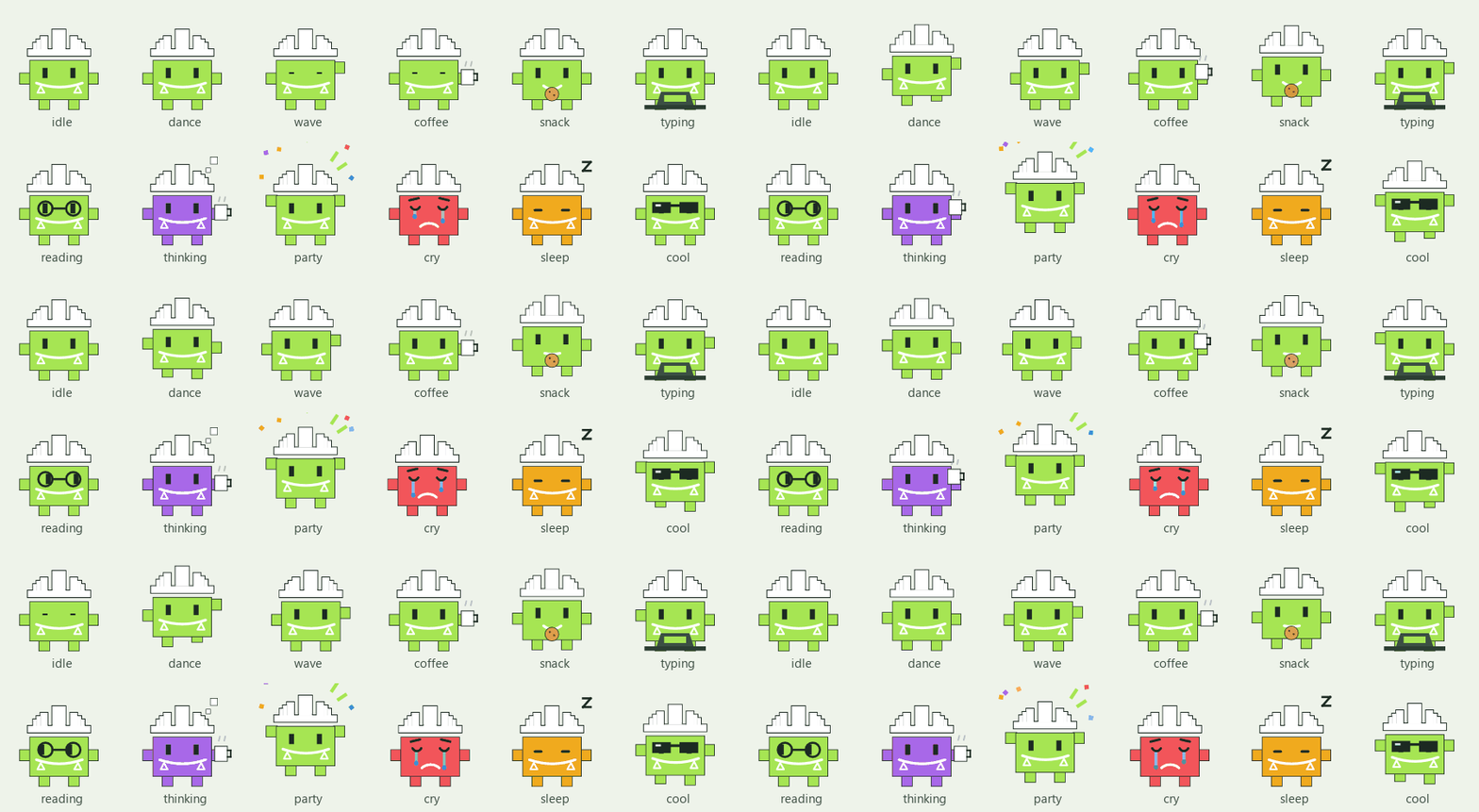
For a year, NextraRhinoGh showed a 16-pixel dot in the corner of Rhino: green, amber or red. It did its job, and nobody ever looked at it. So we gave it a body. Meet Nexiy.
#It still tells you the connection
The colour means what the dot meant:
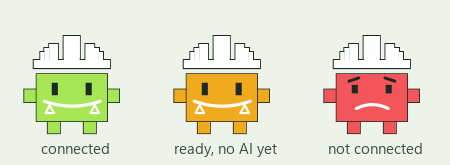
| Nexiy | Meaning |
|---|---|
| green | ChatGPT, Claude, a CLI or the assistant used Rhino in the last 90 seconds |
| amber | ready, nothing connected yet |
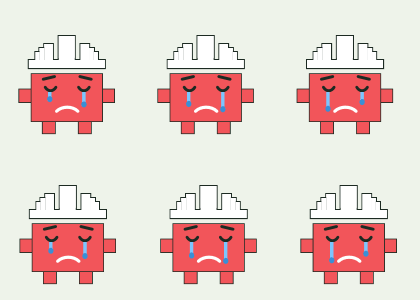
| red and worried | the connection is down: click Nexiy, then Restart server |
#It shows what the AI is doing
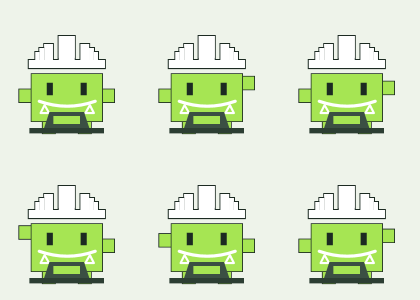
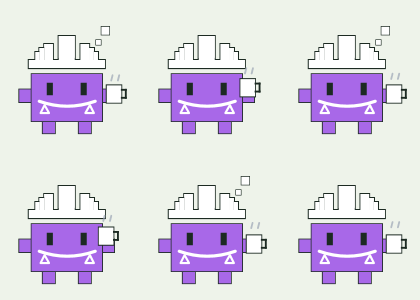
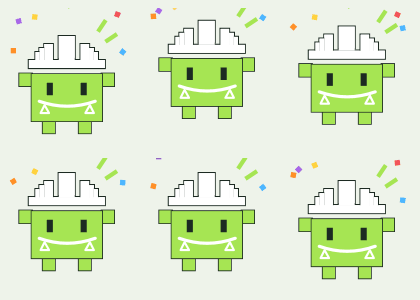
While the AI works, Nexiy works too. It types on a laptop while a tool runs, puts its glasses on to read the model, thinks with a cup of coffee, and has a snack between jobs. A finished job gets confetti; a failed one gets a short cry.
| Working | Thinking | Done | Failed |
|---|---|---|---|
 |
 |
 |
 |
Every act is put together at random from arms, legs, body, face and a prop, so you rarely see the same one twice.
#How lively? You choose
Some people want a quiet corner, others want a show. Right-click Nexiy and pick Liveliness:
| Level | What Nexiy does |
|---|---|
| Calm | never moves, only the colour changes |
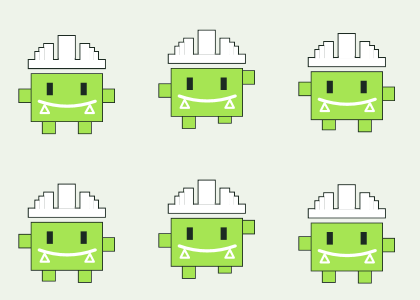
| Lively (default) | little acts in place |
| Playful | dances and grows a bit while working |
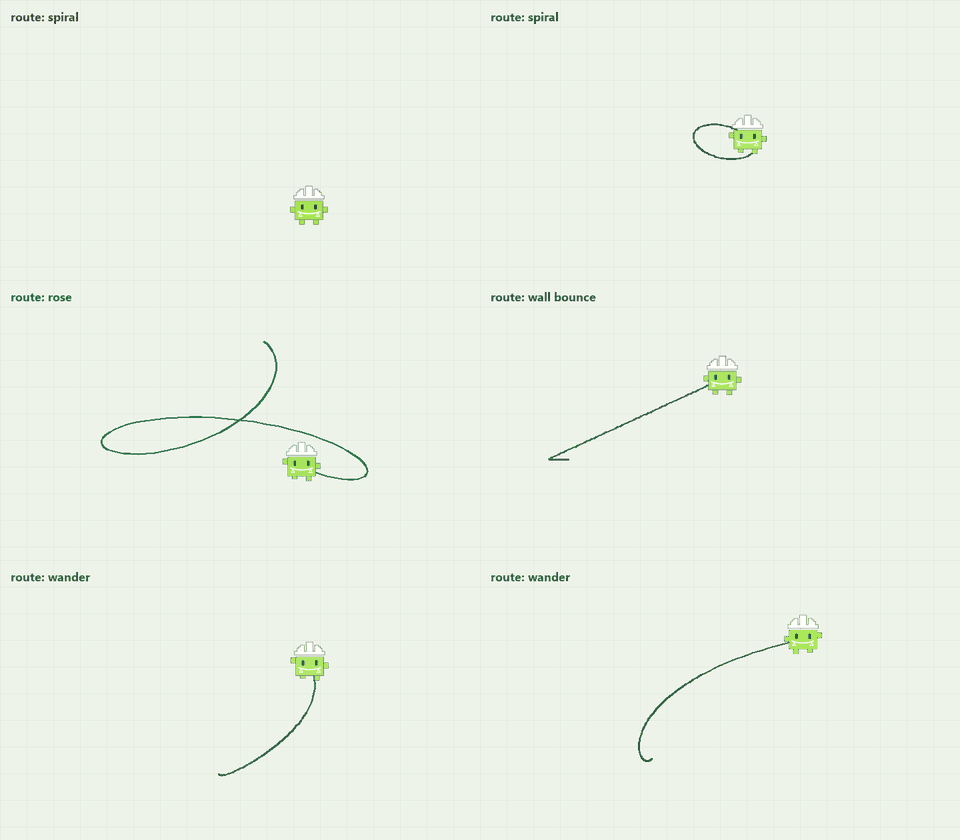
| Chaos | runs all over Rhino and the Grasshopper canvas while working |
In Chaos, Nexiy runs along one of thirteen kinds of routes (circles, figure-eights, spirals, roses, hearts, stars, zigzags, waves, wall bounces, a wander), each one new every time:
Whatever the level, Nexiy only moves while the AI is working. When nothing happens it sits still, blinks now and then, and after a quiet while it falls asleep. Clicks pass straight through it while it runs, so it never blocks your work. Speed (Slow, Normal, Lively) sets how fast it moves.
#Small by default, and out of the way
- Size: Tiny 16 px, Small 24 px (default), Medium 40 px, Large 64 px.
- Move: drag it anywhere; the spot is remembered.
- Hide: right-click, Hide Nexiy. The command NextraRhinoGh > Nexiy > Show brings it back.
#And it opens the assistant
Nexiy is also the door to the new assistant in Rhino: one click opens a chat panel that grows out of Nexiy, and another click puts it away. You set it up with your own AI key or your own AI command-line tool: Set up Nexiy, the assistant in Rhino.
Nexiy comes with NextraRhinoGh 0.2.0 on Windows and Mac. Update it in Rhino's PackageManager.