 Nextra
The add-ons
Rhino import
Bring an AxisBridge JSON export from Rhino into the active AxisVM model.
 Bring an AxisBridge JSON export from Rhino into the active AxisVM model.
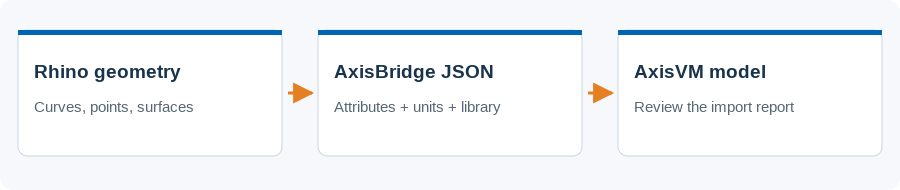
#How to use it
- In Rhino, use AxPoint, AxLine and AxDomain to classify geometry and set its structural attributes. Use AxLibrary for document materials, sections and load cases.
- Run AxExport and save the JSON file. Open N. Rhino Import in AxisVM and choose that file.
- Check the file summary, length/load units and node merge tolerance. Leave crossing-line connection enabled when it suits the geometry.
- Use Dry run first to inspect attribute problems without writing to the model. Then run Import and review the complete report.
See the Rhino commands guide for every Ax command with screenshots.
#Dialog
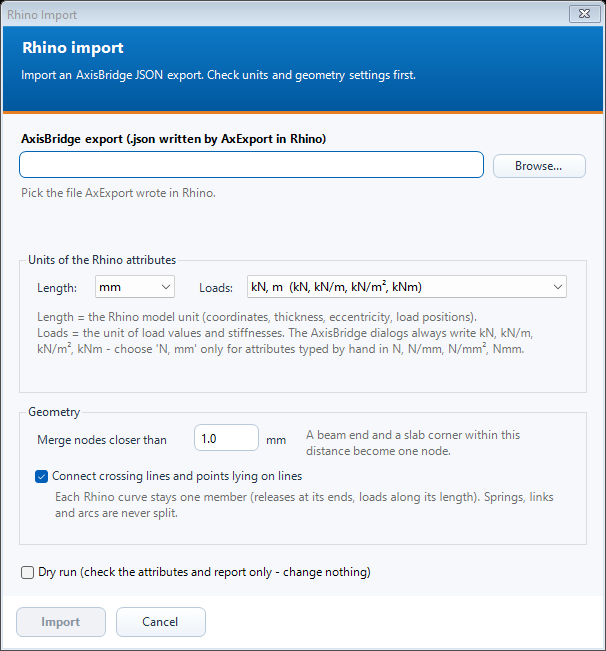
The screenshot is an offline preview with synthetic inputs. It is not a model-analysis result.
Export catalog for Rhino writes this AxisVM's Eurocode materials and cross-section tables to %APPDATA%\AxisBridge, for AxLibrary > From AxisVM catalog in Rhino. It only reads the catalog; the model is not changed. Run it once per computer and again after an AxisVM update.
#Good to know
Coordinates and attributes are interpreted using the chosen units. AxisBridge dialogs write load attributes in kN-based units; choose N, mm only for manually entered attributes in those units. This dialog has no overwrite/replace mode: inspect the report after a repeat import.
Last updated 25 Oct 2026