 Nextra
Getting started
Install
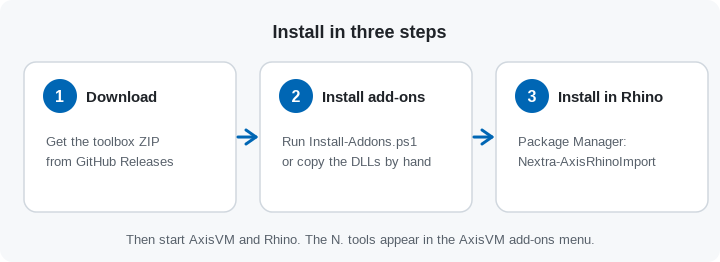
Download the ZIP, install the AxisVM add-ons, then the Rhino plug-in.
#1. Download
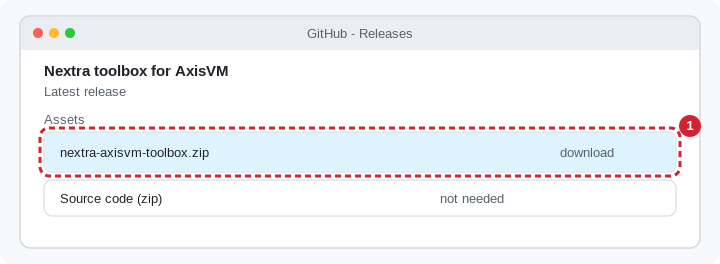
Download nextra-axisvm-toolbox.zip and extract it anywhere (for example your Downloads folder). It contains the add-on DLLs, the Rhino plug-in files, Install-Addons.bat, Install-Addons.ps1, tools.json and an offline copy of the install guide.
#2. AxisVM add-ons
Close every AxisVM window, then choose one of three ways, easiest first. All three end with the same files in the same folder.
#A. Double-click (easiest): no PowerShell needed
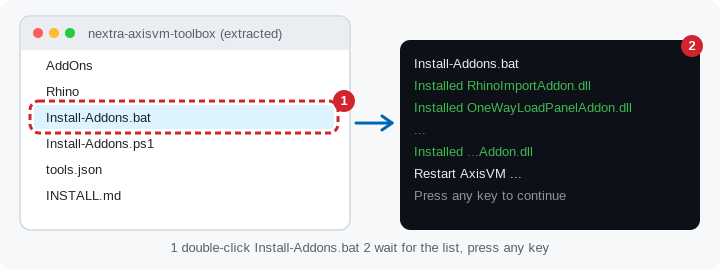
Open the extracted folder, double-click Install-Addons.bat, and wait for the list of installed DLLs. No PowerShell window or settings change needed.
- A blue Windows protected your PC box may appear for a downloaded file: click More info, then Run anyway.
- If AxisVM is not in
C:\AXISVM X8, the script asks for your AddOns folder. You can also drag that folder ontoInstall-Addons.bat. - If Windows needs administrator rights for the AxisVM folder, the window offers Try again as administrator.
#B. PowerShell: the same installer, started from a terminal
Open PowerShell in the extracted folder (Shift + right-click in the folder, then Open in Terminal) and run:
.\Install-Addons.ps1
# AxisVM installed elsewhere:
.\Install-Addons.ps1 -AddOnsDir 'D:\AxisVM X8\AddOns'
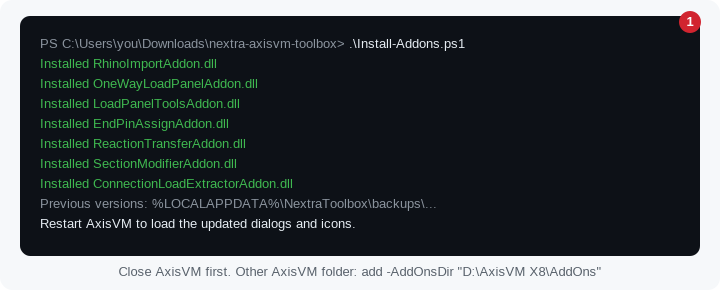
The script backs up existing toolbox DLLs to %LOCALAPPDATA%\NextraToolbox\backups\<timestamp>, copies every DLL listed in tools.json, and checks the SHA-256 hash of each copy. It never deletes other files. Add -WhatIf to preview.
If PowerShell refuses to run it, use powershell -ExecutionPolicy Bypass -File .\Install-Addons.ps1, or option B.
#C. Fallback: copy the files yourself (no script at all)
- Open the ZIP's
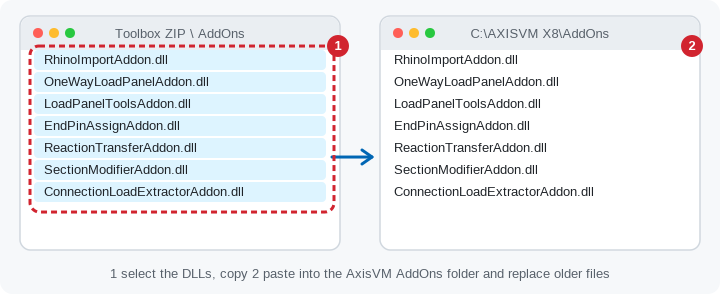
AddOnsfolder and your AxisVMAddOnsfolder (normallyC:\AXISVM X8\AddOns). - Select these DLLs and copy them into the AxisVM folder, replacing older versions:
RhinoImportAddon.dllOneWayLoadPanelAddon.dllLoadPanelToolsAddon.dllEndPinAssignAddon.dllReactionTransferAddon.dllSectionModifierAddon.dllConnectionLoadExtractorAddon.dll
- If the copy is denied, use an Explorer window run as administrator.
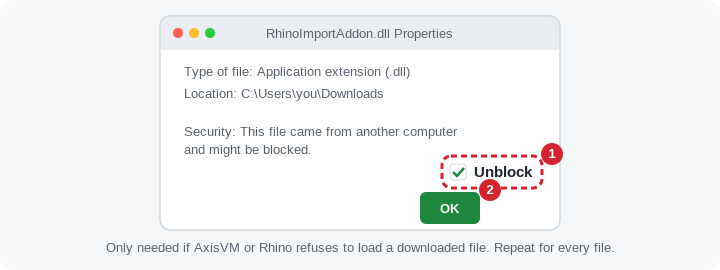
- If AxisVM does not show a tool, right-click the DLL, choose Properties, tick Unblock, press OK, and restart AxisVM.
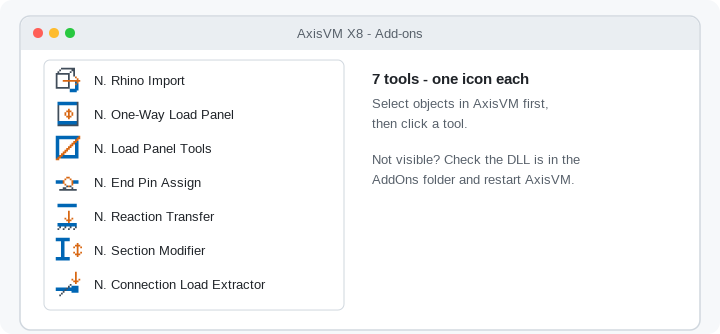
Start AxisVM. The tools appear in the add-ons menu, each with its own icon:
#3. Rhino plug-in: Nextra-AxisRhinoImport
#A. Package Manager (recommended)
In Rhino run PackageManager, search Nextra-AxisRhinoImport, click Install, then restart Rhino.
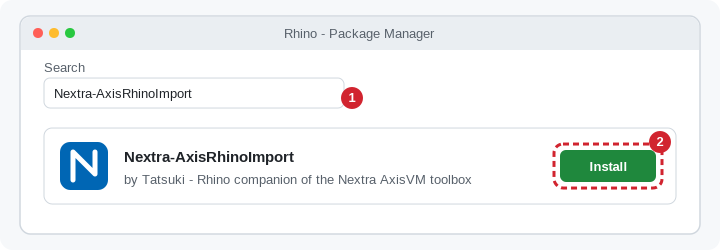
Command line: yak install Nextra-AxisRhinoImport (yak.exe is in C:\Program Files\Rhino 8\System).
#B. Fallback: install the file yourself
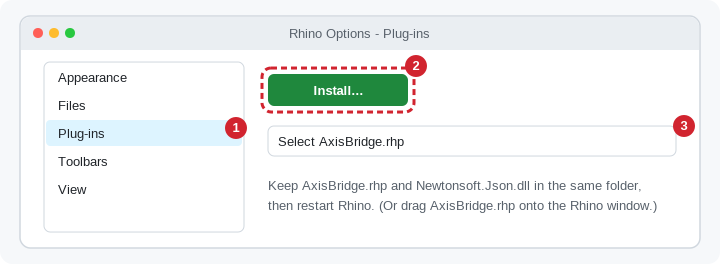
Use the Rhino folder from the ZIP (AxisBridge.rhp and Newtonsoft.Json.dll together). In Rhino choose Tools > Options > Plug-ins > Install..., select AxisBridge.rhp, and restart Rhino. If Rhino refuses the file, Unblock it as shown above.
Type Ax in Rhino's command line to list AxPoint, AxLine, AxDomain, AxLibrary, AxExport and the other commands. Rhino command guide with screenshots.
#Try it
- In Rhino: classify geometry with
AxPoint,AxLineandAxDomain, then runAxExportand save the JSON. - In AxisVM: open N. Rhino Import and pick that file. See the Rhino import guide.
#Update, roll back and troubleshooting
- Update: download the new ZIP and repeat steps 2 and 3. The script backs up the old DLLs first.
- Roll back: close AxisVM and copy the DLLs from
%LOCALAPPDATA%\NextraToolbox\backups\<timestamp>back intoAddOns. Rhino:_PackageManager> Installed > Uninstall.
| Problem | Fix |
|---|---|
| Tool missing in AxisVM | Check the DLL is in the AxisVM AddOns folder, Unblock it, restart AxisVM. |
| Copy reports a locked DLL | Close every AxisVM process and retry. |
| Old dialog or icon remains | Replace the DLL and restart AxisVM; a loaded DLL cannot be replaced reliably. |
No Ax commands in Rhino |
Restart Rhino and confirm the plug-in under Options > Plug-ins. Package Manager needs Rhino 8.6 or newer. |
| Build cannot find AxisVM references | Set AxisVMDir (see the build notes). |
Last updated 25 Oct 2026