 Nextra
Getting started
Install
Add the plug-in to Rhino, then to ChatGPT, Claude or Claude Code.
#1. Rhino
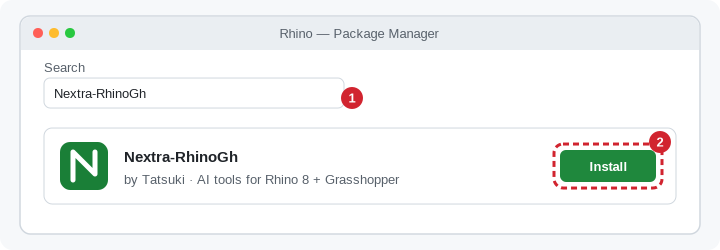
Open PackageManager in Rhino → search Nextra-RhinoGh → Install → restart Rhino.
#2. Your AI app
Pick the app you use below. The easiest way is to add our plug-in list (a marketplace), because the app then keeps the plug-in up to date for you. If that is not possible, download the ZIP instead. Both install the same plug-in: choose one.
https://github.com/nextra-studio/nextra-rhinogh
The pictures are simplified guides based on the app menus. Labels can vary by version.
#ChatGPT desktop (work)
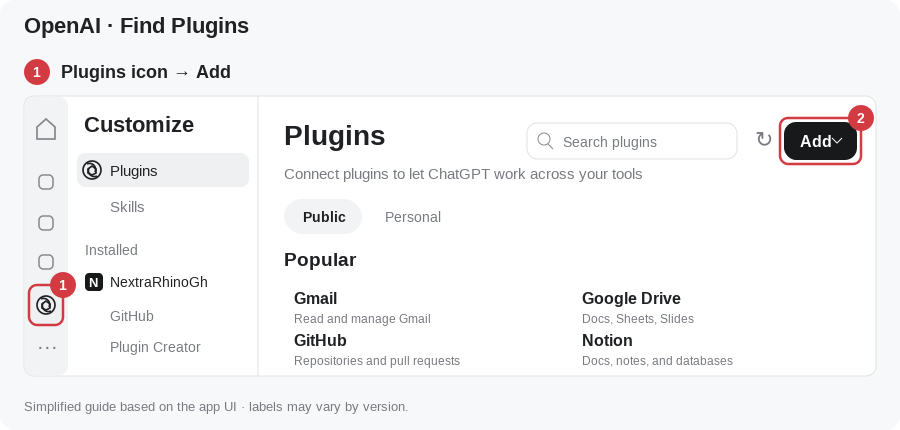
Find Plugins: click the Plugins icon in the far-left navigation rail (highlighted below), then click Add at the top right.
Install from marketplace (recommended)
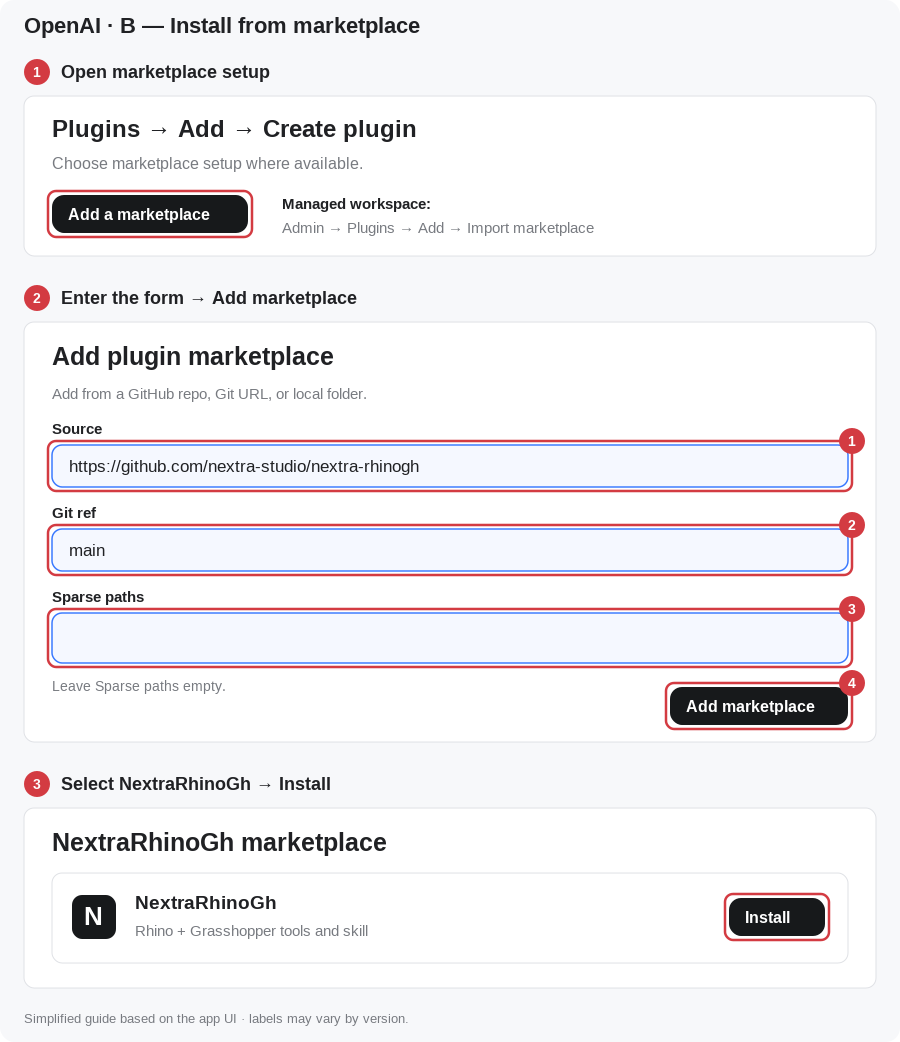
Open Add → Create plugin → Add a marketplace where available.
In Add plugin marketplace, fill in the fields exactly as follows, then click Add marketplace:
Field Enter Source https://github.com/nextra-studio/nextra-rhinoghGit ref mainSparse paths Leave empty Leave Sparse paths empty so the marketplace catalog and the plugin folder are both included.
Open NextraRhinoGh, select NextraRhinoGh, and click Install (or +).
If your desktop app does not show Add a marketplace, run codex plugin marketplace add nextra-studio/nextra-rhinogh in a terminal, restart the desktop app, then install NextraRhinoGh from that marketplace in the Plugins Directory. OpenAI marketplace guide.
Download and upload ZIP
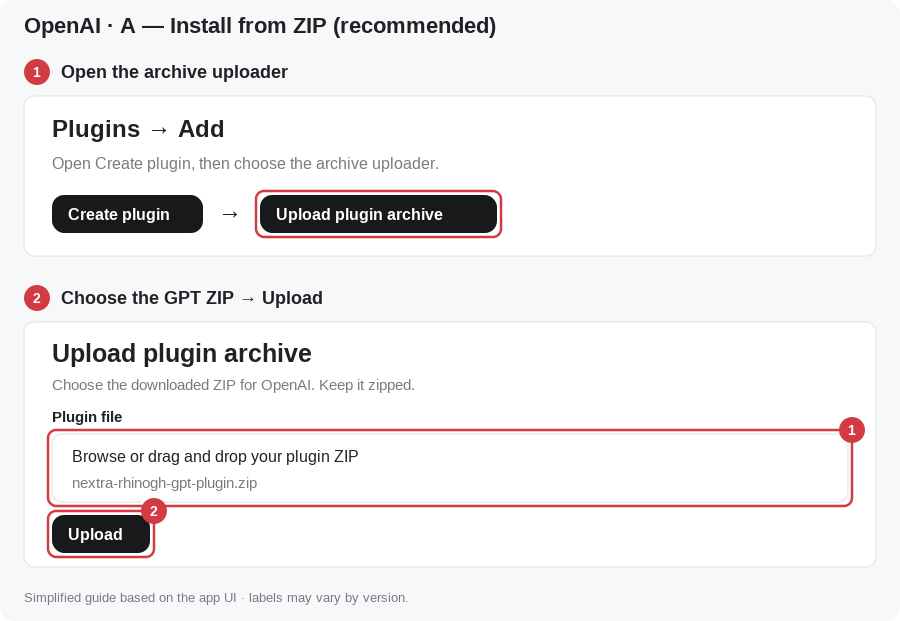
- Download the ChatGPT/Codex plugin ZIP. Keep it zipped.
- From Add, open Create plugin → Upload plugin archive. If your version shows Upload plugin directly, choose it.
- Select
nextra-rhinogh-gpt-plugin.zip, then complete the upload and installation.
For a managed workspace, an admin can use Admin → Plugins → Add → Import marketplace with the same repository URL; leave Path empty. See OpenAI's marketplace import guide.
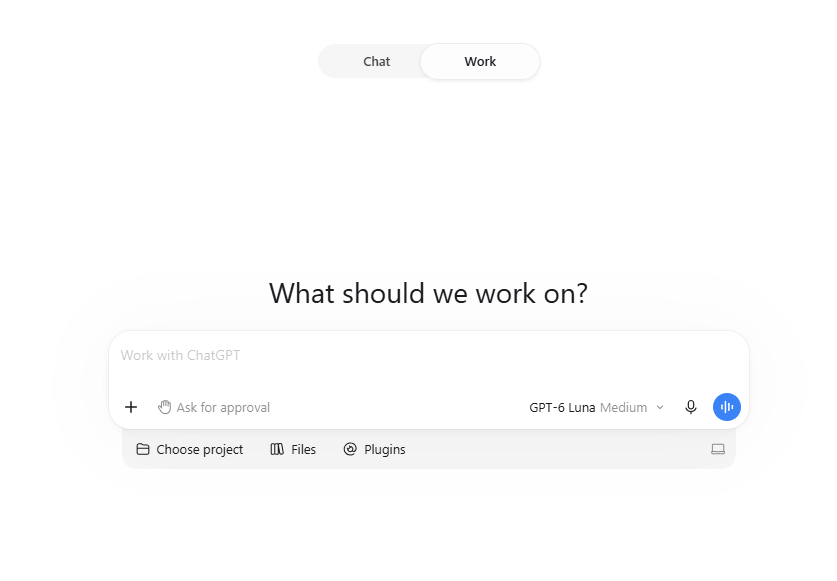
After installing, keep Rhino open and start a new session in Work (or Codex) on the desktop app. Use Work, not Chat: plugin tools do not run in Chat. In the message box, type @NextraRhinoGh to attach the plugin, then your request.
#Claude Desktop
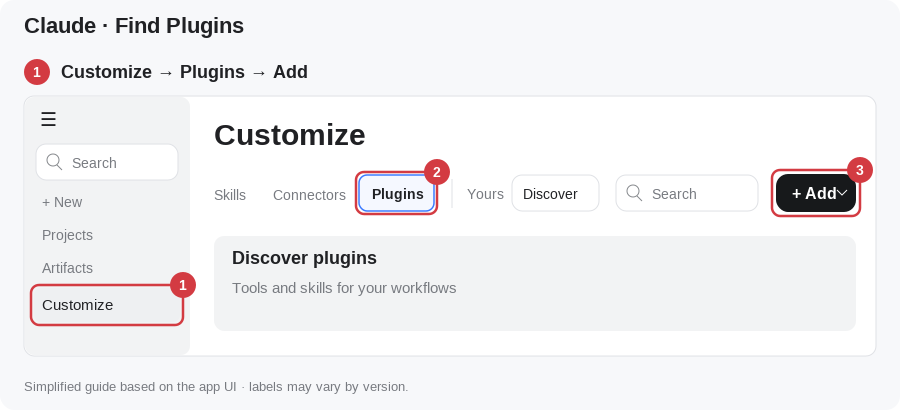
Find Plugins: open Customize in the left sidebar → Plugins → + Add.
Install from marketplace (recommended)
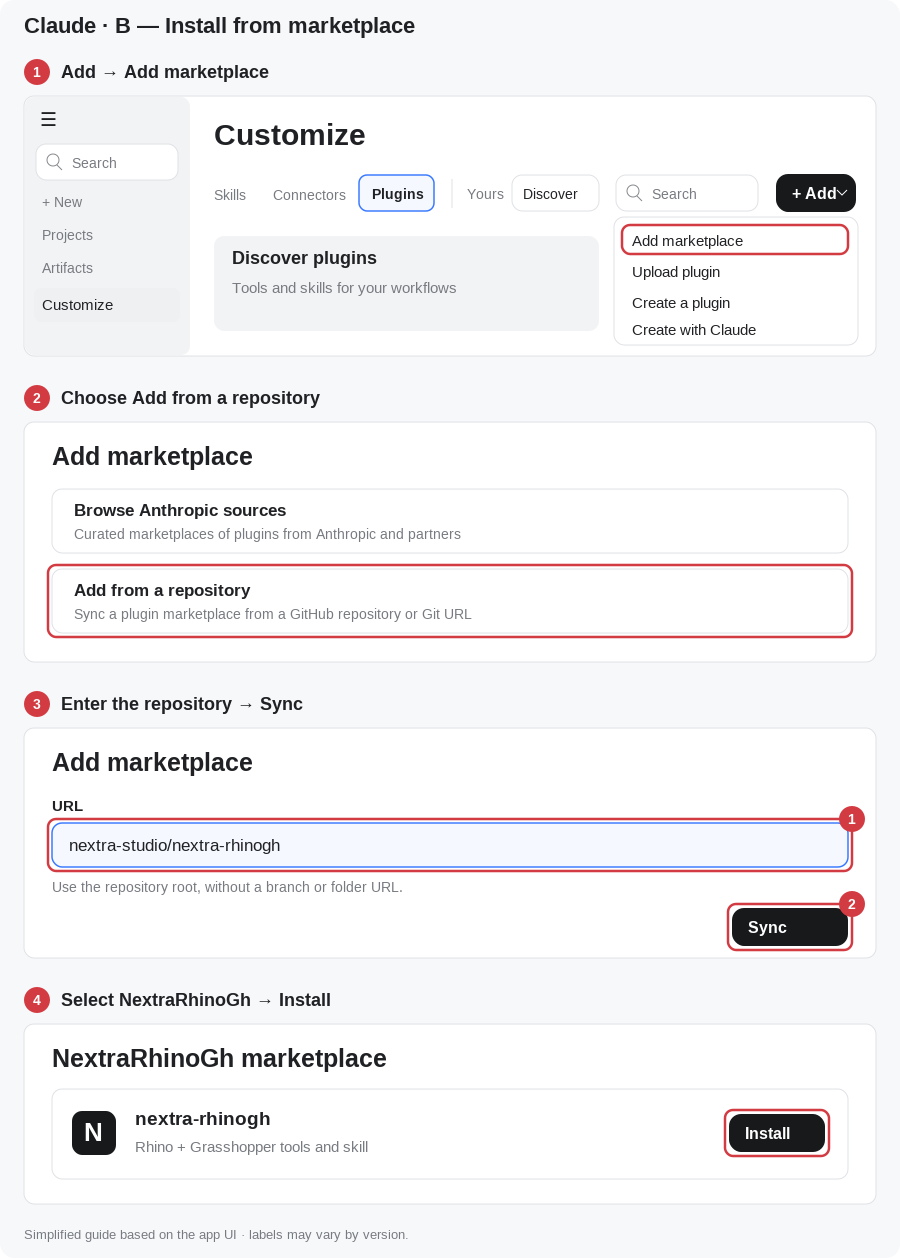
- Choose + Add → Add marketplace → Add from a repository.
- Enter
nextra-studio/nextra-rhinoghin the URL field, then click Sync. - Open the NextraRhinoGh marketplace, select nextra-rhinogh, and click Install.
Download and upload ZIP
- Download the Claude plugin ZIP. Keep it zipped.
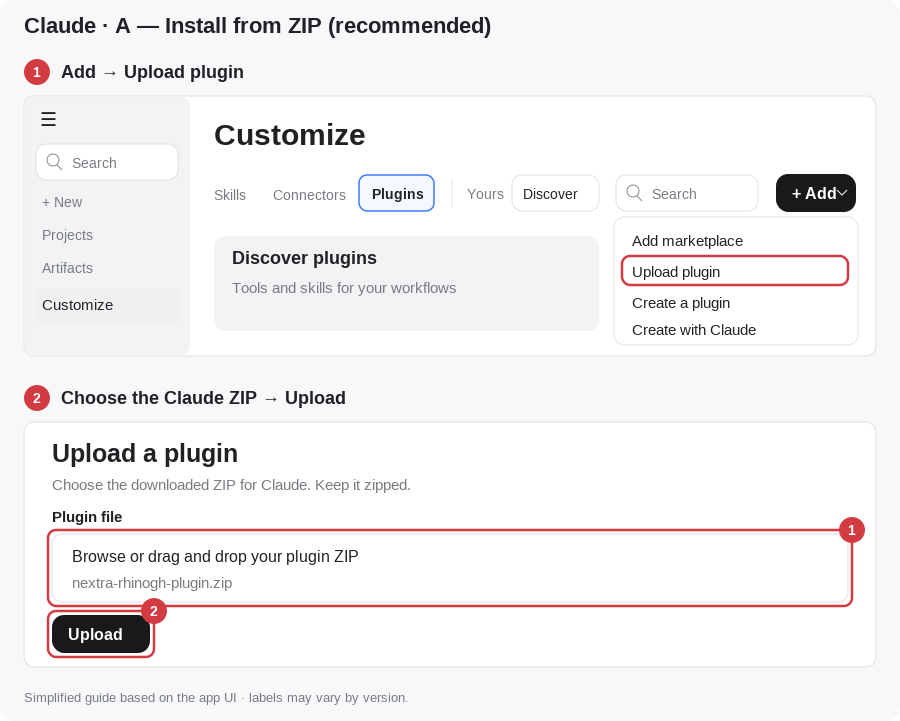
- Choose + Add → Upload plugin.
- Browse for
nextra-rhinogh-plugin.zip(or drag it into the file area), then click Upload and finish installation.
Start a new Cowork session with Rhino open to use the local Rhino tools. In the first message of each session, start with /nextra-rhinogh (once per session; later messages do not need it).
#Claude Code
Install from marketplace (recommended)
Run these commands in a terminal:
claude plugin marketplace add nextra-studio/nextra-rhinogh
claude plugin install nextra-rhinogh@nextra-rhinogh
The first command adds this repository as a marketplace. The second installs its plugin. Claude Code marketplace guide.
Download and load ZIP
- Download the Claude plugin ZIP and extract it.
- Start Claude Code with
claude --plugin-dir PATH_TO_EXTRACTED_PLUGIN.
#Other AI agents
Download the general agent kit ZIP. It contains shared skills, the MCP server, and workspace configuration. Extract it and open the kit as your agent's workspace. Setup information is in AGENTS.md.
Last updated 25 Oct 2026