 Nextra
Modelling
Grasshopper
The Nx components, the chain from elements to design results, model check, and how the Rhino panel shows a Grasshopper model.
The Nextra Design components build, analyse and design a model in Grasshopper. They use the same engine and the same checks as the panel in Rhino. The Rhino panel shows what Grasshopper builds and computes, so you read results the same way in both.
:::info New in 0.1.0-beta.26
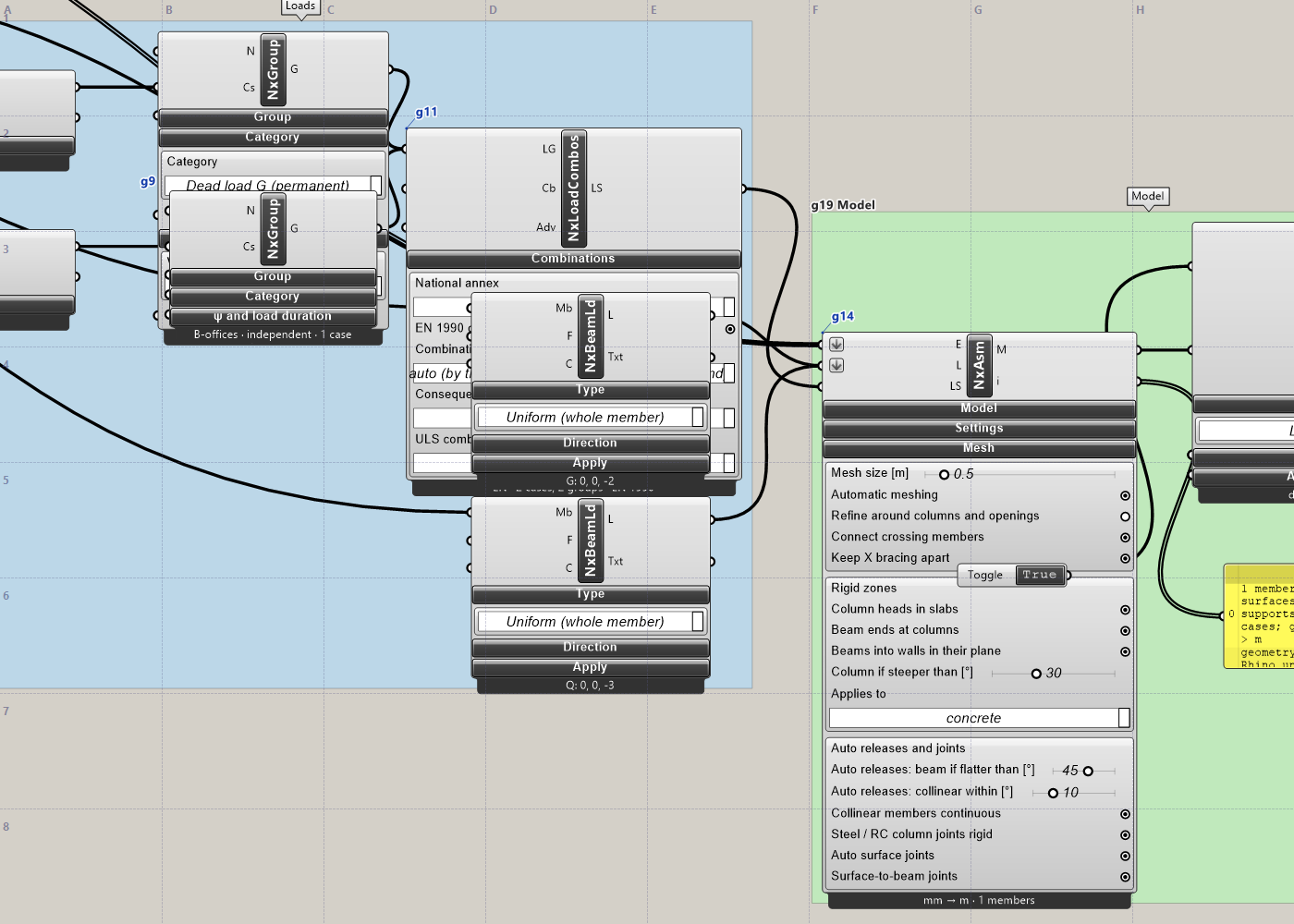
The loads follow the panel's order, and each setting has one place: Nx Load Case (name, self-weight) → Nx Load Group (its cases; category, ψ, load duration, mode) → Nx Load Combinations (annex, EN 1990 combinations, your combinations, consequence class, ULS rule, Nx Load Advanced) → Nx Assemble Load setup. Nx Assemble takes Elements, Loads and Load setup; its menus are the model and mesh settings only (rigid zones and auto releases are in Mesh). Nx Load / Nx Beam Load output Loads, and Nx Analyse shows only Run and Assembled. Seven examples cover every component. Older definitions keep working.
:::
#The ribbon
The Nextra Design tab follows the panel's groups:
| Group | Components |
|---|---|
| 01.Elements | Nx Member, Nx Surface, Nx Timber Wall, Nx Rigid Area, Nx Diaphragm, Nx Deconstruct Element |
| 02.Supports | Nx Support (point), Nx Line (line support, link, line joint, rigid link, mesh line), Nx Surface Support (soil bedding) |
| 03.Loads | Nx Load Case, Nx Load Group, Nx Combination, Nx Load Combinations, Nx Load (points, supports, surfaces, load panels), Nx Beam Load (members, drawn lines), Nx Load Panel, Nx Free Load, Nx Load Advanced, Nx Deconstruct Load |
| 04.Mesh | Nx Mesh Refinement |
| 05.Section / 06.Material | Nx Section (library, rectangle, circle or bamboo culm), Nx Composite Section, Nx Material, Nx Deconstruct Section, Nx Deconstruct Material (their properties) |
| 07.Analysis | Nx Model Check, Nx Assemble, Nx Analyse |
| 08.Results | Nx Results, Nx Structural Graph, Nx Bake |
| 09.Design | Nx Design EC5, Nx Design EC3, Nx Design EC2, Nx Design Bamboo, Nx Design Earth, Nx Design Run, Nx Design Results, Nx Optimise |
| 10.Toolkit | Nx Examples |
#The chain
Each step is one component. The output of one goes into the next:
- Elements: Nx Member (a curve, a material, a section), Nx Surface, Nx Support (a point and a type).
- Design attributes: one component per design code: Nx Design EC5 (timber), EC3 (steel), EC2 (concrete), Bamboo, Earth. Each shows only its code's settings (service class, buckling: k_ef times segment / member / auto or a custom length in m, LTB, deflection limits ...) with the values that are used, writes its code onto the elements and gives them back. Put each material's members through its own component.
- Load cases: Nx Load Case per case (name, self-weight; default G) → Nx Load Group (its cases, their category, ψ and load duration) → Nx Load Combinations (all groups, your Nx Combination's, Nx Load Advanced; annex, EN 1990 combinations, consequence class) →
Load setup. - Loads: Nx Load or Nx Beam Load: a Force vector (and a Moment at points) on the members / surfaces / points in one case →
Loads. - Model check (optional): Nx Model Check finds what can move freely and can repair it (see below).
- Assemble: Nx Assemble takes the elements (
Elements, flattened: the Nx Design outputs, supports, walls ...), the loads (Loads) and theLoad setup. A load goes onto the same element ofElements(same object and geometry) and its Assign / Add / Remove is repeated there, so put each member intoElementsonce and its loads intoLoads. Its menus are the panel's Model and Mesh tabs: node tolerance, member and restraint angles, load sample spacing, mesh size, rigid zones and auto releases (in Mesh). It shows the geometry unit (e.g.mm → m). - Analysis: Nx Analyse takes Nx Assemble
ModelinAssembledand a Boolean Toggle onRun; its menus are the panel's Analysis tab (type, engine, solver, report). Older definitions that wire the items straight intoItemsstill work: Nx Analyse then shows its own model and load menus as before. - Design: Nx Design Run takes Nx Analyse
Resultsand runs the design checks of the chosen code(s). - Results: Nx Results (forces, deflections, stresses) and Nx Design Results (utilisation, deflection checks).
Every load case that a load uses needs its Nx Load Case in a group of the Load setup; Nx Assemble checks the case names, and on load panels that a wind case has cpe and a snow factor is on a snow case. Without a Load setup Nx Assemble takes the Rhino file's cases.
#Loads
Two components, as in Nextra.fem and Karamba:
| Component | Load type | Force | Moment |
|---|---|---|---|
| Nx Load | Points (drawn), Support nodes | kN | kNm |
| Nx Load | Surfaces (shells, plates), Surface region, Load panels | kN/m² | - |
| Nx Beam Load | Uniform (whole member), Part a-b (uniform or trapezoid), Drawn lines | kN/m | - |
| Nx Beam Load | Point at a (on a member) | kN | kNm |
Force and Moment are vectors x, y, z, e.g. {0, 0, -10}; the default Force is {0, 0, -1}. Case is the load case name (empty = G). Direction (global, projected, local), the load panel's wind cpe / snow factor and Assign / Add / Remove are in the menus. On Nx Beam Load, a and b (in m, or % of the length) and Force end (the value at b for a trapezoid) are in the Position on the member menu, shown for Part and Point. Load panels take a load along one axis (e.g. {0, 0, -2}), or with Direction local along their normal (the z value).
Nx Loads (one component with a value and an axis) is no longer in the ribbon; definitions that use it keep working.
#Load cases and load groups
As in the panel's Loads tab: first the cases, then the groups they belong to, then the combinations.
Nx Load Case: Name (default G) and self-weight. Use its Name for the loads (Nx Load / Nx Beam Load > Case) and its Case for Nx Load Group > Cases.
Nx Load Group: Name, Cases (one or more Nx Load Case outputs), Category (default Dead load G; A floors, B offices, H roofs, Snow, Wind ...), ψ and load duration (from the category, or your own ψ0, ψ1, ψ2 and EC5 load duration) and Mode (independent, together, exclusive). Every case of the group takes its category, ψ and duration. A case belongs to one group.
Nx Load Combinations: Load groups (Nx Load Group outputs; an Nx Load Case wired here directly is an ungrouped case of its own category, G), Combinations (Nx Combination outputs) and Advanced (Nx Load Advanced: snow, wind, imperfections, fire). Its menu: national annex, EN 1990 combinations (off: only your own; none at all: each case alone), combination names, consequence class (K_FI) and the ULS rule. Its Load setup goes into Nx Assemble.
Definitions made before keep their own inputs: the category and duration on Nx Load Case, the load inputs and menus on Nx Assemble (in a closed older files menu).
#Inputs and drop-downs
Each component has drop-down menus like the panel, and every option is also an input. When an input is connected it wins: its value is used, the drop-down shows that value greyed and its label says (from the input). Without an input the drop-down is used. With Settings from = Rhino file on Nx Analyse, the settings of the Rhino file are used (the panel's Model, Loads and Analysis tabs) and only connected inputs change them.
Menus that do not apply are hidden. For example the Spring menu of Nx Support only shows for the spring type, and the wind menu of Nx Loads only for wind loads. A hidden menu comes back when one of its inputs gets a wire.
#Units
One fixed set, the same as in the panel:
| What | Unit |
|---|---|
| Geometry (curves, points, surfaces) | the Rhino document unit (mm, cm, m ...); converted to m for the analysis |
| Forces, moments | kN, kNm |
| Line loads, area loads | kN/m, kN/m² |
| Springs | kN/m, kNm/rad (per metre on lines and surfaces) |
| Section sizes, thickness, eccentricity, cover | mm |
| Positions along a member (a, b, at), buckling / LTB lengths, mesh size | m |
| Stresses, E, G (materials) | N/mm² |
| Density | kg/m³ |
| Fire resistance time (R30, R60 ...) | min |
| Angles (roll, wind directions) | ° |
| Factors (ψ, cpe, k_ef, utilisation) | [-] (no unit) |
Which axis a name means (global X, Y, Z or a member's local x, y, z; My = about y; k_ef,y = buckling about the strong axis): see Axes, directions and "about".
Hover over an input (or an output) to see what it takes and its unit in [ ], e.g. Force vector x, y, z [kN/m]. The units are fixed: they do not change with the Rhino unit, only geometry does. On Nx Load and Nx Beam Load the Force hint follows the load type: kN at points, kN/m on members and lines, kN/m² on surfaces. Slider labels show their unit too. In the panel, hovering a field shows its name and unit the same way (e.g. material E [N/mm²], ρ [kg/m³]). A model drawn in mm and the same model drawn in m give the same results. Points closer than the node tolerance become one node: 2 × the Rhino tolerance, at most 2 mm (Nx Assemble > Settings, or the panel's Model tab, to set your own).
Forces and moments can be given as vectors: Nx Loads takes Force and Moment (e.g. {0, 0, -10} kN, {0, 5, 0} kNm) for points, supports and a point on a beam (type Beam point, at a position a from the member start), and Load vector for line and area loads.
#Run status
Nx Analyse, Nx Design Run and Nx Model Check show their state under the component:
| Status | Meaning |
|---|---|
off · Run = false |
Set Run to true to start |
running · <stage> |
Working in the background; Grasshopper stays usable |
done · u max 0.66 |
Finished; the outputs are filled |
failed · see Messages |
Something went wrong: the Messages output says what |
Results arrive one solution later. A changed model runs again automatically while Run is true. Each of these components has a Messages output: its log with progress, warnings, errors and timings.
#Model check
Nx Model Check does what the panel's Analysis › Model check does:
- Find lists every mechanism: what can move freely, how it moves ("turns about an axis along y through …") and its members.
Stableis false while there is one. - Repair also fixes it, in the
Elementsit outputs: member ends that must be connected get a fixed release, and dofs without stiffness get a support (a support already there gets the missing restraints).Fixeslists each change.
Wire its Elements into Nx Assemble. The Rhino file does not change; bake the model (Nx Bake) to keep the fixes.
#Structural graph
Nx Structural Graph takes Results (Nx Analyse or Nx Design Run) and shows the structure as an engineer reads it:
physical members, joints by role, spans, and the answer an AI assistant gets about it (within 350 tokens). Type a member,
joint or span id into Id to ask about one part. Preview on draws it in Rhino. See The structural graph.
Nx Analyse → Results → Nx Structural Graph → AI answer, Members / Lines, Joints / Roles, Spans, Review
#Bake
Nx Bake takes Nx Assemble Model and, when Bake turns true (connect a Button), puts its elements, supports and loads into the Rhino file with their Nx_ user text (layer Nextra, a sub-layer per type) and writes its load cases, combinations and load groups into the file's settings. The panel can then run the same model from Rhino. Replace removes what the previous bake made. The separate Items / Cases / Combinations / Load groups inputs of older definitions are in the closed older menu.
elements + supports → Nx Model Check (Mode = repair) → Elements → Nx Assemble
#Shown in the Rhino panel
The components draw nothing themselves. The Rhino side draws the Grasshopper model with the panel's own display: elements, supports, loads, results, contours, the deformed shape and hover. GH elements can be hovered and picked there but not changed; change the GH input or bake them.
The panel header has the Model switch:
| Choice | Shows and runs |
|---|---|
| Auto | Grasshopper when the Rhino file has no Nextra elements, else Rhino |
| Rhino | The Nextra elements drawn in Rhino |
| GH | The model from Grasshopper |
| Both | Rhino and Grasshopper together |
Each source keeps its own model file and results next to the .3dm (<name>.nxd, <name>.gh.nxd, <name>.both.nxd). Switching reopens that source's last results. When the panel is on Rhino, a Grasshopper run still writes its results, but the panel keeps showing Rhino until you switch.
Nx Results and Nx Design Results choose what the panel and viewport show: the result (e.g. My, |e|, utilisation), the combination, line or contour, the deformed shape, the values. The panel's own controls follow.
#Examples
Nx Examples lists the example definitions; what each shows is next to its name. Each uses the load chain above, its Nx Design component and Nx Design Results: 01 timber beam (EC5), 02 steel portal frame (EC3, own combinations, Deconstruct Section, Bake, Structural Graph), 03 concrete slab (EC2), 04 timber building with walls, roof diaphragm, load panel, snow and automatic wind, 05 bamboo and earth, 06 supports, springs, rigid areas, mesh refinement, composite section, Model Check and Deconstruct, 07 Design Run and Optimise. Pick one, connect a Button to Place and press it: the example is put on your canvas right of Nx Examples. Place in its menu: add to this canvas (default) or replace this canvas (everything else is removed; Nx Examples and its buttons stay; Ctrl+Z brings it back). Open opens a copy as a new document instead.
#Placing components
A component is placed with its menus closed: its main inputs are on the left, the rest is in the menus. Click a menu's bar to open it. A menu opens by itself when you connect one of its inputs, so every wire ends at a named input. Menus of the chosen type (e.g. Nx Section's profile, Nx Beam Load's position) start open.
#For an LLM
An LLM with the nextra-rhinogh tools can build these definitions too. The nextra-design skill (a zip with small searchable pages, a page per component and a search script) explains every component and the Rhino API. See Automation.
Last updated 6 Nov 2026