 Nextra
How-to20 Nov 2026
Draw first, decide later: plain geometry, geometry operations and a Rhino-style gumball in nextra.structuralweb
Lines and outlines with no material until you assign them; offset, fillet, booleans, extrude, revolve and more; and a gumball that moves, rotates, extrudes and WireCuts, with typed values, on a computer and on a phone.
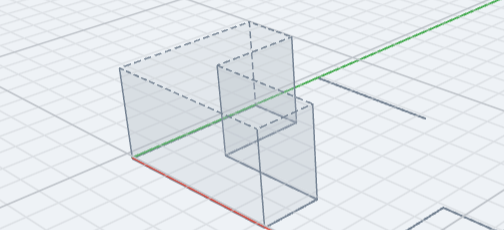
Until this week, drawing a line in nextra.structuralweb made a member: a section, a material and a role, before you knew where the line should end. Designers who sketch in Rhino work the other way round: shape first, decide later. nextra.structuralweb now does the same.
#Draw plain, assign after
Line, Polyline, Rectangle and Polygon now draw plain geometry: lines and outlines with no material and
no role. They are saved in the model file (the .nxd) like everything else, so Nextra Design and the Rhino plug-in see them too.
When the shape is right, click it and choose what it is: Member, Line support, Plain surface, Slab / wall
or Load panel.
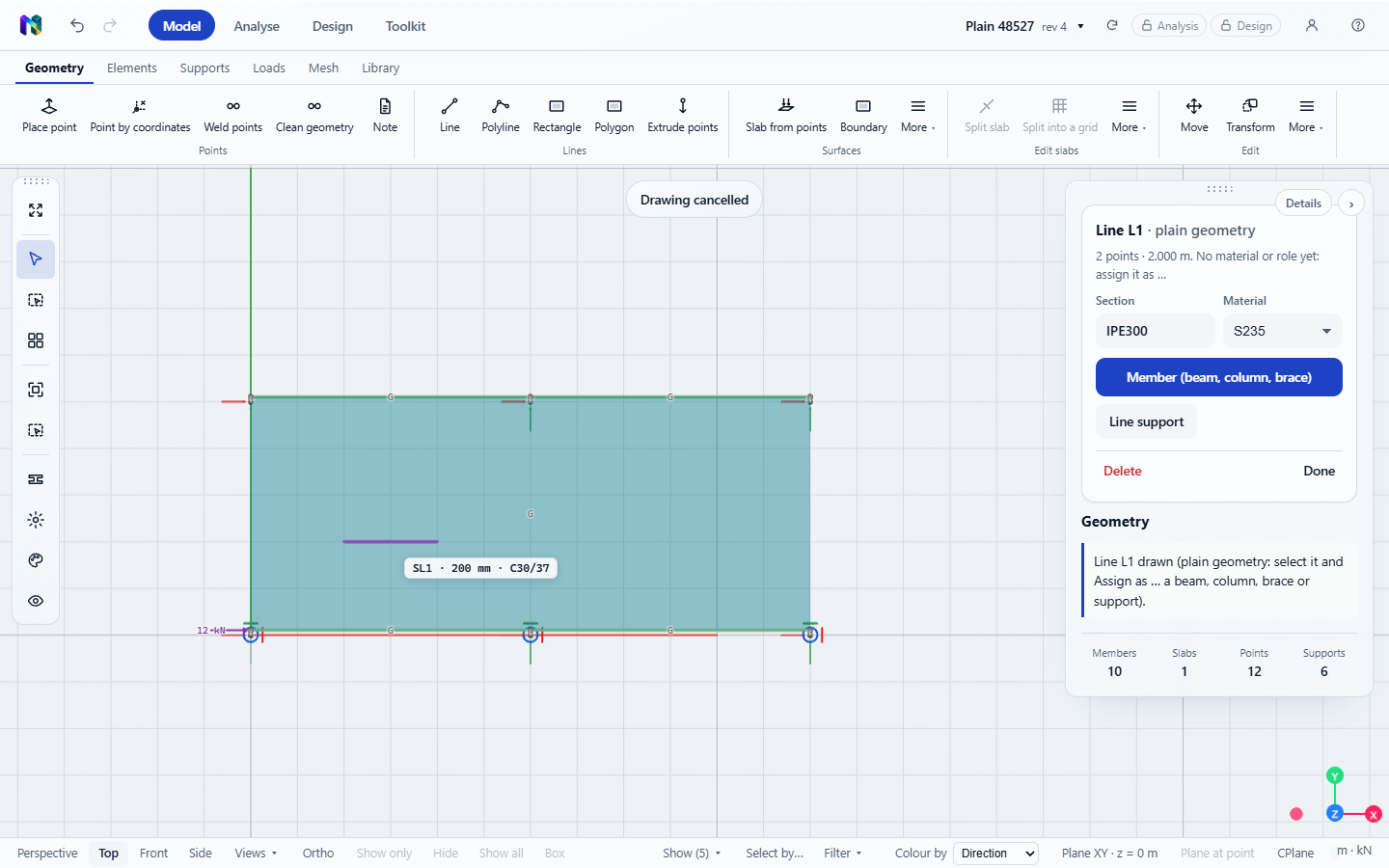
Each assignment is one undo step, and Back to plain turns an element back into plain geometry, keeping its loads.
#Shape it: the geometry operations
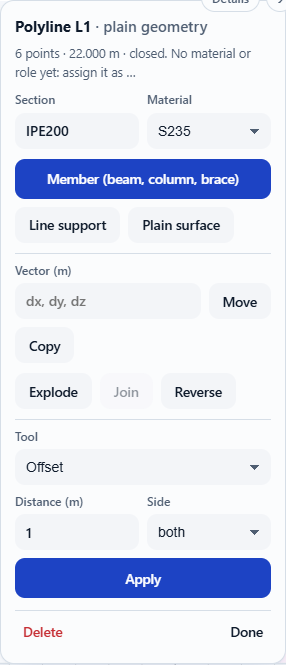
Pick one or more shapes, choose an operation on the ribbon (or in the card's Tool list), type its values, Apply.
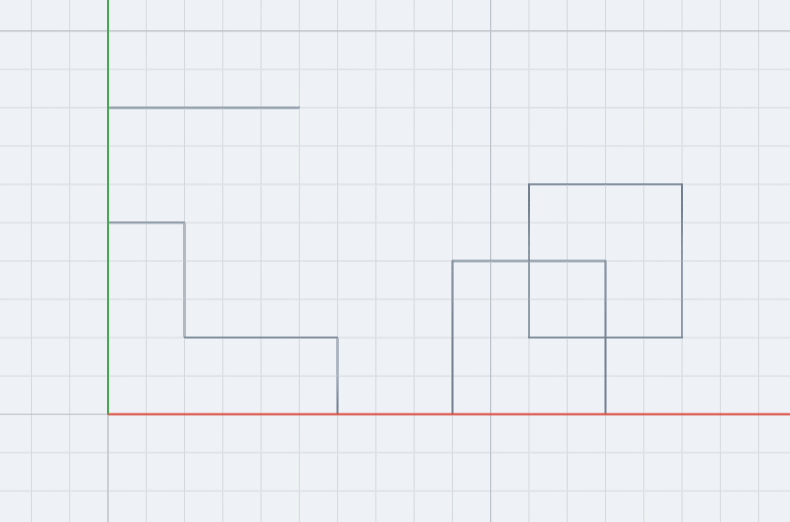
We start from three typed shapes: an L-shaped outline, two overlapping squares and a line.
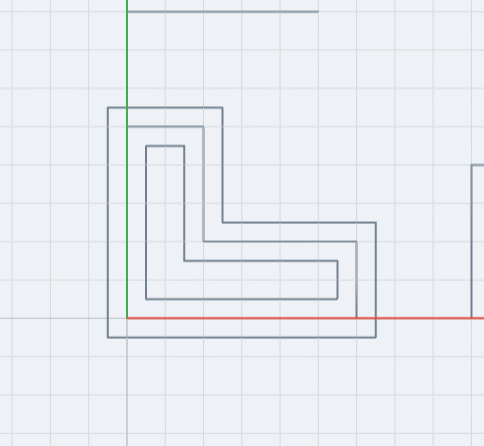
Offset inward or outward, for a slab edge or a wall's thickness:
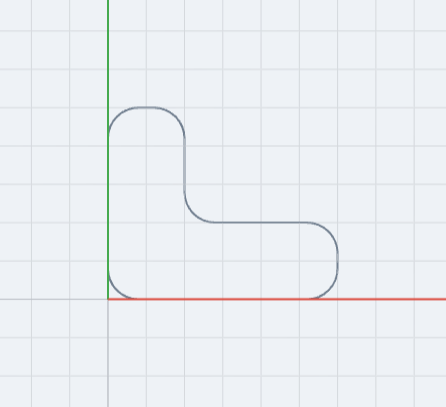
Fillet the corners with a radius (or Chamfer them):
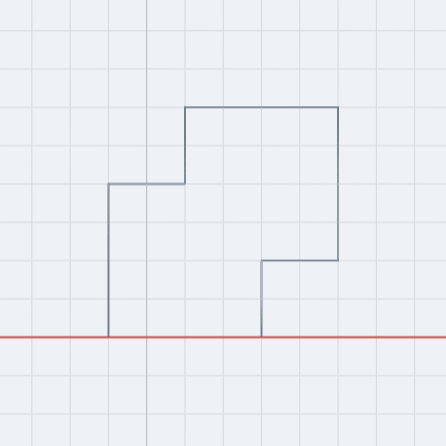
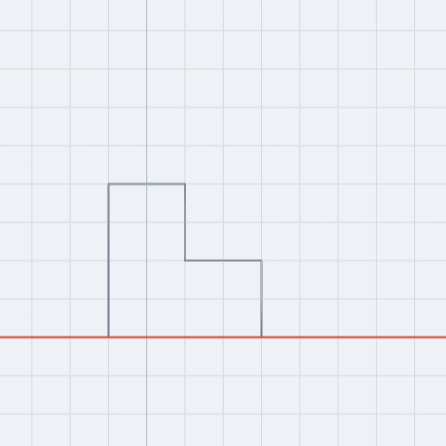
Curve booleans on closed outlines: union, difference, intersection.
From lines to surfaces: Extrude, Revolve, Sweep:
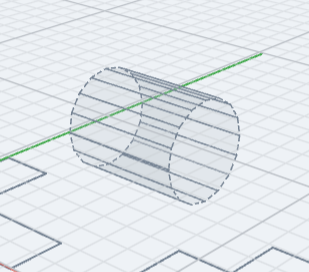
And the rest of what a modeller expects: Divide, Curve intersections, Close, Rebuild, Extend to boundary, Array (linear and polar), Rotate, Mirror, Scale, Project to the workplane, Measure (length, area, centroid).
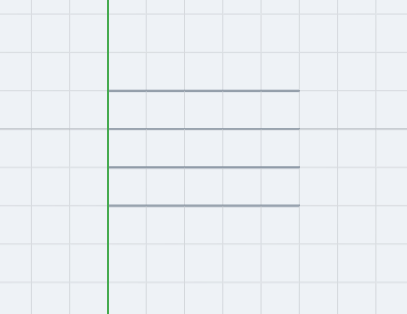
#The gumball
Pick a shape and the gumball appears at its centre, as in Rhino:
| Handle | Drag | Click or tap |
|---|---|---|
| Arrows (red X, green Y, blue Z) | move along the axis, in grid steps | type the distance |
| Dots on the arrows | extrude into surfaces | type the distance |
| Long arcs on the far side | rotate, 5° steps | type the angle |
| Hatched squares beside it | move in that plane | type dx, dy |
| Short line at an arrow tip | WireCut: cut the members and slabs the line crosses | |
| White circle | World, CPlane or Object orientation | |
| Small grey button | flip a line's direction or a surface's normal |
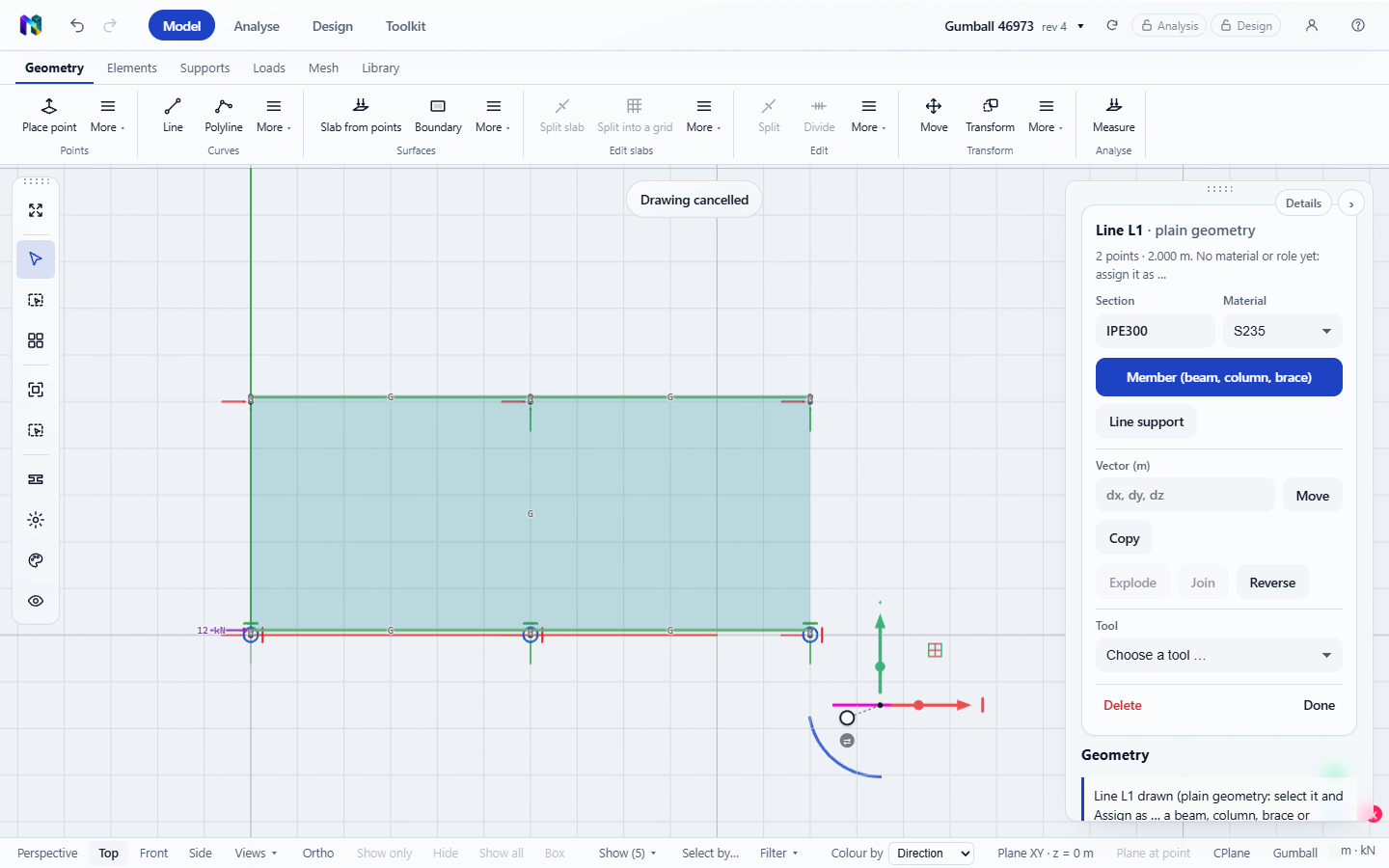
Axes pointing at you, and arcs or squares seen edge-on, hide themselves, so the gumball only shows what you can use in that view. Gumball in the status bar turns it off and on.
#On a phone too
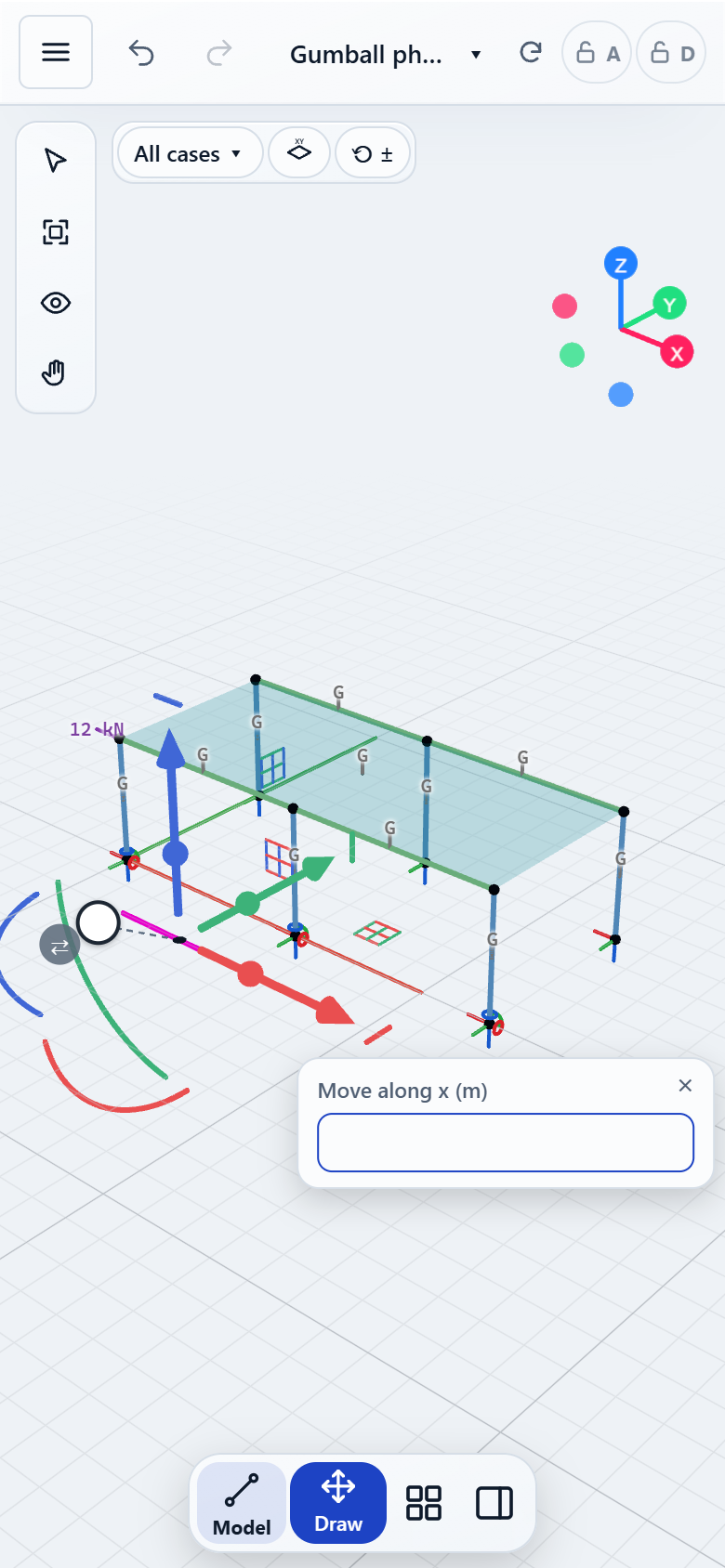
By touch the gumball is larger and every handle has a larger target. A tap on an arrow opens the box for the exact value; Mode tools → Gumball turns it off and on.
#Try it
- Open nextra.studio/structuralweb, sign in and start an Empty project.
- Geometry → Polyline, type points in the bar at the bottom (
0, 0, 0, then6, 0, 0…). - Click the shape, pick a tool, Apply; or drag the gumball.
- Assign as … when it is ready. The full guide: Geometry operations.