 Nextra
 Install Nextra AxisVM
About 5 minutes from download to your first request.
- Windows
- AxisVM X7 or newer
- Internet connection for setup
- ChatGPT desktop (any plan, also free) or Claude desktop (paid plan)
The pictures are simplified guides of the app menus. Labels can vary by version.
Add Nextra to ChatGPT
You do this once. ChatGPT then keeps the plug-in up to date for you.
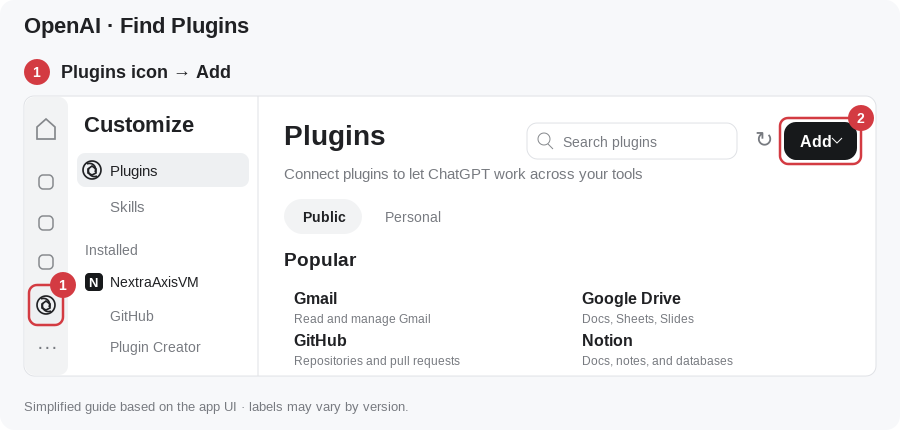
Works on any ChatGPT plan, also the free one. You need the ChatGPT desktop app.- Click the Plugins icon in the far-left bar, then Add at the top right.
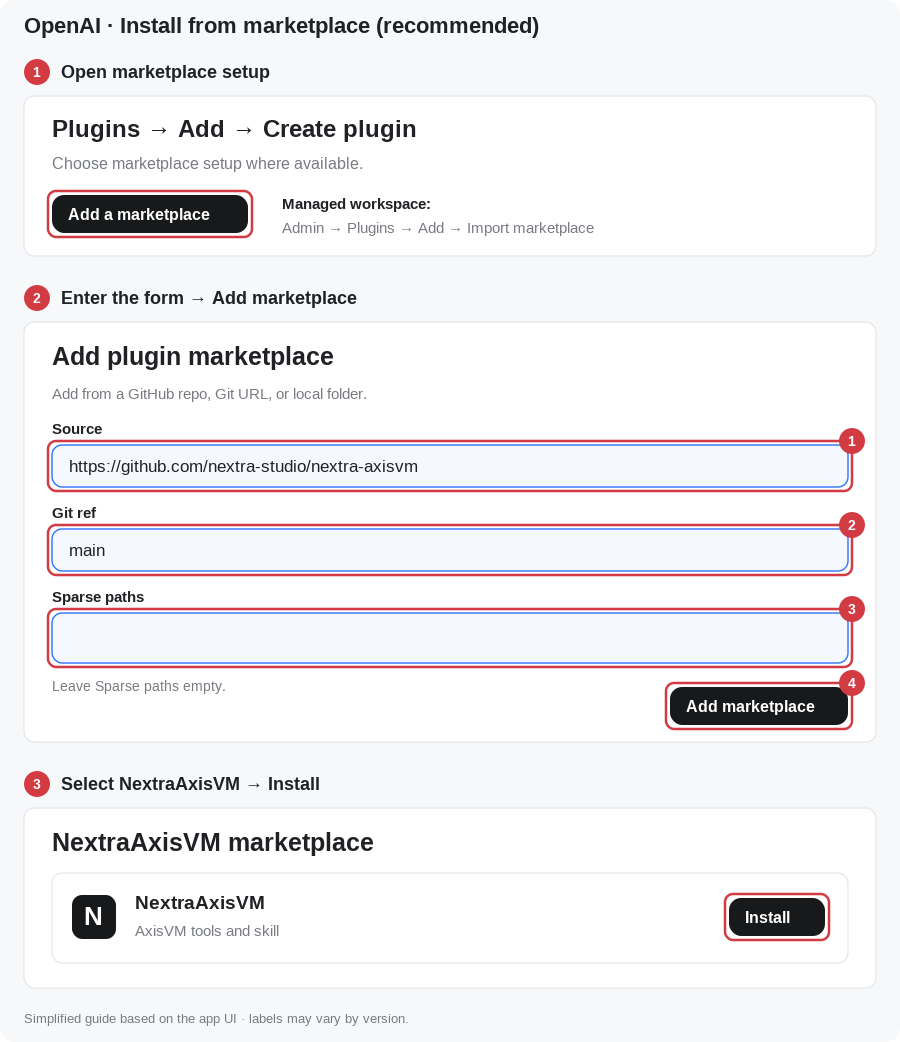
- Open Add, then Create plugin, then Add a marketplace.
- Fill in Add plugin marketplace exactly like this, then click Add marketplace:
- Source
- https://github.com/nextra-studio/nextra-axisvm
- Git ref
- main
- Sparse paths
- Leave empty
- Open NextraAxisVM, select NextraAxisVM, and click Install (or +).
 Add marketplace fails or says it cannot clone from Git? This sometimes happens in ChatGPT. Close ChatGPT completely: open Task Manager (type it in the Windows search), search ChatGPT, select it and click End task. Then start ChatGPT again and add the marketplace again.
Or install from a ZIP instead
Download the ChatGPT plug-in (ZIP)- Keep it zipped.
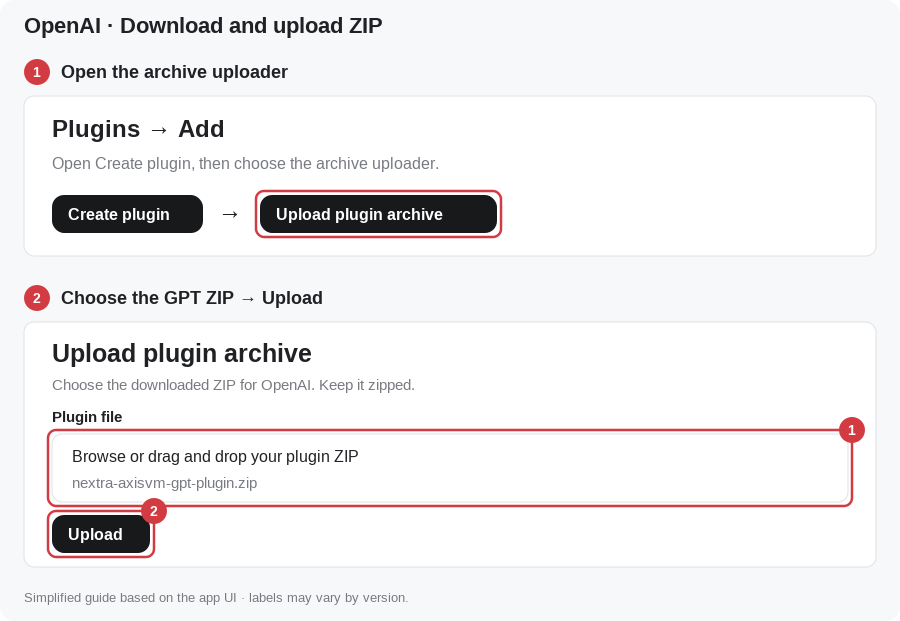
- From Add, open Create plugin, then Upload plugin archive (or Upload plugin).
- Select nextra-axisvm-gpt-plugin.zip and finish the installation. Repeat this for updates.
Set up the AxisVM connection
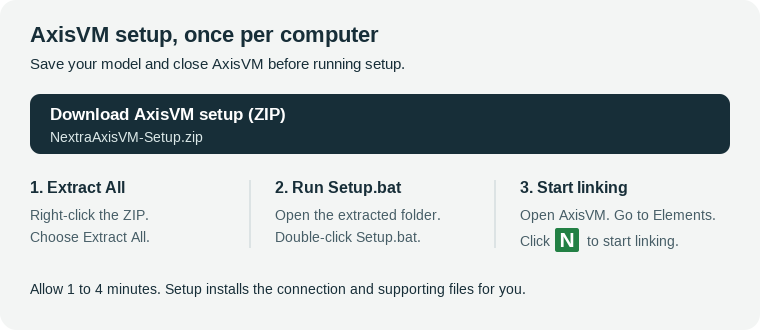
Download AxisVM setup (ZIP)- Save your model and close AxisVM. Download the setup ZIP using the button above.
- Right-click NextraAxisVM-Setup.zip, choose Extract All, open the extracted folder and double-click Setup.bat.
- Setup installs the connection and its supporting files for you. Allow about 1 to 4 minutes with an internet connection. Follow any prompts; administrator approval is only requested if the AxisVM folder needs it.
- When setup finishes, restart your AI app too if setup installed supporting software.
- Open AxisVM yourself and open your model (or an empty model). Go to the Elements tab and click the green Nextra “N” icon to start linking. Keep AxisVM open while you use the AI.
- Automatic alternative: after installing the AI plug-in, open AxisVM and send the first request below. The first tool call starts setup in the background. Wait 1 to 4 minutes, restart AxisVM, go to Elements and click the green Nextra “N” icon, then repeat your request. If setup cannot finish or needs administrator approval, use the download button above and run Setup.bat.
Send your first request
Start a new session in Work (not Chat): plug-ins do not run in Chat. Type @NextraAxisVM, then your request.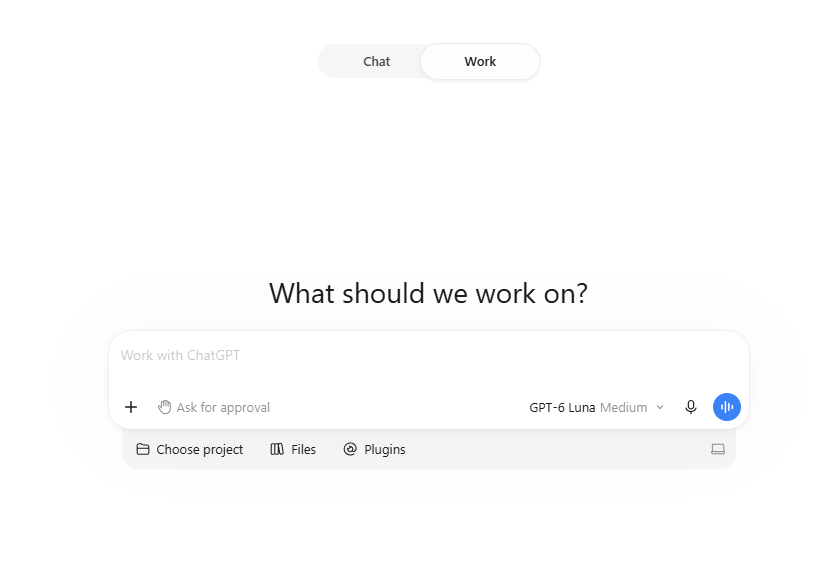
Open AxisVM X7 or newer, then send:
@NextraAxisVM Build a two-bay steel frame with a concrete slab in AxisVM and analyse it
Other AI agents
For any other agent that supports MCP: the agent kit has the skill, the server and the workspace settings. Extract it, open the folder as your agent's workspace and follow AGENTS.md inside.
Download the agent kit (ZIP)If something does not work
“Installing its Python environment”
First use. Wait 1 to 4 minutes, restart AxisVM, then go to Elements and click the green Nextra “N” icon before asking again.
AxisVM is open but not connected
Go to the Elements tab in AxisVM and click the green Nextra “N” icon, then retry your request. Do this again after restarting AxisVM. If it still cannot connect, start AxisVM and the AI app at the same privilege level, normally both without administrator rights.
The Nextra icon is missing
Run Setup.bat from the extracted setup ZIP, restart AxisVM, then go to Elements and click the green Nextra “N” icon.
A request hangs
AxisVM is showing a dialog. Answer it in AxisVM.
Several AxisVM windows are open
Tell the AI the file name.